


Last updated: October 17, 2024
TL;DR
To declutter your Mac:
- Delete unneeded files and organize with folders or Stacks.
- Find and delete large, old files to free up space.
- Regularly delete unnecessary files from the Downloads folder.
- Remove unused apps to improve performance.
- Use macOS tools to manage and free up storage.
Tried and Tested ✅: The methods and steps mentioned in this article have been tried and tested firsthand by Ojash Yadav on his MacBook Pro M3 and rechecked for errors on Hashir’s MacBook Air M2.
I used to ignore the clutter on my Mac until it started slowing everything down. I had to find a fix. After trying a few things, I found the best ways to clean it up and boost performance. In this post, I’ll share those tips to help you declutter and speed up your Mac.
10 Best Ways to Declutter Your Mac
How We Check Our Guides We use Apple’s support documents and current developer instructions to check the steps. Screenshots and menu names can differ between versions, so follow the branch for your Mac. Read our editorial process.
Below, I’ve shared the ten best ways to declutter your Mac:
1. Clean Up Your Desktop on Mac
Cleaning up your desktop on a Mac is a quick first step in decluttering. A cluttered desktop makes it hard to find what you need and can also slow down your Mac. Here’s how I clean up my desktop on Mac:
- 🗑️ Delete Unnecessary Files: Start by removing files, folders, and apps you no longer need. Drag them to the Bin or right-click and select Move to Bin.
- 📁 Create a Folder System: Organize your remaining items into folders. Right-click the desktop, select New Folder, and categorize your files (e.g., Work, Photos).
- 📂 Use Stacks for Automatic Organization: Enable macOS’s Stacks feature to automatically group files by type (e.g., images, documents). Right-click the desktop and select Use Stacks for instant organization.
2. Remove Large and Old Files
Identify and delete large or old files that take up valuable space and slow down your Mac. Here’s how to remove large and old files on your Mac:
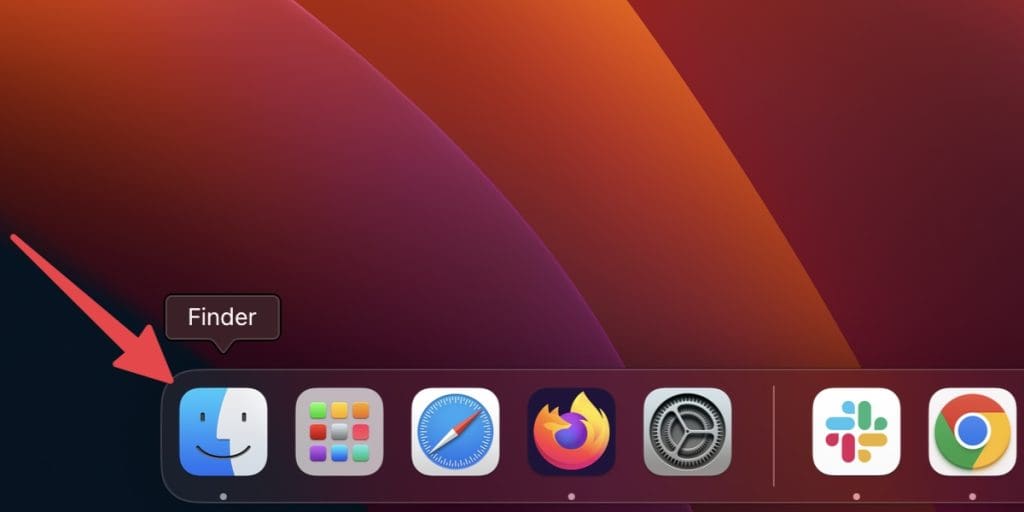
- Open Finder and go to your home folder. You can do this by clicking the Finder icon in the Dock or pressing Command ⌘ + Shift ⇧ + H on your keyboard.
- Click the search icon in the top right corner and type something.