

TL;DR
Here are some basic ways to use Mac Trackpad gestures:
- Tap to Click: Tap with one finger for a standard click.
- Right-click: Tap with two fingers for a right-click or context menu.
- Scroll: Slide two fingers up or down to scroll vertically or horizontally.
- Zoom In/Out: Pinch two fingers together or apart to zoom.
- Drag and Drop: Use three fingers to click and drag items, then release to drop them.
Tried and Tested ✅: The methods and steps mentioned in this article have been tried and tested firsthand by Ojash Yadav on his MacBook Pro M3 and rechecked for errors on Hashir’s MacBook Air M2.
Using your Mac trackpad is easy, but you might not be using it to its full potential. In this guide, I’ll show you how to use Mac Trackpad gestures. I’ll also share some basic and advanced trackpad gestures to navigate your Mac more smoothly.
Mastering Basic Mac Trackpad Gestures
Why You Can Trust MacBook Journal  We always conduct first-hand research and verify every method or solution we present, ensuring you receive reliable and effective advice. Learn more about our process.
Apple’s trackpad has built-in Multi-Touch gestures that can make your workflow more efficient. Here’s how to use Mac trackpad gestures:
1. Tap to Click
Single-finger tap functions as a click.

How to Turn On Tap to Click on Mac
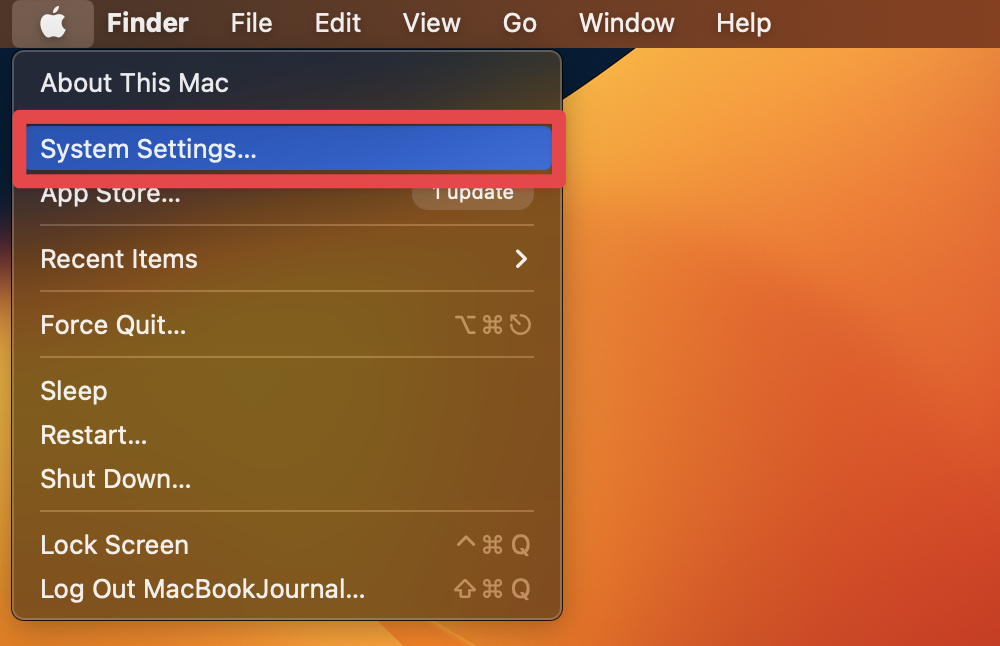
Turning on Tap to Click on a Mac lets you register a click by tapping the trackpad instead of pressing it down. Here’s how to turn it on:
- Click the Apple menu and select System Settings.
- Click Trackpad in the left sidebar and navigate to the Point & Click tab.

- Toggle on the Tap to click switch.
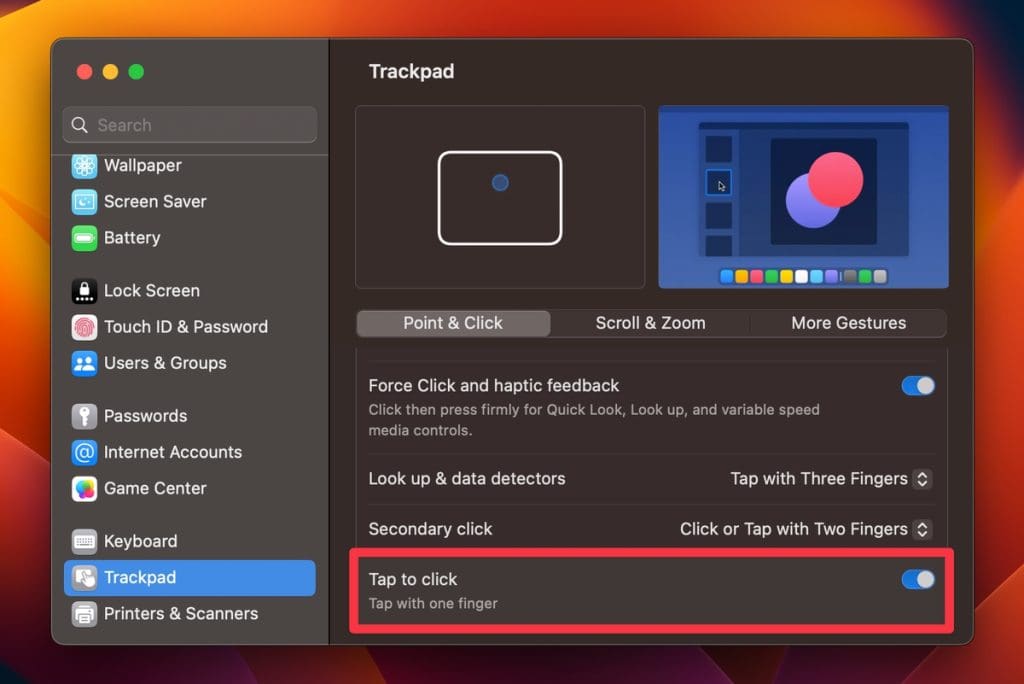
The specific options and labels may vary depending on your macOS version.</