



TL;DR
To see battery time remaining on Mac:
- Open Finder and go to Applications > Utilities > Activity Monitor.
- Click the Energy tab at the top of the window.
- At the bottom, find the Battery Time Remaining next to the Energy Impact score.
Tried and Tested ✅: The methods and steps mentioned in this article have been tried and tested firsthand by Ojash Yadav on his MacBook Pro M3 and rechecked for errors on Hashir’s MacBook Air M2.
Many Mac users relied on the battery time estimate, and when Apple removed it, it left us all guessing. Thankfully, there are easy ways to get that info, and I’ve found a few that work really well.
Before We Begin
After checking battery time remaining, review unwanted background software if runtime is shorter than expected. MacKeeper’s Smart Uninstaller lists installed apps, plugins and browser extensions, helping you remove selected items and detected leftovers.
Review Unwanted Apps After Checking Battery Runtime
MacKeeper’s Smart Uninstaller helps you review apps you no longer need and remove selected apps with their detected related files. Focus on software you have identified as unwanted background activity, then observe battery runtime during your usual work.
Follow these steps to uninstall unused apps on Mac using MacKeeper’s Smart Uninstaller:
- Get MacKeeper and install MacKeeper on your Mac.
- After installation, launch MacKeeper and click the Smart Uninstaller in the left-hand menu.

- Click Start Scan.

- Select the applications you want to delete from the list and click Remove Selected.

- Tap the Remove button on the pop-up to confirm the deletion.

- MacKeeper will uninstall the apps and remove associated files and folders. You will get a Removal Completed notification. If you want to scan your Mac again, click Rescan.

Compare Battery Runtime After App Changes
After removing selected apps with MacKeeper, check battery time remaining during a comparable workload. Use that observation to assess runtime changes rather than assuming app removal changes battery condition.
Why Can’t You See Battery Time Remaining on Mac?
You can’t see the battery time remaining on your Mac because Apple removed this feature in macOS Sierra 10.12.2.
Why: Apple removed the battery time estimate because users of the 2016 MacBook Pro, especially models with the Touch Bar, complained that it wasn’t accurate. As a result, Apple decided to drop the feature, leaving users with just the battery percentage.
While this feature is no longer available by default, you can still check the time remaining using a few workarounds, such as the Activity Monitor, Terminal, or third-party apps.
The battery time estimate is just that—an estimate. It can vary depending on what you’re doing, so don’t rely on it as an exact measure of how long your battery will last.
How to See Battery Time Remaining on Mac
How We Check Our Guides We use Apple’s support documents and current developer instructions to check the steps. Screenshots and menu names can differ between versions, so follow the branch for your Mac. Read our editorial process.
Here, I’ll share some simple methods to help you see the battery time remaining on Mac:
1. Via Activity Monitor
Here’s how to use Activity Monitor to see battery time remaining on Mac:
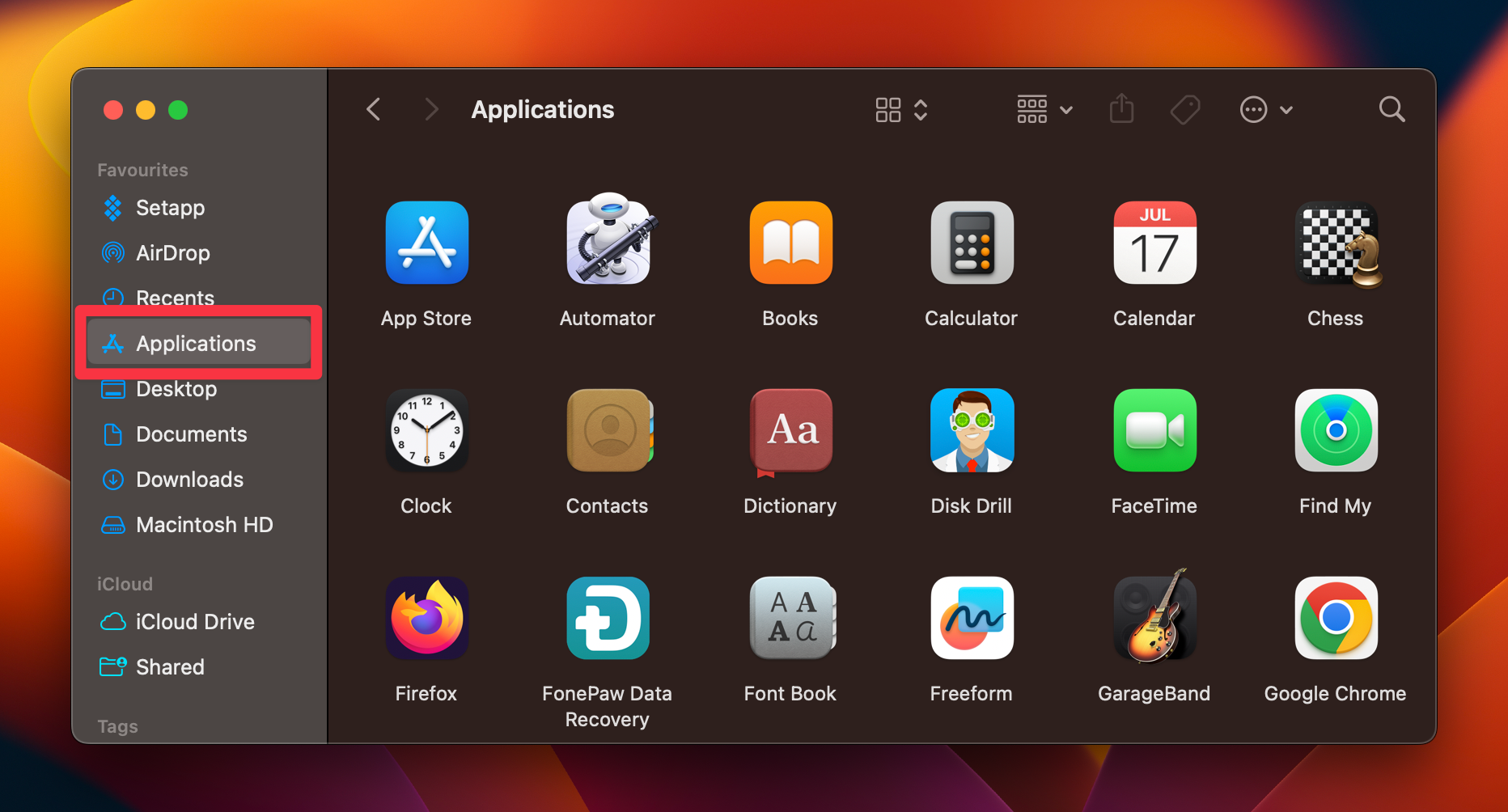
- Launch Finder and click Applications in the left sidebar.
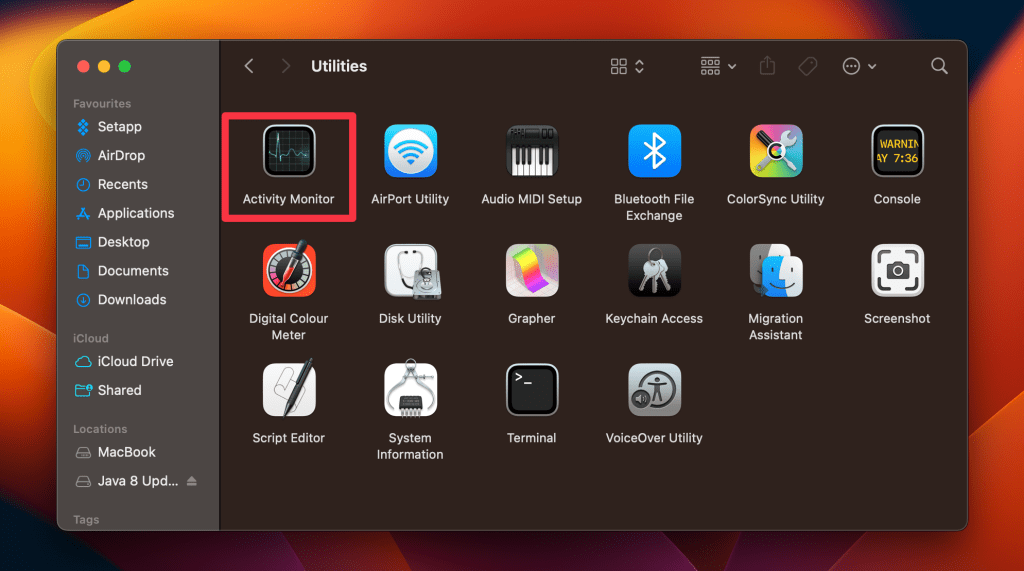
- In the Applications folder, go to Utilities and launch Activity Monitor.
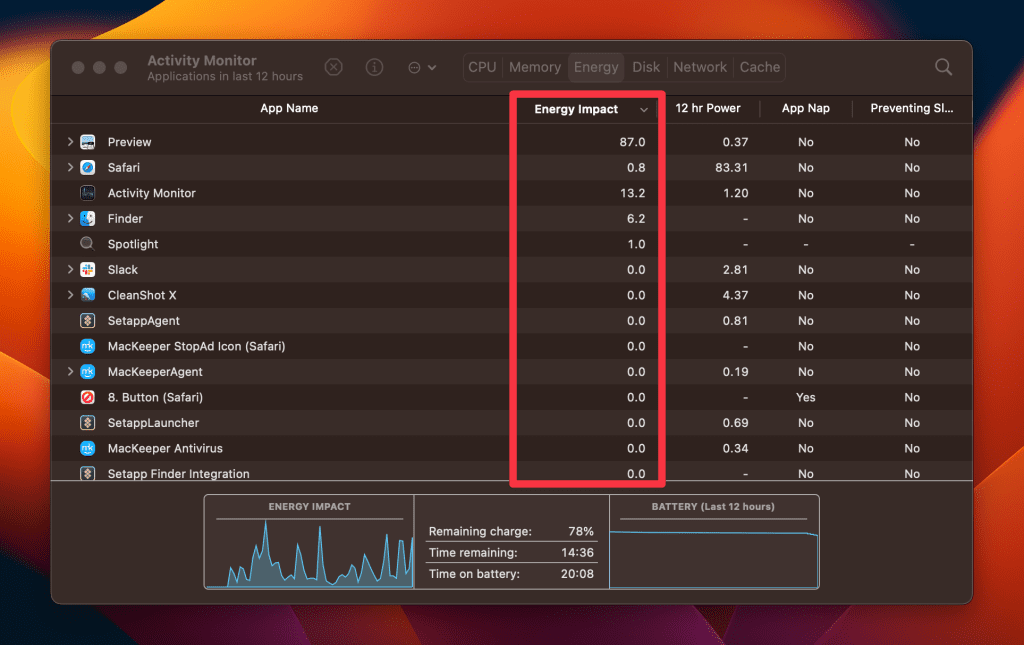
- Click the Energy tab at the top of the Activity Monitor window.

- At the bottom of the window, there’s an Energy Impact score that gives an average of the last 12 hours. Next to it, you’ll find the Battery Time Remaining estimate.

- Here, you’ll also see an overview of the energy usage of your apps. Look for the Energy Impact column to see which apps consume the most power.
2. Using Third-Party Apps
Several third-party apps can do the job effectively if you’re looking for a more user-friendly and visually appealing way to monitor your Mac’s battery life. Here is how you can use Battery Monitor tool to check remaining battery time:
Be careful when downloading third-party apps for battery monitoring. Always use trusted sources like the Mac App Store or official websites to avoid malware.
- Download Battery Monitor from the Mac App Store or Rocky Sand Studio’s website.

- Open the app from your Applications folder.

- A battery icon will appear in your Mac’s menu bar.
- Click the icon to see the battery percentage and time remaining estimate.

- The app updates the time estimate in real-time based on your current usage.
3. Through Terminal
Here’s a step-by-step guide to using Terminal to see battery time remaining on Mac:
- Launch Finder and click Applications in the left sidebar.
- In the Applications folder, navigate to Utilities and launch Terminal.

- Once the Terminal window is open, type in the following command and press Enter:
pmset -g batt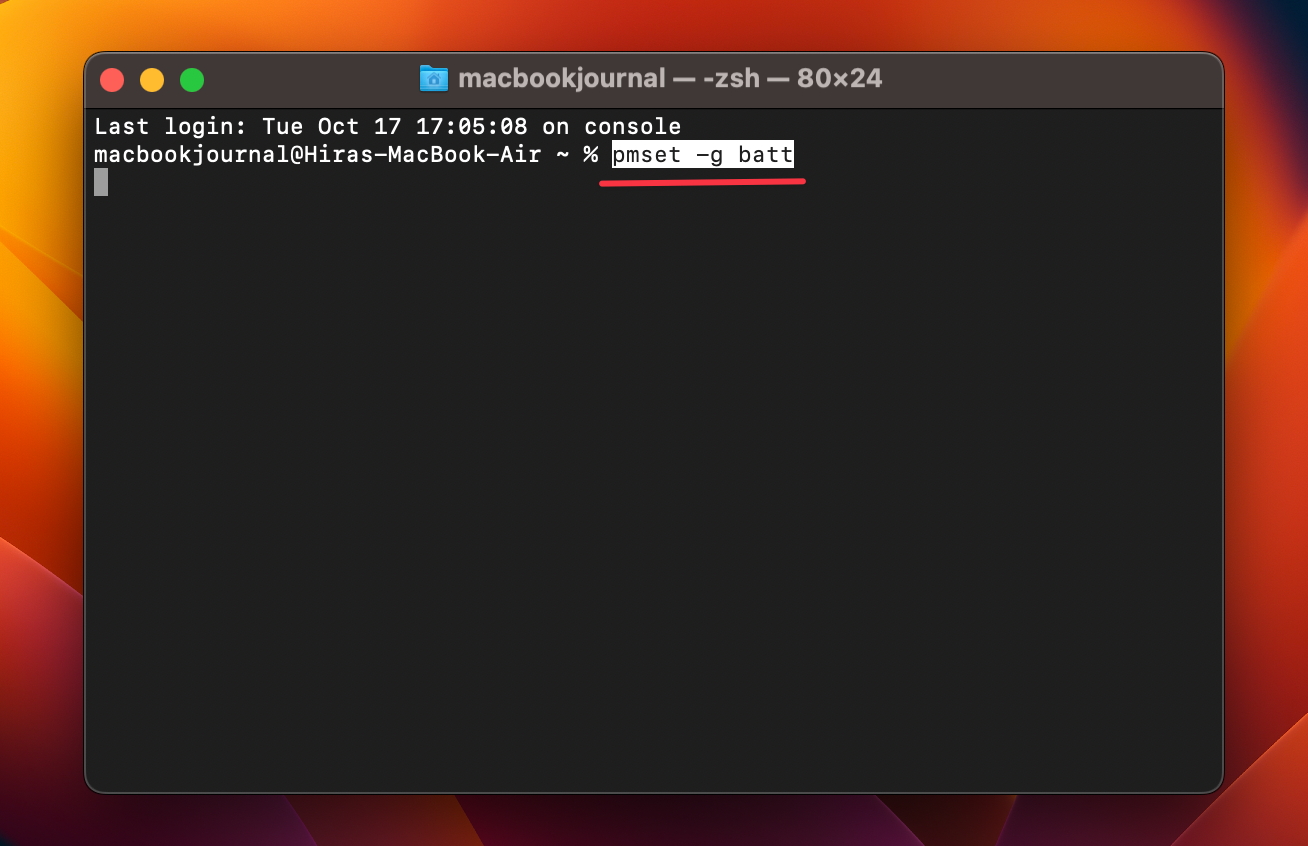
- Terminal will display battery information, including the percentage of battery charge remaining and an estimate of the time left before the battery is depleted.
- The time remaining will be displayed in a format like 5:16 remaining, indicating 5 hours and 16 minutes left on the battery.

Did You Know? Macs automatically adjust battery usage based on your activity, which is why the remaining time can change quickly, especially if you’re switching between light and heavy tasks like web browsing and video editing.
Keep Track of Mac’s Remaining Battery Time
Using built-in tools like Activity Monitor or third-party apps, you can easily track your Mac’s battery life. It’s not just about seeing the remaining time, it’s also about making the most of it for better productivity and enjoyment.
Here are some more tips to stay informed:
- If your MacBook battery is stuck at 1%, you can fix it by restarting the Mac, updating macOS, and resetting SMC.
- Check the cable, adapter, and port, or reset SMC/NVRAM if your MacBook isn’t charging.
- “Service Recommended” on Mac means it’s time to replace your Mac’s battery.
Frequently Asked Questions
Is battery percentage and battery time remaining on Mac the same thing?
How long is my Mac battery supposed to last?
How can I bring back ‘Battery Time Remaining’ in macOS Sierra?
Affiliate disclosure: MacBook Journal may earn a commission when you buy through links on this page, at no extra cost to you.
How helpful was this article?
Your feedback helps us improve our guides.