




TL;DR
Save work and clear any app prompt before trying Shut Down again.
- Quit the blocked app normally if possible.
- Force quit only that app after accepting possible loss of unsaved changes.
- Use a forced shutdown only if normal shutdown remains unavailable.
Sources: Apple’s shutdown guidance
You choose Shut Down, but the desktop stays on or an app refuses to close. If your Mac will not shut down, first check what still responds.
A save dialog needs a different response from a Mac with no working menus or keyboard.
Work through the checks that match your screen, starting with the apps you can still use. Once the Mac is usable again, investigate repeated failures rather than making forced power-offs your normal routine.
Check what is preventing shutdown
Keep the MacBook’s lid open while checking it. Normal shutdown needs to finish before you close the display.
A black screen by itself can also be a sleeping Mac or a display problem, so consider what happened immediately before it went dark.
- An app or save dialog is still visible: save what you need and close the app normally before retrying Shut Down.
- One app is frozen but menus still work: use the selected-app Force Quit steps below. Don’t force quit every app or unrelated system process.
- The whole Mac ignores menus, keyboard, and pointer: use the last-resort power-off section only after normal controls are unavailable.
- The Mac comes back with a restart error: use the repeated-restart checks below. That symptom is different from a window blocking shutdown.
- A macOS installer is showing progress: allow it time. Apple’s progress-bar guidance explains that an installation can pause for a long time and may need to finish overnight.
Save work and quit the blocked app normally
A normal quit gives an app a chance to save changes before it closes. Apple’s app-quit instructions put this before Force Quit. If the app still responds, start there.
- Save open documents in apps that still respond. If an app is actively saving, exporting, or copying a file, let that operation finish before trying to close it.
- Bring the app to the front and check for a save, export, or confirmation dialog. Choose whether to save or cancel that operation. Don’t discard work just to clear the dialog.
- Press Command-Q, or choose Quit from that app’s menu. Close other apps normally when practical, while keeping your work saved.
- Choose Apple menu > Shut Down and confirm. Wait for the shutdown process to finish before closing the MacBook’s lid.

If the same app blocks shutdown again, note its name and any message shown. That gives you a specific app to investigate after the Mac is working.
For the ordinary power-off procedure, see the MacBook shutdown guide.
Force quit only an unresponsive app
Force Quit can discard unsaved changes in the selected app. Save anything you can first, and leave responsive apps alone. Use it when the app won’t quit normally, following Apple’s Force Quit controls.
- Press Option-Command-Esc, or choose Apple menu > Force Quit.
- In Force Quit Applications, select the app that is not responding. Check its name before proceeding.
- Click Force Quit and confirm if asked. Accept that changes not saved by that app may be lost.
- Try Apple menu > Shut Down again. If the Mac still responds but the app cannot be force quit, save work elsewhere and try Apple menu > Restart. After it starts normally, try a normal shutdown.
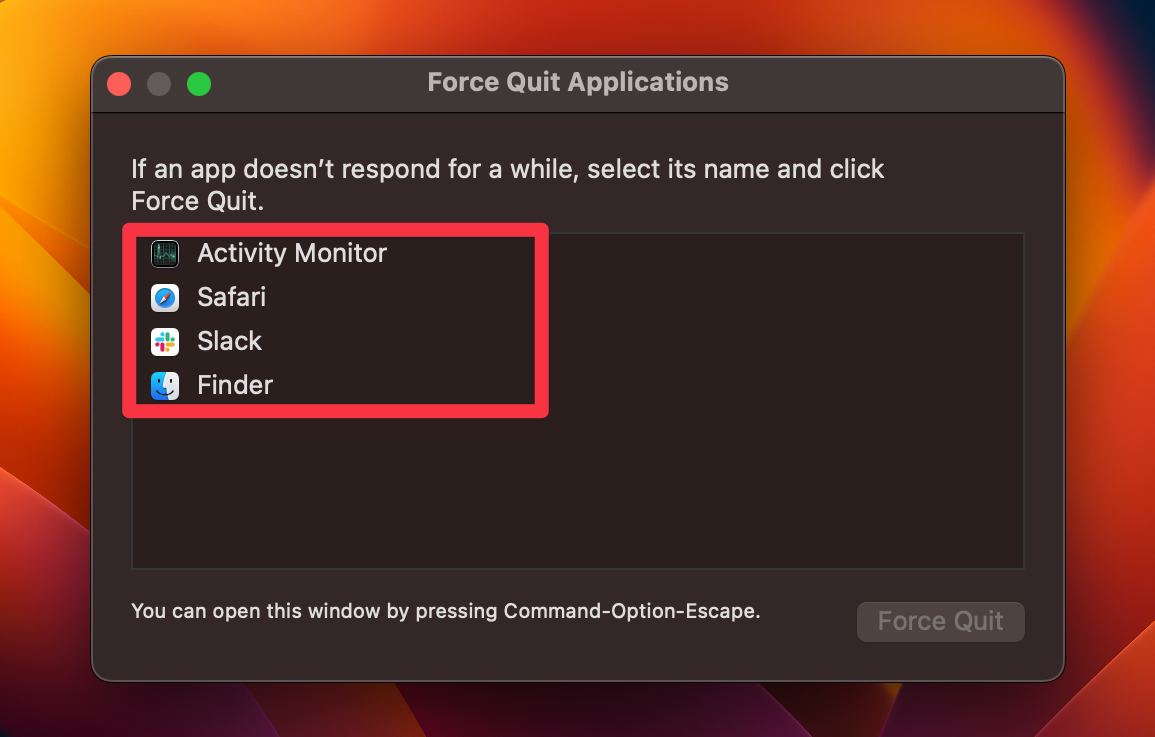
If the pointer is stuck but the keyboard works, try the shortcut before assuming the whole Mac has frozen. The frozen Mac guide helps separate one-app, pointer, and whole-system failures.
Last resort: turn off a completely unresponsive Mac
A forced shutdown can lose unsaved changes in open documents. Use it only when the Mac is unresponsive and the normal app, shutdown, or restart controls are unavailable.
The power-button shutdown instruction is to hold until the Mac shuts down, not to treat a fixed time as a guaranteed repair.
If a macOS or firmware installation is visibly underway, don’t use this as a shortcut around waiting. Follow the installation progress guidance for that specific symptom, or get help if it never progresses.
- Press and hold the power button on the Mac itself until it turns off. On a Mac laptop with Touch ID, press and hold the built-in Touch ID button. Apple’s forced-off instructions identify that laptop control.
- Release the button after the Mac turns off. If you need to start it again, press and release the power button normally.
- When the Mac starts, check your saved documents and any app recovery prompt. If it responds normally, use the regular Apple-menu shutdown rather than repeating forced power-offs.
If holding the correct button does not turn it off, or the button is damaged, stop repeated attempts and seek Apple or a qualified repair provider’s help.
Don’t disconnect a storage device mid-transfer, pull a desktop’s power plug as a routine workaround, or open the Mac to disconnect its battery.
If shutdown keeps failing after the Mac starts
Record whether the failure follows the same app, a connected device, or every shutdown attempt. Also note the Mac model and macOS version from Apple menu > About This Mac.
Apple’s model-identification guide helps you find the full model name.
- If one app repeatedly hangs, update that app before removing it. In the App Store, choose Updates in the sidebar, then Update beside the app. For apps obtained elsewhere, check the developer’s update instructions. App Store update controls apply to apps from the store.
- After saving and backing up important work, check System Settings > General > Software Update for a compatible update. Apple’s update procedure includes backup and installation precautions. Don’t start an update while you need to troubleshoot an active shutdown hang.
- If a device may be involved, wait until the Mac has shut down before disconnecting nonessential peripherals. Keep a desktop’s display, keyboard, and mouse or trackpad connected. Test again, then reconnect one device at a time. Apple’s device-isolation steps are documented for unexpected restarts and can help you organize that comparison.
- If failures continue, use the appropriate safe-mode branch below. Keep a record of what changes so you can describe it to the app developer or support provider.
If the Mac actually restarts and reports that it restarted because of a problem, follow Apple’s unexpected-restart guidance. Software and attached devices can be involved.
A restart error is not proof that the shutdown menu is broken or that a reset will fix it.
Use safe mode to investigate a recurring problem
Safe mode can help identify issues caused by software that loads at startup. It is a diagnostic comparison, not a guaranteed shutdown repair. Apple’s safe-mode guide gives different steps for Apple silicon and Intel Macs.
Check Apple menu > About This Mac first. A Chip entry identifies Apple silicon, while a Processor entry naming Intel identifies an Intel Mac.
Start this test after you can get the Mac turned off or restarted using the appropriate earlier steps.
Mac with Apple silicon
- With the Mac fully shut down, press and hold its power button until Loading startup options appears.
- Select the startup volume. Hold Shift, then click Continue in Safe Mode.
- The Mac restarts automatically. At the login window, look for Safe Boot in the menu bar and sign in.
Intel-based Mac
- Turn on or restart the Mac, then immediately hold Shift until the login window appears.
- Log in. You may need to log in again. Look for Safe Boot on the first or second login window.
Save your work and try a normal shutdown from safe mode. Start normally and compare. Record any change, but do not treat it as proof against a particular app or start deleting startup files.
Stop repeated forced shutdowns and get the right support
If the Mac now won’t start, that is a different problem from an app blocking shutdown. Use Apple’s no-power checks for a Mac that shows no sign of turning on.
If it powers on but stalls at an Apple logo or progress bar, use the startup progress guidance instead.
Recovery is for the repair or startup investigation that actually calls for it. Entering Recovery alone is not a shutdown fix. If support directs you there, use Apple’s Recovery instructions for your model:
- Apple silicon: from a turned-off Mac, hold the power button until startup options appear. Choose Options > Continue.
- Intel: turn the Mac on and immediately hold Command-R until an Apple logo or spinning globe appears.
Don’t choose Erase, reinstall macOS, delete preference files, or reset settings simply because Recovery offers tools. Keep a backup before repair work and ask for help when the correct next action is unclear.
On a managed work or school Mac, involve its administrator before changing its setup.
Seek service if the Mac remains unresponsive, repeatedly fails across apps, or has a damaged power control. Keep the exact error, app name, model, and the results of the normal-quit and safe-mode checks.
Those details are more useful than repeating a list of resets.
Frequently Asked Questions
Why does Finder show Relaunch instead of Force Quit?
Finder stays open as part of the Mac interface. If it stops responding, select Finder in the Force Quit window and click Relaunch to close and reopen it.
That action targets Finder, so don’t select every other app as well. Apple’s Finder instructions describe the different button.
Can I close the MacBook lid instead of shutting down?
Closing a Mac laptop’s display normally puts it to sleep. It is not the same as completing Shut Down. If shutdown is already underway, keep the lid open until it finishes.
Apple’s sleep controls and shutdown precautions distinguish these actions.
Why do the same windows return after I force the Mac off?
The Mac uses its most recent Reopen windows when logging back in setting after an immediate forced shutdown or restart.
When you next shut down normally, deselect that checkbox if you don’t want those windows restored. This does not prove the previous shutdown failed. Apple’s window-restoration rules explain the behavior.
Why must I type my password after turning the Mac back on?
macOS requires your password when you start the Mac, even if you normally unlock it with Touch ID. Entering the password after startup is expected and is not by itself evidence of a shutdown fault.
Apple’s Touch ID guidance describes this security requirement.
If menus still work, use Apple menu > Shut Down or Restart after saving your work. If the whole Mac is unresponsive, Apple’s last-resort instructions use the Mac’s power button.
Get repair help if that control is damaged rather than relying on more key combinations. Apple’s escalation steps show this boundary.
Should I reset the SMC on an Apple silicon Mac?
No. Apple silicon does not need an SMC reset, and Intel reset steps are not a general shutdown fix. Start with the app and normal-shutdown checks above. Apple’s SMC distinction explains the hardware distinction.
Affiliate disclosure: MacBook Journal may earn a commission when you buy through links on this page, at no extra cost to you.
How helpful was this article?
Your feedback helps us improve our guides.