

Quick answer
Check the mouse’s power and battery, then Bluetooth and the surface before changing settings.
- If it connects but tracking feels wrong, review Mouse settings.
- Charging steps depend on the Magic Mouse generation.
- These checks also distinguish Apple pointing devices from third-party models.
A Magic Mouse that will not move, click, or stay connected can have a simple power or connection problem. Start with the checks below in order.
If you use a third-party mouse, follow its maker’s pairing or receiver instructions: a USB receiver is different from Bluetooth.
Start with the symptom
No movement at all: check power and charge, then connection. Cursor moves but clicks or scrolling do not: check the relevant Mouse or Accessibility setting. Only one app is affected: test the pointer in another app before changing system settings. If the pointer stays stuck while the keyboard works, use our frozen cursor checks to navigate and save work.
1. Check power and charging
For model-specific pairing and charging cables, see Apple’s connection instructions.
Turn Magic Mouse off until no green shows on its bottom switch, wait a few seconds, then switch it on until green appears. When connected, check its charge in Control Center > Bluetooth. For a replaceable-battery Apple Wireless Mouse, turn it off and fit the correct fresh batteries; it has no charging port.

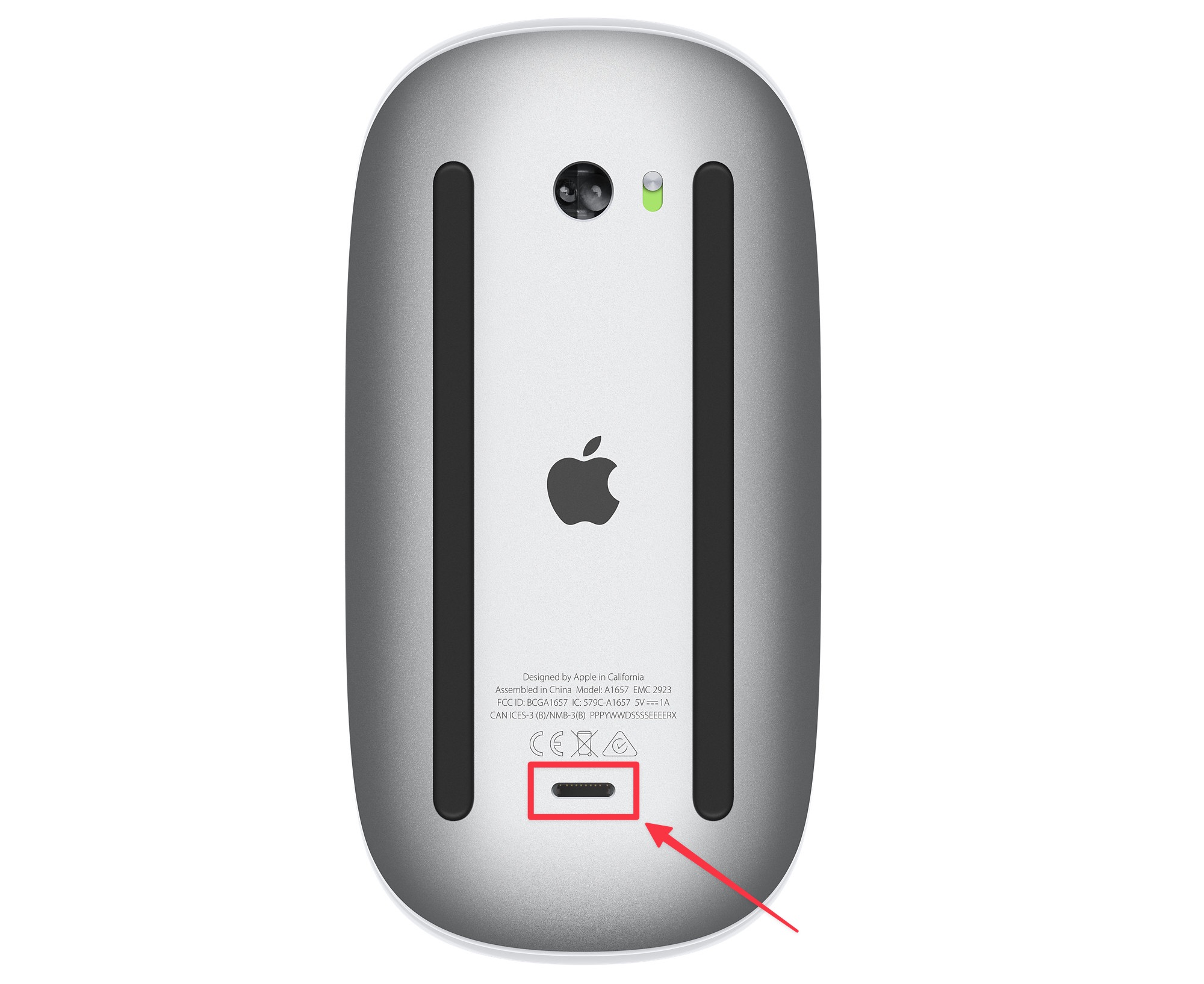
Rechargeable Magic Mouse models charge through the connector on the underside. Use a compatible cable and leave it connected for about a minute before disconnecting.
Apple says this can pair the accessory and charge its built-in battery. Identify your model before buying or choosing a cable. The current USB-C Magic Mouse and earlier Lightning model use different connectors.
Because the port is on the underside, the mouse cannot be used as a wired mouse while connected for charging.
If it still reports low charge after charging, try a known-good compatible cable and power source; do not probe or scrape the port.
2. Confirm the connection
Use your Mac’s built-in trackpad or another working pointing device. Open Apple menu > System Settings > Bluetooth and make sure Bluetooth is on. If the Magic Mouse appears, check its connection status.
If needed, switch the mouse off and on, then connect it again from this screen. On older macOS versions, the layout and labels may differ; use the Bluetooth pane in System Preferences.
If it will not reconnect, connect a compatible charging/data cable between a rechargeable Magic Mouse and the Mac for about one minute, then disconnect it and test. This can pair and charge supported rechargeable accessories.
It does not apply to replaceable-battery models. Avoid removing every paired device as a first step; that can leave you without a working pointer.

A third-party wireless mouse may use Bluetooth or a small USB receiver. For Bluetooth, pair it in System Settings > Bluetooth. For a receiver, connect it directly to the Mac or through a known-working adapter.
Then follow the mouse maker’s instructions. A receiver-based mouse does not appear as a Bluetooth device.
3. Separate pointer tracking from click problems
Apple explains tracking and click settings and Pointer Control separately.
If the cursor moves, open Apple menu > System Settings > Mouse and check Tracking speed. Try a middle setting and move the pointer while adjusting it.
For a trackpad, open Trackpad and review its Point & Click settings. If only secondary click, double-click, or scrolling is affected, check that specific control rather than changing several settings at once.

For click timing, scrolling, Mouse Keys, or pointer-control options, open System Settings > Accessibility > Pointer Control. These controls can change how a click or scroll is recognized.
If you use a mouse with its own configuration app, check that app only after the built-in settings.
4. Test the surface, port, and another device
Turn the mouse over and check the sensor window for visible dirt. Wipe it gently with a soft, dry cloth. Test on a plain, non-reflective surface or mouse pad.
Do not spray cleaner or compressed air into an opening.

For a wired mouse or USB receiver, test another Mac port without the hub or adapter. Compare a known-working mouse on this Mac and the affected mouse on another compatible computer if available. Note whether the issue follows the mouse or stays with the Mac, then reconnect the hub.
If the mouse works on another device but no pointing device works reliably on this Mac, restart the Mac and check for macOS updates through System Settings > General > Software Update. Save work first.
Do not delete mouse preference files or reset the SMC as general mouse fixes. Apple says an SMC reset is usually unnecessary and is for certain issues on Intel-based Macs.
Apple silicon Macs do not use that Intel reset procedure.
When to get service
If the mouse will not power on after the correct battery or cable checks, has visible damage, or fails on more than one compatible device, contact Apple Support or the mouse maker.
If multiple pointing devices fail only on this Mac after a restart, contact Apple Support with your Mac model and macOS version.
You can also review our guide to Mac USB port problems if a wired mouse or receiver is not detected.
Frequently asked questions
Why is my Apple mouse not connecting to my Mac?
Check that the mouse is on and charged or has fresh batteries, then confirm Bluetooth is on in System Settings.
For a rechargeable Magic Mouse, connect a compatible cable for about a minute to pair and charge it, then disconnect and test.
A USB-receiver mouse needs its receiver and does not pair through Bluetooth.
My Apple mouse is connected but not responding. What should I check?
Test movement in another app and on another surface.
If the pointer moves but a click or scroll does not work as expected, review System Settings > Mouse and Accessibility > Pointer Control.
If no movement works, restart the mouse and check its charge and connection.
Can I use Magic Mouse while it charges?
No. The charging connector is on the underside, so Magic Mouse cannot be used as a wired mouse while the cable is connected.
Charge it briefly, disconnect it, and then use it wirelessly.
Why is my Magic Mouse not charging?
Check whether your mouse uses USB-C or Lightning, then try a compatible known-good cable and power source.
Check charge in Control Center > Bluetooth after reconnecting. If it still will not charge, contact Apple Support rather than probing the port.
Should I reset the SMC because my mouse stopped working?
Usually, no. Apple says an SMC reset is generally unnecessary and may help certain power or hardware issues on Intel-based Macs.
It is not a routine Bluetooth-mouse step, and the Intel reset procedure does not apply to Apple silicon Macs.
Affiliate disclosure: MacBook Journal may earn a commission when you buy through links on this page, at no extra cost to you.
How helpful was this article?
Your feedback helps us improve our guides.