

TL;DR
Delete a Safari bookmark from Bookmarks > Show Bookmarks, after considering iCloud sync.
- Control-click the unwanted bookmark and choose Delete.
- For a larger cleanup, export a bookmarks-only backup first.
- iCloud may remove deleted bookmarks from other synced devices too.
You open Safari’s Favorites and find old links mixed in with websites you still use.
Before you delete Safari bookmarks on your Mac, decide whether you want to remove saved links or just hide them from view.
That choice matters when the same bookmarks also appear on your iPhone or iPad.
Use Safari’s built-in controls to remove one link, a selected group, or an unwanted folder. The steps below cover Favorites, a backup before bulk deletion, and recovery if you remove a link you need.
Before You Delete Safari Bookmarks
If Safari is enabled in iCloud on devices using the same Apple Account, bookmark changes sync between them. Deleting a bookmark on your Mac therefore removes it from those synced devices too.
iCloud keeps bookmarks updated across devices, including their folders and organization. Check before deleting if you want to keep the link on another device.
A Safari profile isn’t a separate backup of your bookmarks. Work and Personal profiles can show different Favorites folders, but their bookmarks remain available through the same Bookmarks menu and sidebar.
Safari’s profile guide explains this shared collection. Moving a link to a different folder may suit you better than deleting it.
The sidebar and export steps follow Apple’s Safari guide for macOS 27, with an older export path labeled for macOS Sonoma 14. The screenshots show older interfaces, so use the written steps when controls differ.
Back Up Bookmarks Before a Bulk Cleanup
Save an export while your bookmark collection still contains the links you might need. Keep that file somewhere you can find again, and confirm it was saved before continuing.
An iCloud-synced collection changes with your edits, so it isn’t an untouched copy of your pre-cleanup bookmarks.
Current Safari Export: Select Only Bookmarks
- Open Safari and choose File > Export Browsing Data to File.
- In the data choices, select Bookmarks and nothing else. Deselect History, Extensions, Credit cards, and Passwords if any are selected.
- If a profile selector appears, choose the profile offered for your export. Bookmark data is shared across profiles, so this won’t create a separate Work-only bookmark backup.
- Continue through the save prompts, give the file a recognizable name, and choose a location you’ll remember.
- Confirm the saved .zip file exists before you start deleting bookmarks.
The current export workflow can include passwords and credit cards, and the exported data isn’t encrypted. Leave those sensitive categories out of a bookmark backup.
Even a bookmarks-only file reveals your saved website links, so keep it private while you need it.
Older Safari on macOS Sonoma 14: HTML Export
In the macOS Sonoma export workflow, choose File > Export > Bookmarks. Safari saves a file named Safari Bookmarks.html. Use the path that matches your Safari interface. Keep the original export file; renaming a current ZIP file to HTML does not convert it to the older format.
How to Delete One Safari Bookmark
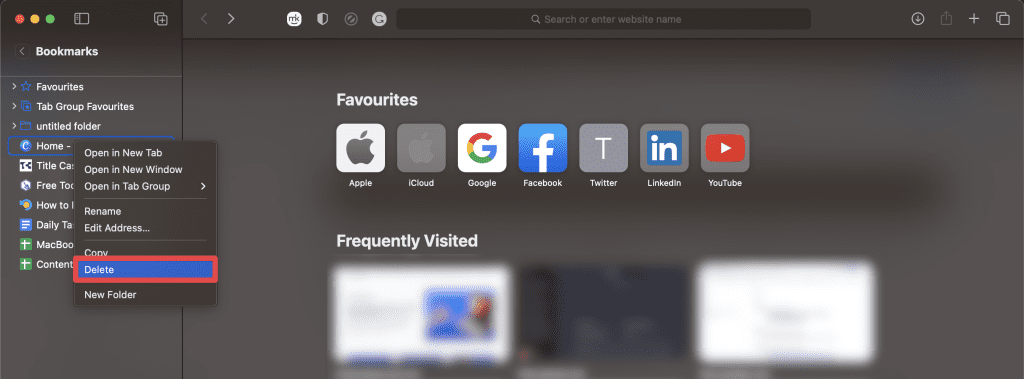
Use the sidebar when you only need to remove a link or folder. Control-click means holding the Control key while clicking an item.
- Open Safari and choose Bookmarks > Show Bookmarks. Or click the Sidebar button, then choose Bookmarks.
- If you don’t see Bookmarks, use the Back button at the top of the sidebar to return to its main view.
- In the current macOS 27 interface, click the More button and choose Show Folders on Top. Open the folder containing your saved link.
- Find the bookmark you want to remove. Check its name and folder so you don’t delete a similarly named link.
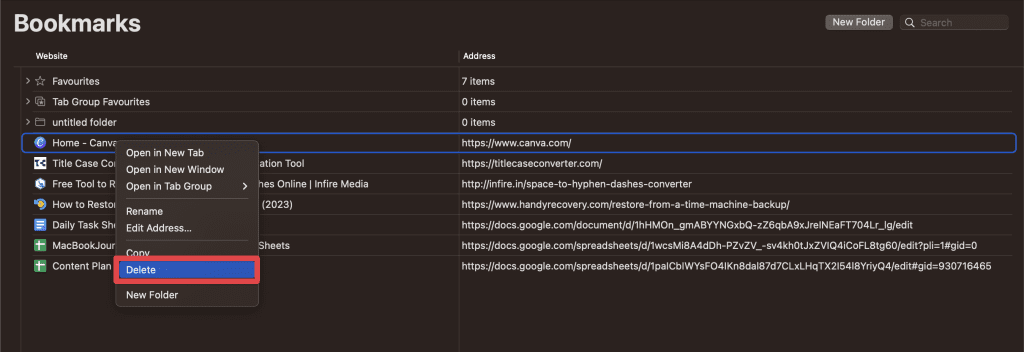
- Control-click the bookmark and choose Delete.
- Check that the unwanted entry is gone and that nearby bookmarks you wanted to keep remain in place.
Apple’s delete a bookmark instructions cover deleting either a bookmark or a folder from the sidebar.
If your sidebar looks different from the screenshot, follow the written controls for your version rather than looking for an identical layout.
How to Delete Multiple Safari Bookmarks
The bookmark editor makes a selected group easier to review before removal. Finish the backup above first, especially if you’re cleaning out a whole folder.
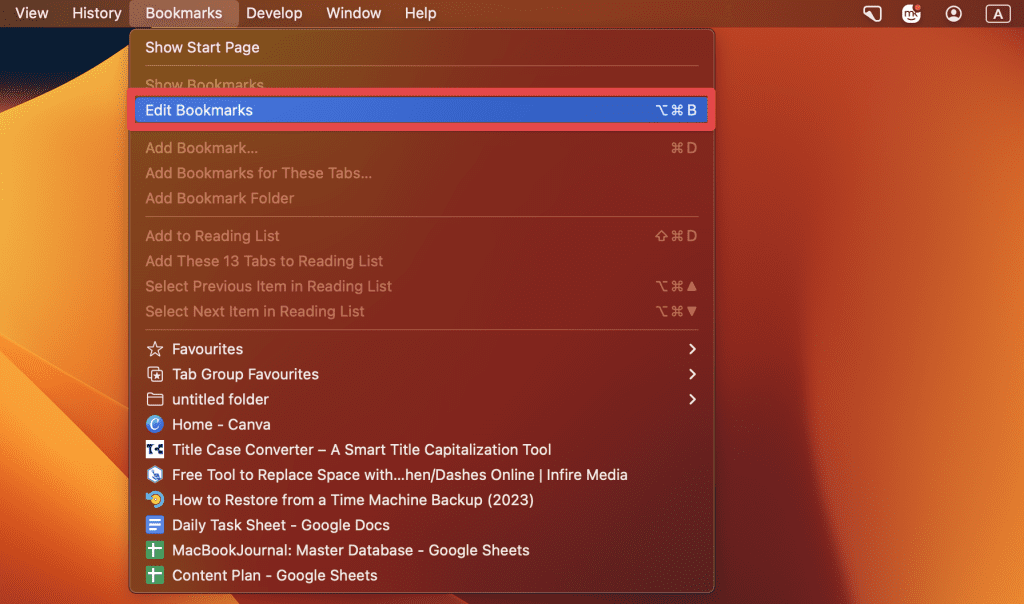
- Choose Bookmarks > Edit Bookmarks. Safari’s bookmark controls include this editor as well as the sidebar.
- Open the folder you want to clean up. Click a bookmark row so the list has focus, rather than a search box or an editable name.
- For separate entries, hold Command and click each unwanted bookmark. For a continuous group, click the first row, then hold Shift and click the last row.
- Review the highlighted rows. Command-click a highlighted entry to leave it out if you selected it by mistake.
- Control-click one of the highlighted rows and choose Delete. If the selection changes when you open the menu, stop and select the intended group again.
- Check the folder afterward. The bookmarks you selected should be gone, while the ones you left unselected should remain.
The Command-click and Shift-click combinations are Mac selection controls. Keep the selection visible as you work.
If your Safari version doesn’t let you keep the intended group selected, use the single-bookmark method instead of repeating a command whose target is unclear.
Delete a Folder or Clear All Its Bookmarks
Deleting an unwanted folder also removes the bookmarks inside it. Open the folder and move any links you want to keep elsewhere, then Control-click the unwanted folder and choose Delete.
To empty a folder while keeping the folder itself, select its bookmark rows in Edit Bookmarks. Use Command-click or Shift-click, review the selection, and delete those entries.
Repeat for other folders only after checking each one. For built-in folders such as Favorites, select the unwanted entries inside the folder rather than trying to remove the folder itself.
Want to remove every Safari bookmark? After exporting the collection, work through your folders and any links saved outside folders. Include the folder used for Favorites.
Don’t assume an empty Favorites bar means the rest of your bookmarks are gone. Avoid using Command-A until you’re sure which list has focus and exactly what it selects.
Remove Favorites or Hide the Favorites Bar
Favorites are bookmarks saved in the folder Safari uses for favorite websites. To remove one, Control-click its icon in Favorites or its entry in the Favorites bar, then choose Delete. This deletes the saved bookmark from other devices with Safari enabled in iCloud too.
If you want to keep the link but stop showing it as a Favorite, move it into another bookmark folder in Edit Bookmarks.
You’ll still be able to find it through the Bookmarks menu or sidebar.
If you only want to hide the row below the toolbar, choose View > Hide Favorites Bar. You can bring it back with View > Show Favorites Bar.
The Favorites bar control changes visibility, so hiding it leaves your saved bookmarks in place.
Favorites shown when you click the Smart Search field are another view of saved favorites. Hiding the bar doesn’t remove those links.
In current Safari, Start Page Favorites settings can choose a different bookmarks folder for the start page. When you use profiles, first check which Favorites folder that profile uses.
The Smart Search Favorites view disappears when you start typing. A website suggested after typing may instead come from history or another suggestion source.
Check whether you’re looking at Favorites or a typed search result before deleting more bookmarks.
If a Bookmark Remains or Comes Back
- Check its folder. Search the bookmark name in the sidebar and look for another saved copy. A link can appear in more than one place on screen without representing several separate bookmarks.
- Check the view. A Reading List item has its own saved entry. To remove that entry, open Reading List in the sidebar, Control-click the webpage summary, and choose Delete. Reading List controls are separate from bookmark management.
- Check what you’re trying to remove. An open tab and a record in History are different from a saved bookmark. Use the relevant control for that data instead of deleting unrelated links.
- Stop before a reset. If the same bookmark returns after you remove the correct entry, check the Apple Account and Safari sync state on your devices. Don’t repeatedly delete folders or reset Safari while the cause is unclear. Safari iCloud settings identify which devices share your collection.
Keep your backup and contact Apple Support if the same entries repeatedly return. Turning off iCloud or replacing Safari’s files isn’t part of this bookmark cleanup.
If You Deleted a Bookmark by Mistake
If the bookmarks were stored in iCloud, open iCloud Data Recovery and choose Restore Bookmarks. Recovery depends on what’s available in your account. Don’t assume there’s a recoverable copy of every deletion.
Read the choices before you restore. Individual bookmark recovery lets you select bookmarks, while the archived-version workflow restores an earlier collection and first archives the current version.
Restored bookmarks appear on devices with Safari enabled in iCloud. Wait for restoration to finish before changing bookmarks because edits made during the restore aren’t saved.
For the full process, follow our Safari bookmark recovery guide. If you have an older HTML export instead, the Sonoma workflow uses File > Import From > Bookmarks HTML File.
It places imported bookmarks in a dated Imported folder. Preserve your current collection before importing, and don’t treat a current ZIP export as an HTML file.
Frequently Asked Questions
Why does Safari still suggest a website after I delete its bookmark?
Deleting a bookmark removes its saved entry, but Safari can still show the website through other suggestions.
If it appears only after you type, check whether it’s a history result rather than a Favorite. Safari history controls manage visited-page records separately.
Deleting more bookmarks won’t necessarily remove that suggestion.
Can I delete a bookmark from only my Work profile?
Safari bookmarks are shared across profiles, so deleting the saved entry also removes access to that entry from your other profiles.
For a different Favorites display, choose a different Favorites folder for the profile or move the link out of its current Favorites folder.
Profile Favorites folders control which links appear in each profile’s bar.
Will deleting a Safari profile delete its Favorites?
Deleting a Safari profile keeps its Favorites and other bookmarks.
It removes that profile’s history, cookies, and other website data, so it isn’t a way to clear bookmarks.
Use the bookmark or Favorites controls instead. Safari profile deletion has these separate effects.
Can I delete a duplicate bookmark and keep another copy?
You can select the unwanted saved entry and leave the copy you want unselected.
Check both entries’ folders and website addresses first, then verify that the retained copy still opens.
A single bookmark shown in several profiles isn’t a duplicate copy. The bookmark editor lets you inspect and manage saved entries.
Does deleting a bookmark close its tab or erase its history?
Bookmark deletion removes a saved website link.
Tabs and browsing history are separate Safari data, so use their own controls if you also want to close a page or remove visit records.
Safari’s synced data lists these separately. Deleting the bookmark alone isn’t a complete browsing-data cleanup.
How do I add back a website if I still know its address?
Open the website in Safari, click the Share button, and choose Add Bookmark.
Choose the folder where you want to save it and click Add.
This creates a new bookmark, so you’ll need to choose its name and location again. It doesn’t restore a deleted folder’s original contents.
Affiliate disclosure: MacBook Journal may earn a commission when you buy through links on this page, at no extra cost to you.
How helpful was this article?
Your feedback helps us improve our guides.