



How to Make a Slideshow on a Mac
TL;DR
Choose Photos for a photo slideshow, Preview for PDF pages, or Keynote for editable presentation slides.
- Photos and Keynote can export a movie; Preview displays PDFs but does not create video.
- Photos can play a quick library slideshow or save a project for arranging and exporting.
- Use Keynote when you need text, layouts, animation, or timing.
Quick choice: For photos already in your library, select them in Photos and choose File > Play Slideshow. To keep a project and export it, make a Photos slideshow project.
For editable slides, use Keynote. The steps below follow Apple’s current Mac guides; app labels can vary slightly by app version.
1. Play or save a slideshow in Photos
Apple’s Photos guide for Mac documents quick playback and saved slideshow projects. Photos is the simplest built-in choice when your pictures are already in the Photos library.
A quick slideshow plays with a theme and music. A saved project lets you reorder photos, add text, choose music and timing, then export a video.
Play a quick slideshow
- Open Photos and select the photos or videos in your library.
- Choose File > Play Slideshow. If the items are in an album, Control-click the album in the sidebar and choose Start Slideshow.
- Use Customize to adjust available transition, speed, music, or loop options. Press Escape to stop; use the arrow keys to move between slides and Space bar to pause.


Create a saved Photos project and export it
- In Photos, click Library, then All Photos. Select the photos and videos you want.
- Choose File > Create > Slideshow > Photos, choose New Slideshow, name it, and click OK.
- Drag the thumbnails to reorder them. Use the theme, music, and duration controls to adjust the project. Some duration options depend on the selected theme. Click Preview to check it, then Play to present it.
- To make a shareable movie, select the project under Projects and choose Export or File > Export > Export Slideshow, following Apple’s Photos export steps. Choose a format and save location. Photos exports a video file.
Music availability depends on the music choices shown in Photos and your library setup. If you plan to post the exported movie, use music you have permission to share.
A track that plays on your Mac is not automatically licensed for social media.
2. Present a PDF in Preview
Preview is useful when your “slides” are already pages in one PDF. Apple’s Preview guide documents a slideshow for a single PDF: it displays the PDF pages full-screen with controls to move between them.
This is for presenting or viewing; it does not build an editable presentation or export a slideshow movie.
- Open the PDF in Preview. If your pictures are separate files, first make or export them as a PDF; Preview’s slideshow command applies to a single PDF.
- Choose View > Slideshow.
- Use the controls at the bottom of the screen to move through the pages or end the slideshow.
For separate photos, use Photos or Keynote. Preview’s slideshow command presents the pages of one PDF.
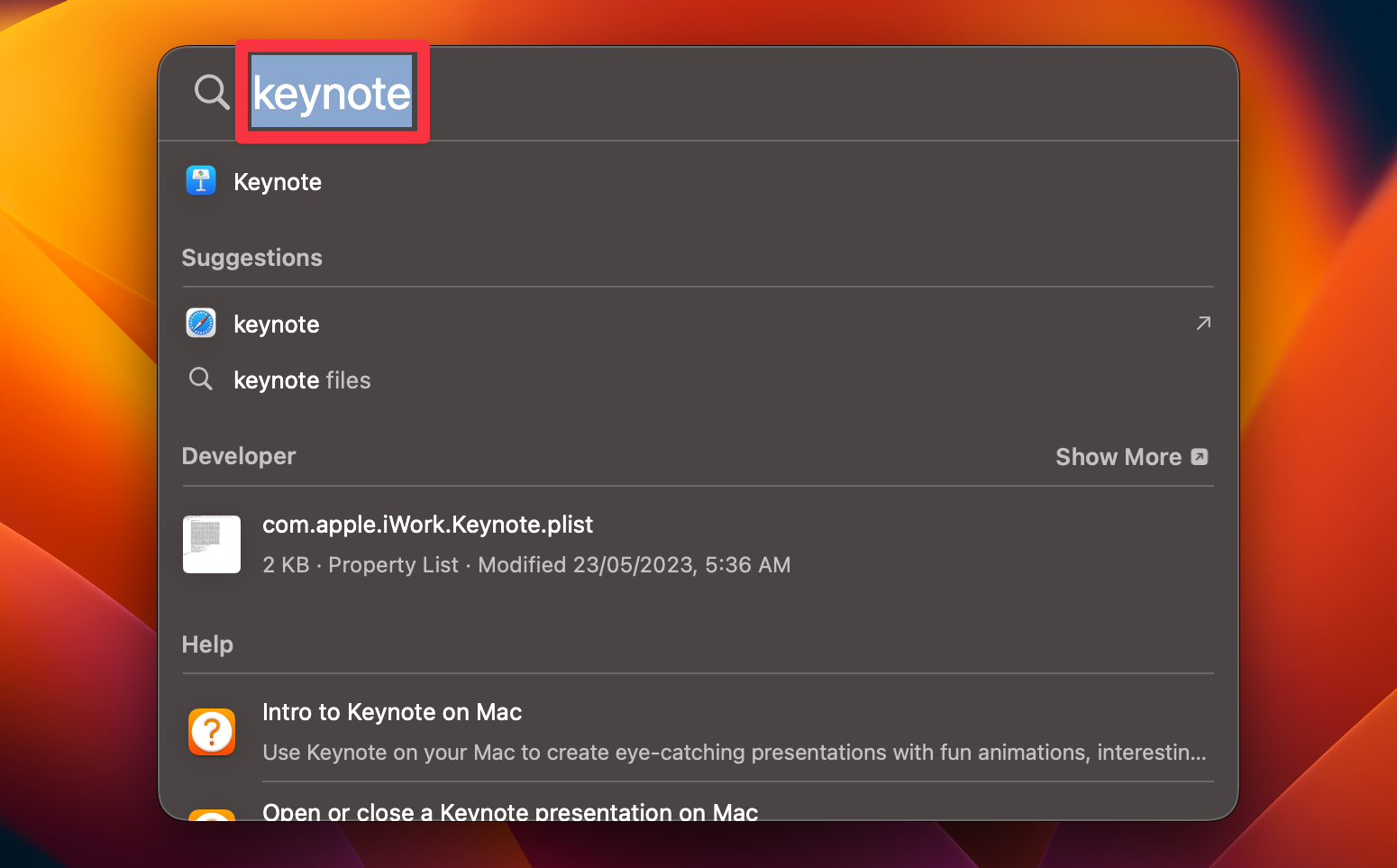
3. Create a presentation in Keynote
Apple’s Keynote export guide documents movie export. Keynote is for a presentation you can edit and present: arrange images and text on slides, add supported media, and control transitions and playback.
You can save the editable Keynote file, export a PDF or PowerPoint copy, or export the presentation as a movie. Keynote is Apple’s presentation app.
Availability and download may depend on your Mac and Apple Account.
- Open Keynote and choose a theme or presentation template. Create slides with the add-slide control, then add and arrange your text and images.
- Use the Animate controls to add transitions or object builds if needed. Add audio or video only when appropriate for your presentation.
- Click Play to present. Save the editable project with File > Save.
- To create a movie, choose File > Export To > Movie. Select playback behavior, slide timing, resolution, and other available settings, then export. For a narrated recording, select the slideshow recording playback option.
For an automatically advancing movie, choose self-playing playback and set timing in the export controls. If you recorded narration, choose the slideshow recording option.
Check the exported movie before sharing, especially if the presentation contains builds or transitions with their own timing.
Which Mac slideshow method should you use?
- Quick photo viewing: Photos > File > Play Slideshow.
- Keep and share a photo project: create a slideshow under Photos Projects, then export it as a video.
- Show PDF pages: open one PDF in Preview and choose View > Slideshow.
- Build editable slides or a timed/narrated movie: use Keynote and export the format you need.
Frequently Asked Questions
Can I make a slideshow on a Mac without downloading an app?
Yes. Photos can play a quick slideshow or save a slideshow project if your photos are in its library. Preview can display a PDF as a slideshow.
Keynote is Apple’s presentation app and may need to be downloaded on a Mac where it is not installed.
Can Preview make a slideshow from separate photos?
Apple’s current Preview guide documents displaying the pages of a single PDF as a slideshow. To present separate pictures, put them into a PDF first or use Photos; use Keynote if you need editable slides.
How do I export a Photos slideshow as a video?
Select the saved slideshow under Projects in Photos, then choose Export in the toolbar or File > Export > Export Slideshow. Choose a format and save location. Photos creates a video file.
Can I add music to a Mac slideshow?
Photos lets you choose music for quick slideshows and saved projects; music-library tracks may require the Music app and sign-in to appear. Keynote can include audio and lets you export a movie with presentation audio.
Check permissions before sharing a movie with music.
Which app lets me add text and animations?
Keynote is designed for editable presentation slides with text, transitions, and object animations. Photos projects also allow text and themes, but they are photo-slideshow projects rather than a general-purpose slide deck.
Can I share a slideshow with someone who does not use a Mac?
Export a Photos project or Keynote presentation as a movie for broad playback, or export a Keynote presentation as PDF or PowerPoint when a slide document is more useful.
Check the recipient’s device and the export format before sending.
Affiliate disclosure: MacBook Journal may earn a commission when you buy through links on this page, at no extra cost to you.
How helpful was this article?
Your feedback helps us improve our guides.


