

TL;DR
Open Finder and choose Go > Applications to reach the Applications folder.
- Use the Go menu even if Applications is missing from the Finder sidebar.
- This opens the folder without changing its contents.
You don’t need to search through every folder to find your Mac’s apps. The Applications shortcut can disappear from Finder’s sidebar while the folder stays in place. Start with the Go menu.
Then restore the sidebar shortcut if you want to keep it handy.
How to Open the Applications Folder in Finder
Click the Finder icon in the Dock so Finder appears beside the Apple menu. Then choose Go > Applications.
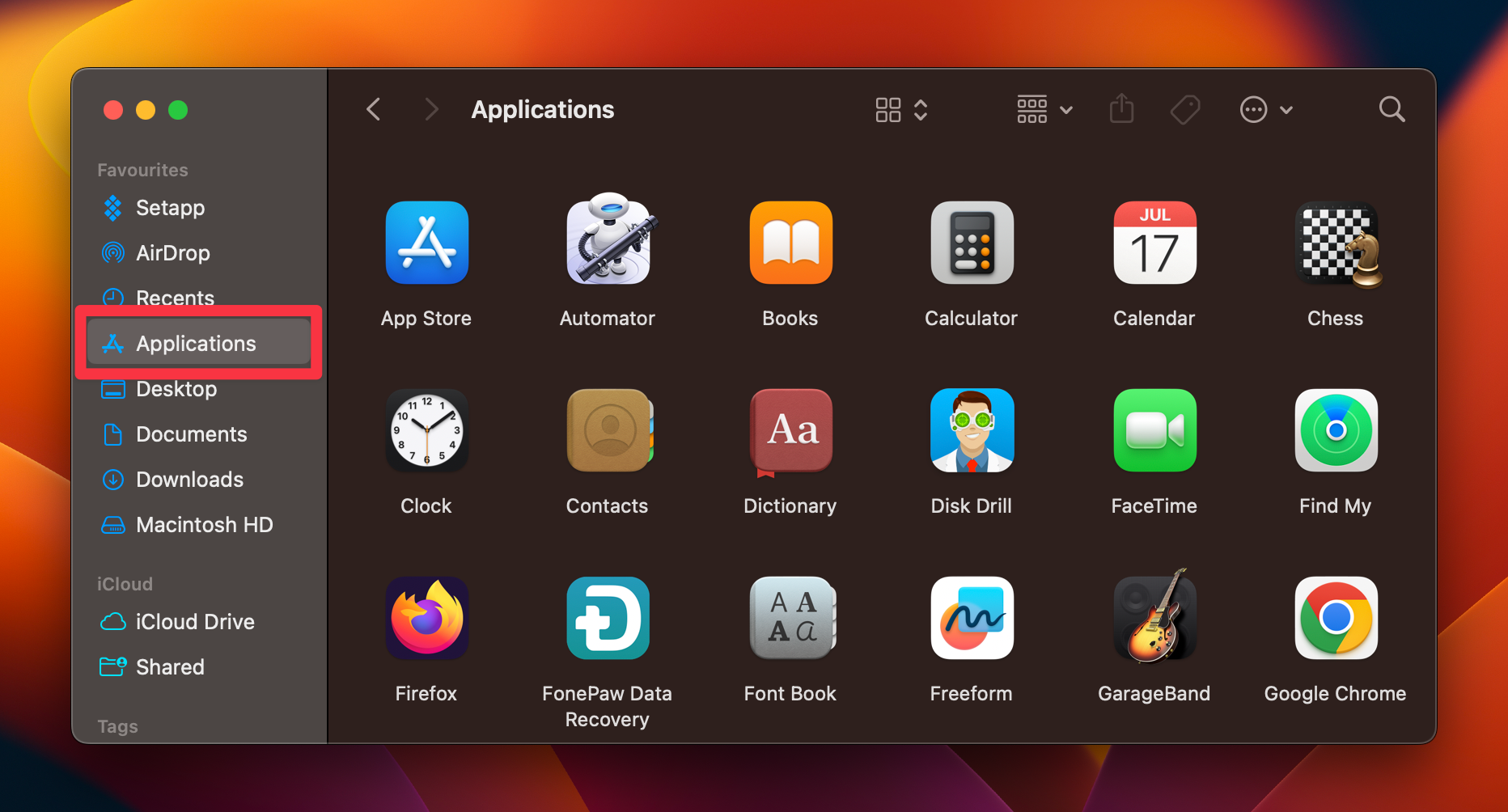
This opens Applications in Finder, where you can browse apps and double-click one to launch it. The Applications folder is also available through Finder’s sidebar.
The screenshots show an earlier macOS interface. Follow the menu names in the written steps if your icons or layout differ.

- Click Go in the menu bar at the top of the screen.
- Choose Applications from the menu.


Open Applications with a keyboard shortcut
With Finder active, press Shift-Command-G, type /Applications, and press Return. This opens the Applications folder without using the mouse. You can also check Finder’s Go menu for the direct Applications shortcut assigned on your Mac.
How to Restore Applications in the Finder Sidebar
If Applications is already in the Finder sidebar, click it to open the folder. If it’s missing, turn the shortcut back on in Finder settings.
A missing sidebar entry alone doesn’t mean your apps have been deleted.
- In Finder, choose Finder > Settings from the menu bar.
- Click Sidebar, then select the checkbox beside Applications.
- Close settings and click Applications in the Finder sidebar.
The current Finder sidebar settings let you choose which shortcuts appear. If the entire sidebar is hidden, choose View > Show Sidebar. If that option is dimmed, choose View > Show Toolbar first.
Expand the Favorites section if its items are collapsed.

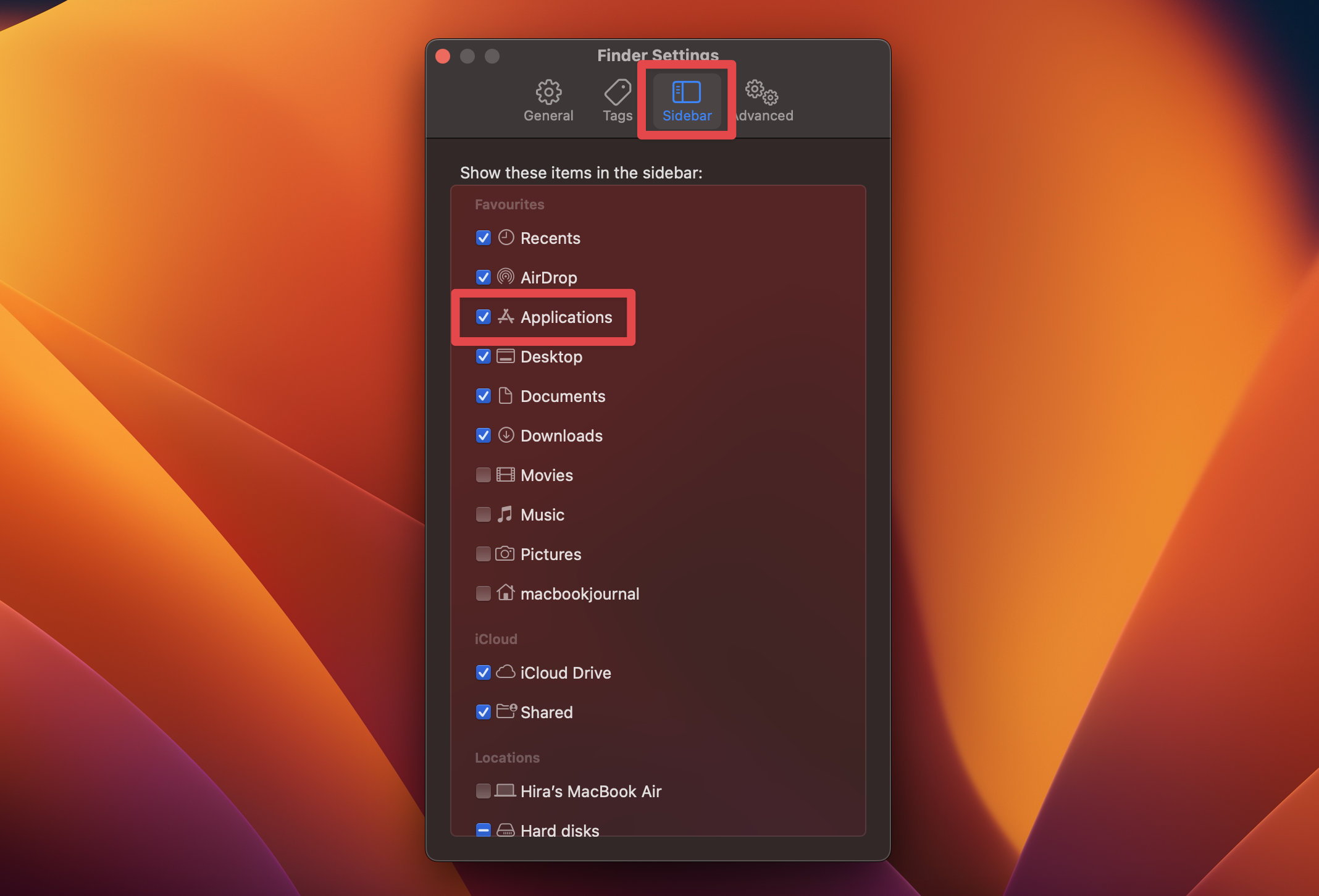
On older macOS versions, such as Monterey 12, use Finder > Preferences > Sidebar. The Monterey instructions use Preferences where current versions use Settings. Both controls change the sidebar shortcut, without moving the folder.
Where Is the Applications Folder? /Applications vs. ~/Applications
The main Applications folder is at /Applications. It’s the location for apps installed for use by everyone on the Mac. A separate ~/Applications folder, when present, belongs to your user account.
The ~ symbol means your home folder.
- In Finder, choose Go > Go to Folder, or press Shift + Command (⌘) + G.
- Paste
/Applicationsand press Return. - If you’re looking for an app installed only for your account, repeat with
~/Applications.
Finder’s Go to Folder accepts an exact folder path. Apple’s file-system guide identifies /Applications as the shared app directory, and its app-location guidance also notes that apps may be in Applications inside your home folder.
Your home folder may have no Applications folder if nothing has installed apps there. If ~/Applications doesn’t resolve to a folder, use /Applications instead.
You don’t need to create the optional folder just to find an app.
How to Add the Applications Folder to the Dock
Adding Applications to the Dock gives you a shortcut you can keep using. It doesn’t move the folder or its apps.
Place folders on the file-and-folder side of the Dock’s separator, as shown in the Dock instructions.
- In Finder, choose Go > Go to Folder, enter
/, and press Return to show the top level of your startup disk. - Find the Applications folder and drag it to the Dock’s folder area, near Downloads and the Bin. On a side-mounted Dock, this area is below the separator.
- Click the Applications folder in the Dock to display its contents.


To open the folder itself, expand its Dock shortcut and click Open in Finder. You can also Command-click its Dock icon. The folder controls let you change how its contents appear.

Need to Open an App? Use Spotlight or the Apps View
If you know the app’s name, press Command (⌘) + Space, type the name, select the app, and press Return. This launches the app.
Searching for “Applications” and expanding a category of results doesn’t reliably open the Finder folder. Use Go > Applications when you need the folder itself. See the app-opening options.


On macOS Tahoe 26 and macOS 27, the Dock’s Apps icon opens app browsing in Spotlight. Click Apps, then click an app to launch it.
The Tahoe app browser and macOS 27 app browser are for viewing and opening apps, rather than browsing the Applications folder in Finder.
On macOS Sequoia 15, Launchpad provides the older app grid. Click its Dock icon, then click the app you want. Follow this branch only if your Mac has Launchpad.


Frequently Asked Questions
Can I move the Applications folder somewhere else?
Leave the main Applications folder in place. If you want easier access, add its shortcut to the Dock or Finder sidebar.
These sidebar shortcuts let you change navigation without moving the original folder.
Does removing Applications from the Dock delete my apps?
No. Removing the Dock shortcut leaves the actual Applications folder and its apps on your Mac.
The Dock stores an alias, which is a shortcut to the original item.
Why are some Apple apps missing when I open /Applications?
The Applications folder isn’t a complete map of every app’s storage location.
macOS also has protected system software, and Finder presents a user-oriented view of the file system. Use Spotlight to find an Apple app.
Apps in the System folder are reserved by macOS and aren’t candidates for routine removal.
Is the Applications folder the same as Library or Containers?
No. Applications holds apps, while Library and app containers store resources such as settings, support files, and app data.
Apple’s file-system guide explains this distinction. Leave Library, Containers, and caches alone when your aim is to find or open an app.
Can I uninstall an app from the Applications folder?
You can uninstall many third-party apps from Applications, but some include their own uninstaller. Check the uninstall instructions before removing anything.
For the next steps, use our Mac app uninstall guide. Finding the folder doesn’t require deleting any files.
What if an app is there but won’t open?
An app can be present but fail to open because of permissions, damage, or a needed update after a macOS upgrade.
Follow the message shown and the app-opening guidance. On a managed Mac, contact the administrator if access is restricted.
Affiliate disclosure: MacBook Journal may earn a commission when you buy through links on this page, at no extra cost to you.
How helpful was this article?
Your feedback helps us improve our guides.