




Quick answer
If one app is frozen, check for unsaved work before force quitting it.
- Option-Command-Escape opens Force Quit for the selected app.
- Force Quit can lose unsaved changes.
- A forced shutdown is a last resort for a wholly unresponsive Mac and can also lose unsaved work.
First check what still responds. Can you move the pointer? Does the keyboard work? Is only one app stuck, or are the menu bar and other apps frozen too?
This distinction helps you avoid shutting down the whole Mac when one app needs to close.
If apps still respond but the Dock is missing, follow our missing Dock guide to check hiding and full-screen behavior first.
If one app is frozen
Wait briefly if the app is busy saving, exporting, or opening a large file. If it remains unresponsive and you can use the keyboard, press Option-Command-Escape.
In the Force Quit window, select the app that is not responding and choose Force Quit. Apple warns that unsaved changes may be lost.
Reopen the app and check whether it offers to recover your work. See Apple’s Force Quit instructions for the app and Finder controls.
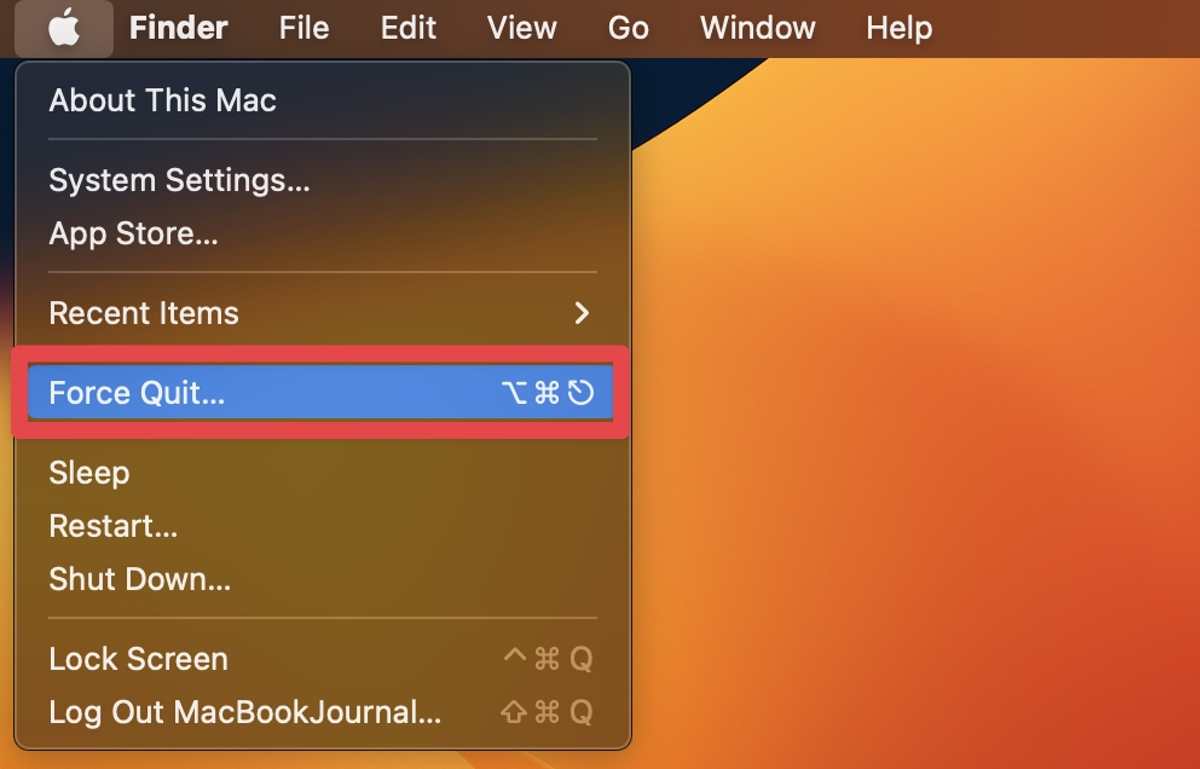
If the pointer works, you can also choose Apple menu > Force Quit, select the app, then choose Force Quit. If the Finder itself is frozen, select Finder in the same window and choose Relaunch.
Avoid force quitting unrelated apps or system processes.
If the pointer is frozen but the keyboard works
A stuck pointer does not always mean the whole Mac is frozen. Try the keyboard shortcut above. If it opens Force Quit, close only the app that is unresponsive.
If the keyboard can switch apps or open menus, save any work you can before taking further action.
If the problem is limited to cursor movement, click, or scrolling, follow our guide to a frozen Mac cursor.
If you use an external mouse or keyboard, check its power or connection and, when practical, test a built-in or known-working input device. Do not reset settings or disconnect every device before identifying the symptom.
If neither keyboard nor pointer responds
Try Apple menu > Restart if the menu still responds, saving any work you can. If neither the keyboard nor pointer responds and you cannot use the menu, use the forced-shutdown step below.
If the entire Mac remains unresponsive, press and hold the Mac’s power button (or Touch ID button on models that use it) until it shuts down. This is a forced shutdown, not a normal restart.
Apple warns that open documents may contain unsaved changes that will be lost. Follow Apple’s shutdown and restart guidance.
Wait a few seconds, then press the power button once to turn the Mac on. Keep the Mac connected to power if it is a laptop.
Do not force a shutdown while a macOS update or firmware process is visibly underway unless Apple’s instructions for that specific failure say to do so.
If it will not start, repeatedly freezes at startup, or shows a service or error screen, stop repeating forced shutdowns and follow Apple’s startup support steps.
When to stop and seek hardware help
Stop using the Mac if it was dropped, exposed to liquid, has damaged power connections, smells burnt, sparks or becomes unusually hot. Disconnect power only if safe, then contact Apple or a qualified repair provider. Do not open the Mac, probe a port or keep charging a visibly damaged device.
If it starts but continues to freeze, note whether the problem happens in one app or across the whole Mac, and record the Mac model and macOS version.
Apple Diagnostics can help check for hardware issues; it does not identify every fault. Follow Apple’s Apple Diagnostics steps for your Mac type and share any reference code with Apple Support or a service provider.
Does an SMC or memory reset unfreeze a Mac?
Do not reset the SMC or NVRAM as a general response to a freeze, and do not use a memory-cleaner app to “clear RAM.” Apple says an SMC reset is usually unnecessary.
On Apple silicon, the SMC resets automatically when you restart or shut down. SMC steps differ for some Intel Macs and are intended for specific power, thermal, or hardware symptoms.
Use Apple’s SMC reset instructions only when the symptoms match.
Frequently asked questions
How do I restart a Mac when it is frozen?
If only one app is frozen, try Option-Command-Escape and force quit that app.
If the whole Mac does not respond, hold the power or Touch ID button until it shuts down, then press it once to turn it back on.
A forced shutdown can lose unsaved changes.
How do I force quit a Mac app that is not responding?
Press Option-Command-Escape, select the unresponsive app in the Force Quit window, and choose Force Quit. Apple warns that unsaved changes may be lost.
If only the Finder is stuck, select Finder and choose Relaunch.
What if my Mac cursor is frozen but the keyboard works?
Use Option-Command-Escape to check whether one app is frozen. If the keyboard and other apps work, troubleshoot the pointer, mouse, or trackpad separately.
A frozen cursor alone does not prove the whole Mac needs a forced shutdown.
Will resetting the SMC or clearing RAM fix a frozen Mac?
There is no universal SMC or RAM reset that fixes every freeze.
Apple says SMC resets are usually unnecessary, and Apple silicon resets its SMC automatically during shutdown or restart. Do not use a memory-cleaner app as a guaranteed fix.
When should I contact Apple Support?
Contact Apple or a qualified repair provider if the Mac repeatedly freezes across apps, will not start after a forced shutdown, shows a hardware diagnostic reference code, or has liquid, impact, heat, electrical, or power damage. Stop using a device that smells burnt, sparks, or has visible damage.
Affiliate disclosure: MacBook Journal may earn a commission when you buy through links on this page, at no extra cost to you.
How helpful was this article?
Your feedback helps us improve our guides.