

TL;DR
To stop QuickTime screen recording on Mac:
- Start your QuickTime screen recording.
- Press Command ⌘ + Control ^ + Esc to stop the recording.
- QuickTime will automatically save the video to your desktop.
Tried and Tested ✅: The methods and steps mentioned in this article have been tried and tested firsthand by Ojash Yadav on his MacBook Pro M3 and rechecked for errors on Hashir’s MacBook Air M2.
It’s easy to get stuck trying to stop a QuickTime recording, but there are a few simple methods that work every time. In this post, I’ll quickly show you the easiest ways to stop your recording so you can get it done without the issue.
Before We BeginStopping
For a frozen QuickTime Player that will not respond to its recording controls, MacKeeper’s Memory Cleaner lets you locate the process and confirm Quit. This force-quits the app; unsaved recording data may be lost. Stop and save through QuickTime’s controls whenever they respond.
How to Stop QuickTime Screen Recording on Mac
How We Check Our Guides We use Apple’s support documents and current developer instructions to check the steps. Screenshots and menu names can differ between versions, so follow the branch for your Mac. Read our editorial process.
Below, I’ve shared the quickest ways to stop QuickTime screen recording on Mac:
1. Quit a Frozen QuickTime Process With MacKeeper
MacKeeper’s Memory Cleaner includes an Apps & Processes view where you can locate QuickTime Player and quit it if it is frozen. Save any work you can first: quitting a process works like Force Quit, so an unsaved recording may be lost. Use the steps below for an unresponsive app.
- Get MacKeeper and install MacKeeper on your Mac.
- Click the Memory Cleaner option in the left sidebar under Performance.

- Click Open.

- Click Apps & Processes in the left panel.
- Select QuickTime Player on the right side and click the small X button next to its name.

- Tap the Quit button on the pop-up to close QuickTime Player.

Check QuickTime After Quitting
After quitting the frozen process through MacKeeper, reopen QuickTime and check for any recoverable recording before starting again. Review Memory Usage if other apps also become unresponsive.
2. Using a Keyboard Shortcut
The fastest way to stop QuickTime screen recording is by using the keyboard shortcut. To stop a screen recording in QuickTime using a keyboard shortcut, follow these steps:
- Begin your screen recording in QuickTime by pressing the Record button.

- While recording, press Command ⌘ + Control ^ + Esc on your keyboard. This is the default keyboard shortcut in QuickTime for stopping a screen recording.

- As soon as you press these keys, your recording will stop. QuickTime will automatically save the recorded video on your desktop.
3. From the Menu Bar
The menu bar offers an easy, visible way to stop QuickTime screen recording with just a click. Here is how:
- Open QuickTime from the Launchpad.

- Click File in the menu bar and select New Screen Recording.
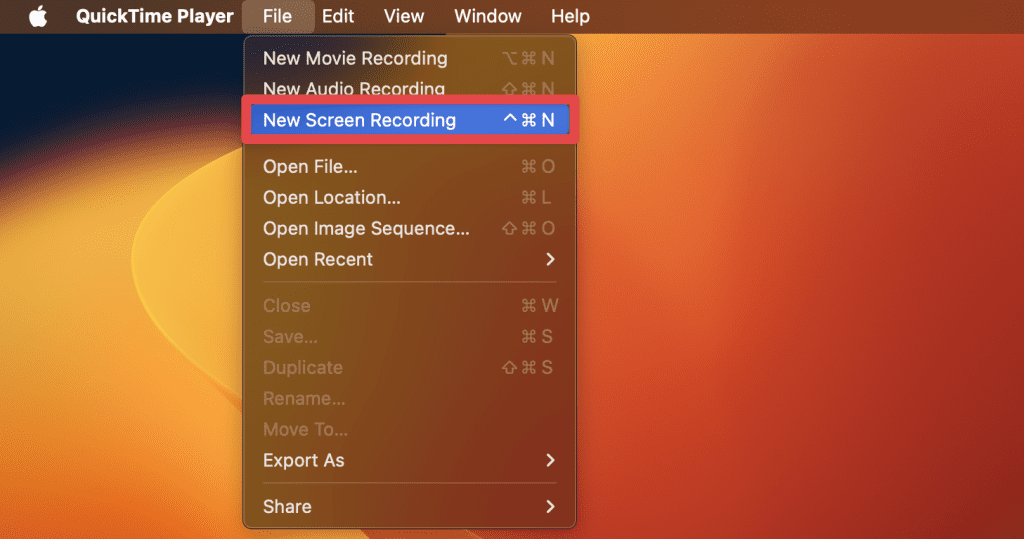
- The screenshot toolbar will appear at the bottom of your screen. Click the Record button to start recording.
- Once your screen recording is complete, find the Stop icon in the menu bar and click it.
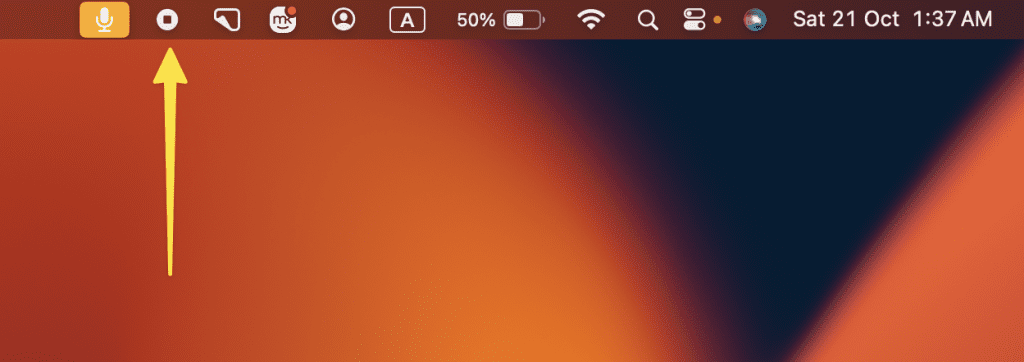
- This will stop the recording and save the file on your desktop.
4. From the Force Quit Window
If QuickTime is unresponsive, you can use the Force Quit window to stop the recording, though the file won’t be saved. Here is how to do it:
Using the Force Quit window should be one of your last options, as it will not save the recording you were working on.
- Start your screen recording in QuickTime by clicking the Record button.
- While recording, press Command ⌘ + Option ⌥ + Esc on your keyboard.

- This will bring up the Force Quit Applications window listing all currently running applications.

- In the Force Quit window, find and select QuickTime in the list of applications.
- Click the Force Quit button to close QuickTime.

- A confirmation dialog may appear, asking if you want to force the application to quit. Click Force Quit to confirm your choice.

5. Via Activity Monitor
Activity Monitor allows you to forcefully stop QuickTime if other methods fail, but it will not save the recording. Follow these steps:
- Click the Record button to start your screen recording in QuickTime.
- Open Activity Monitor by searching for it using Spotlight (Command ⌘ + Spacebar).
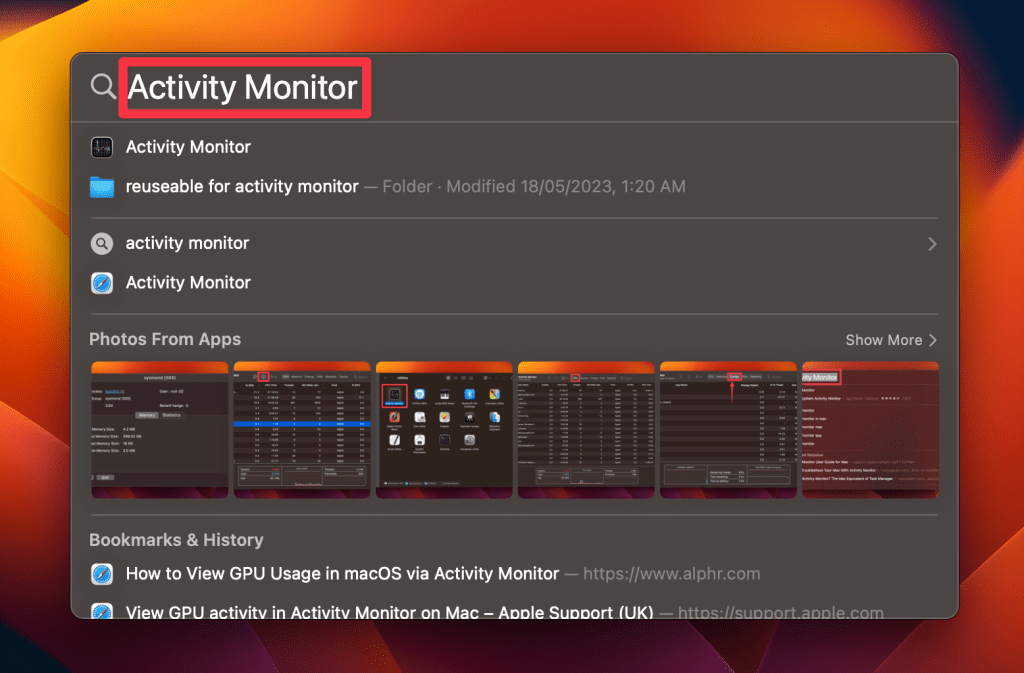
- In the Activity Monitor, look for QuickTime Player in the list of processes and select it.
- Once QuickTime is selected, click the X button at the top of the Activity Monitor window.

- A confirmation window will appear, asking if you are sure you want to quit QuickTime. Click Force Quit to proceed.

- This will abruptly stop the screen recording and will not save the recording you were making.
End QuickTime Screen Recordings on Your Mac
Now that you know how to stop QuickTime Player screen recording on Mac, you might want to improve your screen recording experience. Here are a few tips to get you started:
- Record a video on your Mac using other methods like hotkeys, Photo Booth, iMovie, or third-party apps.
- Compress a video on Mac after recording to make it easier to transfer or send via email.
- Take screenshots on your Mac and combine them into a slideshow to make a different type of video.
Frequently Asked Questions
How do I stop QuickTime screen recording?
How do I stop QuickTime recording from shortcut Mac?
How do I make a screen recording with sound on a Mac?
How long will QuickTime screen record for?
Why is my Mac not letting me screen record?
Where are QuickTime screen recordings stored on the Mac?
Affiliate disclosure: MacBook Journal may earn a commission when you buy through links on this page, at no extra cost to you.
How helpful was this article?
Your feedback helps us improve our guides.


