


TL;DR
Here is how much space does macOS take on your Mac:
- macOS Sequoia: Requires 14-16 GB of storage.
- macOS Sonoma: Takes up 13-15 GB of space.
- macOS Ventura: Needs about 12-14 GB of storage.
- macOS Monterey: Uses around 12-15 GB of space.
- macOS Big Sur: Requires 12-14 GB of storage.
Tried and Tested ✅: The methods and steps mentioned in this article have been tried and tested firsthand by Ojash Yadav on his MacBook Pro M3 and rechecked for errors on Hashir’s MacBook Air M2.
Wondering how much space macOS takes up on your Mac? It can vary depending on the version, and it might be using more storage than you think. In this post, we’ll break down the space each macOS version needs and share tips on managing your storage more effectively.
Before We Begin
After checking how much storage macOS uses, reclaim space from removable junk with MacKeeper’s Safe Cleanup. It lists detected caches, logs and other supported categories so you can review what to remove and see the space recovered.
Check How Much Space macOS Takes on Your Mac
How We Check Our Guides We use Apple’s support documents and current developer instructions to check the steps. Screenshots and menu names can differ between versions, so follow the branch for your Mac. Read our editorial process.
1. Review Removable Junk With MacKeeper
MacKeeper’s Safe Cleanup shows removable junk found in supported categories, helping you reclaim storage alongside the macOS-size check. Follow these steps to review that cleanup opportunity:
- Go to the official website of MacKeeper. Download and install it.
- Open Mackeeper on your Mac.
- Select Safe Cleanup in the MacKeeper sidebar.
- Click Start Scan to find supported junk categories.
- MacKeeper will display detected junk by category, including caches, logs and Trash. Use these results to review removable files; use the storage settings method below to check macOS storage usage.
- Select a cleanup category and review its files and locations before choosing what to remove.
- Deselect files you want to keep, then click Clean Junk Files to remove the selected junk.
- Double-check the selected files before confirming cleanup; keep files and attachments you still need.
2. Using Apple Menu
Follow these steps to check free and occupied storage space on your Mac:
- Click the Apple menu and select System Settings.
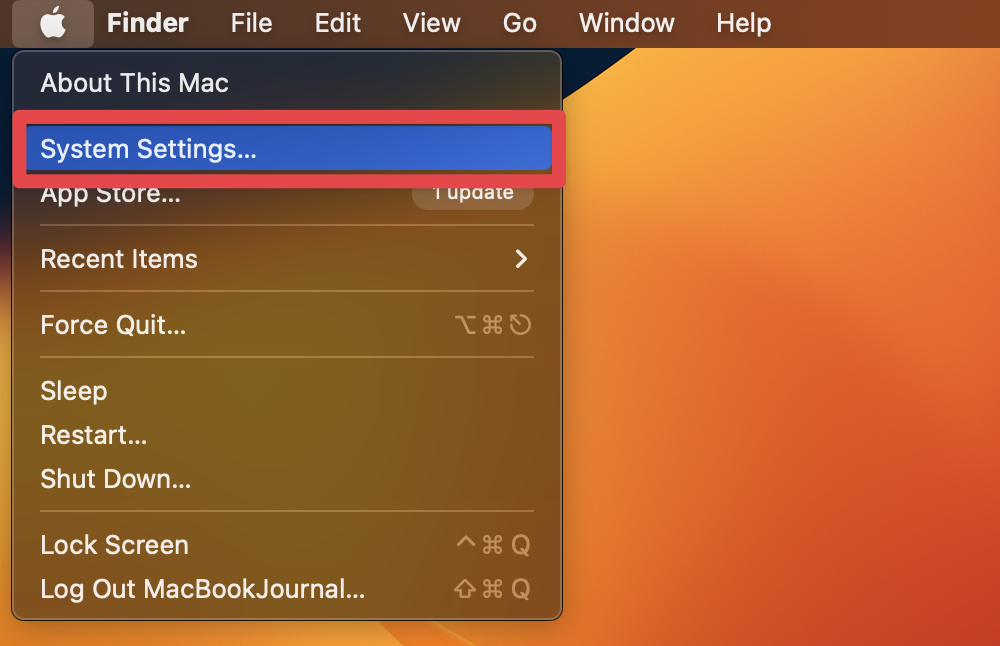
- Click General and select the Storage tab.

- Here, you’ll see how much space does macOS take up on your drive, among other files.

Free Up Space on Your Mac Using MacKeeper
MacKeeper is a software utility designed to optimize and maintain the performance of Mac computers. One of its key features is the ability to free up space on your Mac by identifying and removing unnecessary files, such as duplicate files, temporary files, and caches. By freeing up space on your Mac, you can improve its performance and avoid running into storage capacity issues.
1. Delete Unused Applications
If you have applications installed that you don’t use, consider uninstalling them to free up space. Using Mackeeper, you can easily uninstall unnecessary apps on your Mac, freeing up space and improving the performance of your computer. Here’s how to do it:
- Go to the official website of MacKeeper. Download and install it.
- Open Mackeeper on your Mac.
- Click the Smart Uninstaller tab at the top of the Mackeeper window.

- Click Start Scan to list installed apps and supported components.

- Mackeeper will analyze your applications and display a list of all the applications installed on your Mac.
- To uninstall an application, click on the checkbox next to its name.

- If you want to remove multiple applications, select the ones you want to uninstall.
- Once you’ve selected the applications you want to uninstall, click the Remove Selected button at the bottom of the Mackeeper window.

- Mackeeper will ask you to confirm that you want to uninstall the selected applications. Click on Remove to proceed.

Mackeeper will begin the uninstallation process and will show you the progress as it goes.
Once the uninstallation process is complete, Mackeeper will display a message letting you know the application has been uninstalled.
2. Delete Duplicate Files
Go through your files and delete any duplicate files that you no longer need. It includes documents, photos, and videos. You can use MacKeeper to delete them. Here are the steps to do it:
- Go to the official website of MacKeeper. Download and install it.
- Open MacKeeper on your Mac.
- Click Duplicates Finder in the MacKeeper sidebar.
- Click on the “Duplicates Finder” option in the left-hand menu.

- MacKeeper will analyze your files and display a list of all the duplicate files it has found.

- To delete a duplicate file, click the checkbox next to its name.

- If you want to delete multiple duplicate files, select all the exact files you want to remove.
- Once you’ve selected the duplicate files you want to delete, click the Remove Selected button at the bottom of the MacKeeper window.

- MacKeeper will ask you to confirm that you want to delete the selected duplicate files. Click Remove to proceed.

- Mackeeper will begin the deletion process and will show you the progress as it goes.

Once the deletion process is complete, Mackeeper will display a message letting you know the duplicate files have been successfully removed.
3. Clear Cache on Mac
Clearing the cache on your Mac can help improve its performance and free up space on your hard drive. Here’s how you can quickly clean your Mac and resolve to free up space using the MacKeeper app:
- Go to the official website of MacKeeper. Download and install it.
- Launch MacKeeper and go to the Safe Cleanup tab.

- Click Start Scan and wait for the results.

- Review the items you want to remove. Select them individually or click Check All.

- Next, click Clean Junk Files.

- You’ll get a Cleaning Completed notification on your screen. Click Rescan to repeat the process.

Compare Cleanup Results With Storage Settings
After cleanup, compare the space recovered with the storage figures in macOS settings. MacKeeper’s completion summary helps you see the result of removing selected junk without confusing it with the size of macOS itself.
How Much Space Does macOS Take?
Here’s a detailed table of how much space does macOS take:
| # | macOS Version | Approximate Storage (GB) |
|---|---|---|
| 1 | macOS Sequoia | 14-16 GB |
| 2 | macOS Sonoma | 13-15 GB |
| 3 | macOS Ventura | 12-14 GB |
| 4 | macOS Monterey | 12-15 GB |
| 5 | macOS Big Sur | 12-14 GB |
| 6 | macOS Catalina | 10-12 GB |
| 7 | macOS Mojave | 9-11 GB |
| 8 | macOS High Sierra | 8-9 GB |
| 9 | macOS Sierra | 7-8 GB |
| 10 | OS X El Capitan (10.11) | 6-7 GB |
How to Free Up Space on Your Mac
Here are some simple tips to free up space on your Mac:
- 🗂 Delete Large and Unused Files: Manually delete old files like videos or documents to free up space.
- 🗑 Empty the Trash: Always empty the Trash after deleting files to free up the space they still occupy.
- 📦 Remove Unused Apps: Uninstall apps you no longer use by dragging them to the Trash.
- 🧹 Clear Cache Files: Go to ~/Library/Caches in Finder and delete unnecessary cache files.
- ⚙️ Use macOS Optimization Tools: Use About This Mac > Storage > Manage to store files in iCloud or automatically empty Trash.
- 🕰 Delete Old Backups: Remove old Time Machine backups you don’t need from System Preferences/Settings > Time Machine.
- 💽 Move Files to External Storage: Transfer large files like videos or photos to an external drive or cloud storage.
- 🧼 Clear System Logs: Use tools like Mackeeper or delete system logs manually to clear temporary files.
Make Enough Space on Your Mac
Knowing how much space macOS takes up on your Mac can help you plan for future upgrades and much more. So, here are some tips for keeping your Mac storage under control:
- Regularly check your storage space on Mac and manage it if your Mac is running slow due to low free storage.
- Clean up your Mac regularly using disk clean-up tools to prevent unnecessary files from piling up.
- Add more storage to your Mac by using an external hard drive, SD cards, or iCloud storage.
Frequently Asked Questions
What is the typical amount of space macOS takes up on a Mac?
Can you uninstall macOS from a Mac to free up space?
How much space is available on my Mac?
What happens if I run out of space on my Mac?
Affiliate disclosure: MacBook Journal may earn a commission when you buy through links on this page, at no extra cost to you.
How helpful was this article?
Your feedback helps us improve our guides.


