




TL;DR
Fan noise during demanding work can be normal on Macs with fans; first check airflow and workload.
- Use a hard, flat surface and keep vents clear.
- Check Activity Monitor for an app you recognize that stays busy.
- Save work before quitting an app or restarting.
You’ve finished a call or closed a game, but the MacBook still sounds busy beside you.
MacBook fan noise needs a different response depending on whether work is still running, the vents are covered, or the noise continues during light use.
Start by checking the model and what the Mac is doing.
The checks below help you reduce unnecessary work without stopping essential processes or changing cooling settings. Keep track of when the sound starts and what changes after each check.
Check whether your MacBook has a fan
Open Apple menu > About This Mac and note the model and chip. Apple silicon appears under Chip, while an Intel model shows Processor. The Mac identification guide explains the labels.
Use that exact model when checking its cooling design or service instructions.
Some MacBooks have no internal cooling fan. The M1 MacBook Air introduced a fanless design, and the current MacBook Air is also fanless. A sound near one of these laptops therefore needs a different explanation.
Don’t apply a fan reset or internal fan-cleaning procedure to it.
On a model with fans, increased airflow can be expected during demanding processor work. Apple’s fan-noise guidance gives examples such as video compression and graphics-heavy games.
The important question is whether the noise fits the activity and settles as that activity reduces.
Separate normal airflow from a persistent problem
- During demanding work: note the app or task that is running. Finish or pause work you can safely interrupt, then compare the workload and sound afterward. Don’t interrupt an installation just to make the Mac quieter.
- During light use: if the fan keeps running fast despite clear ventilation, use the CPU checks below. A closed app window doesn’t tell you whether other work is still running.
- With a persistent unusual sound: don’t diagnose a failed fan from sound alone. If the noise remains after the safe checks, describe it to Apple or an authorized service provider rather than opening the case.
There isn’t a single wait time or internal temperature number that proves every Mac is healthy. Apple’s temperature guidance recommends workload checks and support when temperature problems continue.
If the Mac is also persistently hot, the overheating checks cover that broader symptom.
Give the Mac clear ventilation
Put the Mac on a hard, flat surface such as a desk. Move it off bedding, cushions, or your lap, and keep ventilation openings and the keyboard uncovered.
These are the first physical checks in Apple’s airflow guidance. A stand is optional and won’t establish whether the cooling system is working correctly.
For Mac laptops, the recommended ambient air range is 10–35°C (50–95°F). That means the air around the laptop, not the temperature of its CPU or an instruction for when fans should start.
The operating-temperature guidance also advises against leaving the laptop in a parked car and recommends Apple-authorized power adapters.
If the desk or room is hot, move to a suitable location and pause demanding work you don’t need. Don’t cover the keyboard to muffle the sound or insert anything into ventilation openings.
Check the surroundings before treating a sensor reading as a hardware diagnosis.
Find sustained CPU use in Activity Monitor
Activity Monitor shows processor workload, which can connect fan noise to a task. A busy process alone does not diagnose malware or a failed fan. See CPU activity information for the display and process view controls for sorting and process scope.
- Open Activity Monitor from Applications > Utilities, or find it with Spotlight. Click the CPU tab.
- Choose View > All Processes if you need to include work beyond your own account. Click the % CPU column heading to sort, reversing the order if necessary so the largest values appear first.
- Watch the list while the noise continues. Look for sustained activity that matches an app or task you recognize, rather than treating one changing value as a fault.
- If a recognizable app is doing work you no longer need, save its documents and stop the task from within the app. Then choose the app’s normal Quit command and compare the CPU activity and fan sound.
- Leave unfamiliar system processes alone. If you can’t identify the task safely, save your work and use the restart checks below rather than terminating items just because they’re near the top.
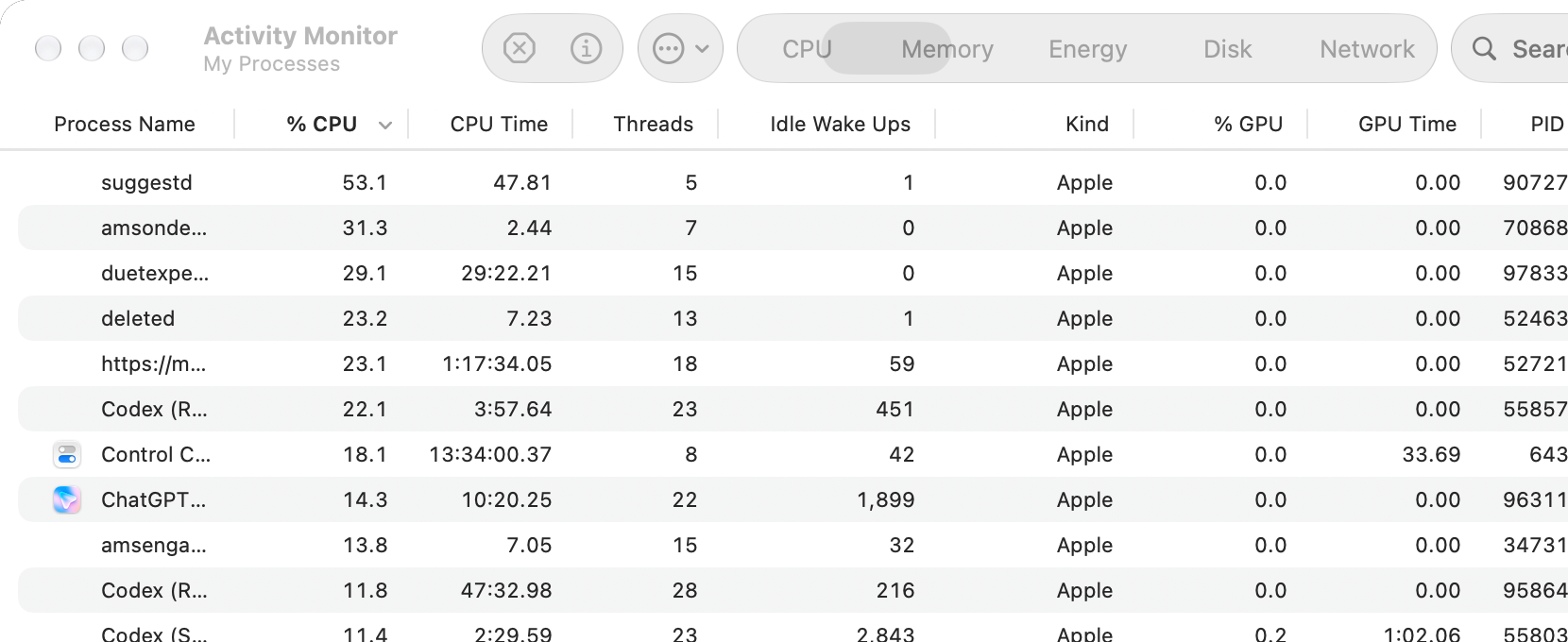
If you use Activity Monitor’s Stop button, select only an app you’ve identified and choose Quit first. Force Quit can lose unsaved data and disrupt other processes.
Reserve it for a selected, unresponsive app when normal quitting fails, as the process quitting instructions explain. Don’t force-quit background services to chase a lower CPU number.
Restart and check for software updates
Once your work is saved, choose Apple menu > Restart. Compare fan behavior during light use after the Mac starts again.
For unexpected heavy fan use on Apple silicon, Apple also suggests closing and reopening the laptop lid or restarting. Save your work before a restart.
Keep macOS and the affected app current. Check System Settings > General > Software Update for a compatible update. Back up, save work and allow the required restart. Software Update instructions explains the process; temperature troubleshooting guidance includes updating software among its checks.
Retry the activity that brought on the noise only if it’s safe to do so. If one app repeatedly stays busy after its task has finished, check that developer’s support instructions.
If the fans remain fast across light tasks with clear airflow, move on to the model-specific check or service.
Use Intel SMC guidance only when the conditions fit
An SMC reset is a later option for an Intel-based Mac whose fans run fast without heavy usage despite proper ventilation. Apple’s fan troubleshooting links that step for Intel.
The SMC instructions say a reset is usually unnecessary and separate the procedures by hardware.
- Apple silicon: use the ordinary restart or lid check above. Don’t apply Intel keyboard reset combinations. The Apple instructions require no additional manual SMC steps for Apple silicon.
- Intel MacBook with T2: verify the exact model against the T2 model list, then follow the laptop section in Apple’s SMC instructions. It starts with a shutdown and power-button check before the separate reset sequence if the issue persists.
- Intel MacBook without T2: use the laptop section specifically labeled for a Mac without Apple silicon or T2. Its keyboard sequence differs from the T2 procedure. Don’t substitute a desktop unplugging sequence or another model’s diagram.
Save work before shutting down and keep the exact hardware instructions open on another device if needed. Don’t remove a built-in battery, repeatedly try different key combinations, or change startup security to address fan noise.
Stop and ask Apple if you can’t establish which procedure applies.
Clean the exterior without opening the Mac
For surface dust, shut the Mac down, unplug its power adapter, and use a damp, soft, lint-free cloth on the exterior. Keep moisture out of openings and don’t spray liquid onto the laptop.
Follow the Mac-laptop section of Apple’s cleaning instructions.
Leave the vents and internal fan assembly alone. The ventilation precautions say not to put anything into ventilation openings. Don’t turn a keyboard-cleaning tip into permission to blow compressed air into fan vents or ports.
If an internal obstruction or mechanical problem is suspected, have a qualified service provider inspect it.
Use Apple Diagnostics or arrange service
If fan behavior remains unexpected after workload and ventilation checks, Apple Diagnostics may help identify a hardware component at fault. Save your work before shutting down, and follow the diagnostic preparation instructions.
- Install available macOS updates first if you can do so safely. Shut down normally and disconnect external devices except the keyboard, mouse, display, Ethernet connection if used, and AC power. Keep the Mac on a hard, flat, well-ventilated surface.
- Apple silicon: press and hold the power button until startup options load. When you see Options, release it. Press and hold Command-D until the Mac restarts.
- Intel: turn on the Mac and immediately hold D. If that doesn’t work, use Option-D. Release when a progress bar appears or you’re asked to choose a language.
- Follow the onscreen instructions. In macOS Tahoe 26 and later, you may be asked to choose a specific diagnostic. Don’t assume every Mac displays the same automatic test sequence.
- Record any reference code and the circumstances that produced the noise. Give those details to Apple or an authorized service provider if you need help interpreting the results.
Contact Apple if the operating-temperature problem continues. Include your exact model, macOS version, whether the noise happens during light or heavy work, and what happened after the checks.
Apple’s service guidance recommends support for persistent temperature issues, and diagnostic results guidance explains using reference codes when seeking service.
If the Mac becomes too uncomfortable to keep using or repeatedly shuts down during ordinary work, stop the task and arrange help rather than running more demanding tests.
Don’t open the case, replace a fan, or lower its speed as a substitute for identifying the cause.
Frequently Asked Questions
Why did the fans get louder after I transferred data?
Spotlight indexing after data migration can make the processor work harder, so fans may run faster on a Mac that has them. Normal fan behavior includes this example.
Check what is running and compare the noise when the work subsides, rather than assuming a fault or forcing system processes to quit.
Should I force-quit kernel_task to quiet the fan?
No. One function of kernel_task is to help manage CPU temperature by limiting how much processor time intensive tasks can use.
It responds to the conditions that make the CPU hot and reduces activity as temperature drops. The kernel_task explanation supports checking the demanding apps and ventilation rather than treating this process as the cause.
Should I install a fan-control app to make the Mac quieter?
You don’t need one for these checks, and lowering the fans can hide the symptom without resolving its cause.
If you already use Macs Fan Control, its Auto mode leaves fan control with the system and makes all-Auto operation monitoring-only. Keep automatic control while troubleshooting rather than choosing custom speeds to suppress the noise.
Does 35°C mean the MacBook fan should turn on?
No. The 10–35°C range describes the surrounding air in Apple’s laptop temperature guidance. It isn’t a CPU threshold, case-temperature target, or universal fan trigger.
Third-party sensor readings also shouldn’t be used to diagnose a hardware fault.
Why can I hear a noise beside a fanless MacBook Air?
A fanless model has no internal cooling fan, so first establish where the sound is coming from. Don’t assume a nearby device or the laptop itself is making a fan sound.
Check your exact model before following fan procedures. The current MacBook Air design and M1 Air design are fanless examples.
What if Apple Diagnostics finds no issue but the noise continues?
Keep a record of the symptom and contact Apple if unexpected fan or temperature behavior persists. Apple Diagnostics can help identify a component at fault, but a test result doesn’t explain every persistent sound.
The temperature support guidance still applies when the practical problem continues.
Affiliate disclosure: MacBook Journal may earn a commission when you buy through links on this page, at no extra cost to you.
How helpful was this article?
Your feedback helps us improve our guides.