

TL;DR
To fix Mac usb ports not working issue:
- Clear any dust or debris from the USB port.
- Check for damage or fraying on the USB cable.
- Ensure the adapter or dongle is compatible with your Mac.
Tried and Tested ✅: The methods and steps mentioned in this article have been tried and tested firsthand by Ojash Yadav on his MacBook Pro M3 and rechecked for errors on Hashir’s MacBook Air M2.
It’s frustrating when you plug in a USB drive and your Mac’s USB ports aren’t working. Luckily, there are a few simple fixes to get them working again.
Quick Checks for USB Port Problems
Here are some simple troubleshooting steps that you can take before moving to more complex solutions:
- Check the Port: Make sure the USB port isn’t blocked by dust or dirt. A clogged port can stop your Mac from recognizing devices.
- Inspect the Cable: Look at the USB cable you’re using. If it’s damaged or frayed, it might be the reason your device isn’t working.
- Verify the Adapter or Dongle: If you’re using an adapter or dongle, make sure it’s compatible with your Mac. Some third-party adapters can cause issues with USB devices.
Tip 🔧:Try plugging your device into a different USB port. Sometimes a port may seem unresponsive, but switching to another one might do the trick.
How to Fix Mac USB Ports Not Working: Software Solutions
How We Check Our Guides We use Apple’s support documents and current developer instructions to check the steps. Screenshots and menu names can differ between versions, so follow the branch for your Mac. Read our editorial process.
Here are the detailed steps for nine different methods to fix USB port issues:
1. Restart Your MacBook
Restart your MacBook to refresh drivers and settings, which can fix USB issues. Here’s how to restart your Mac to fix USB port not working issue:
- Click the Apple icon and select Restart from the dropdown menu.

- Wait for your MacBook to restart.
- Once your MacBook restarts, check if the USB port is working.
2. Check for Software Updates
Updating macOS can fix USB port issues by applying bug fixes and hardware improvements. Follow these steps to update macOS:
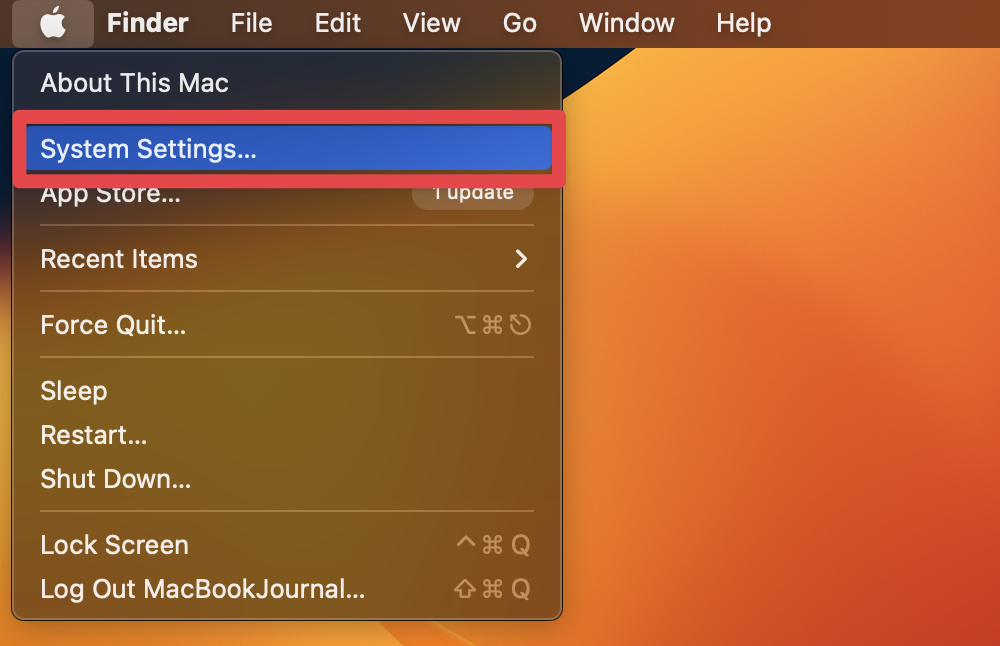
- Click the Apple menu in the top-left corner of your screen and select System Settings from the drop-down menu.
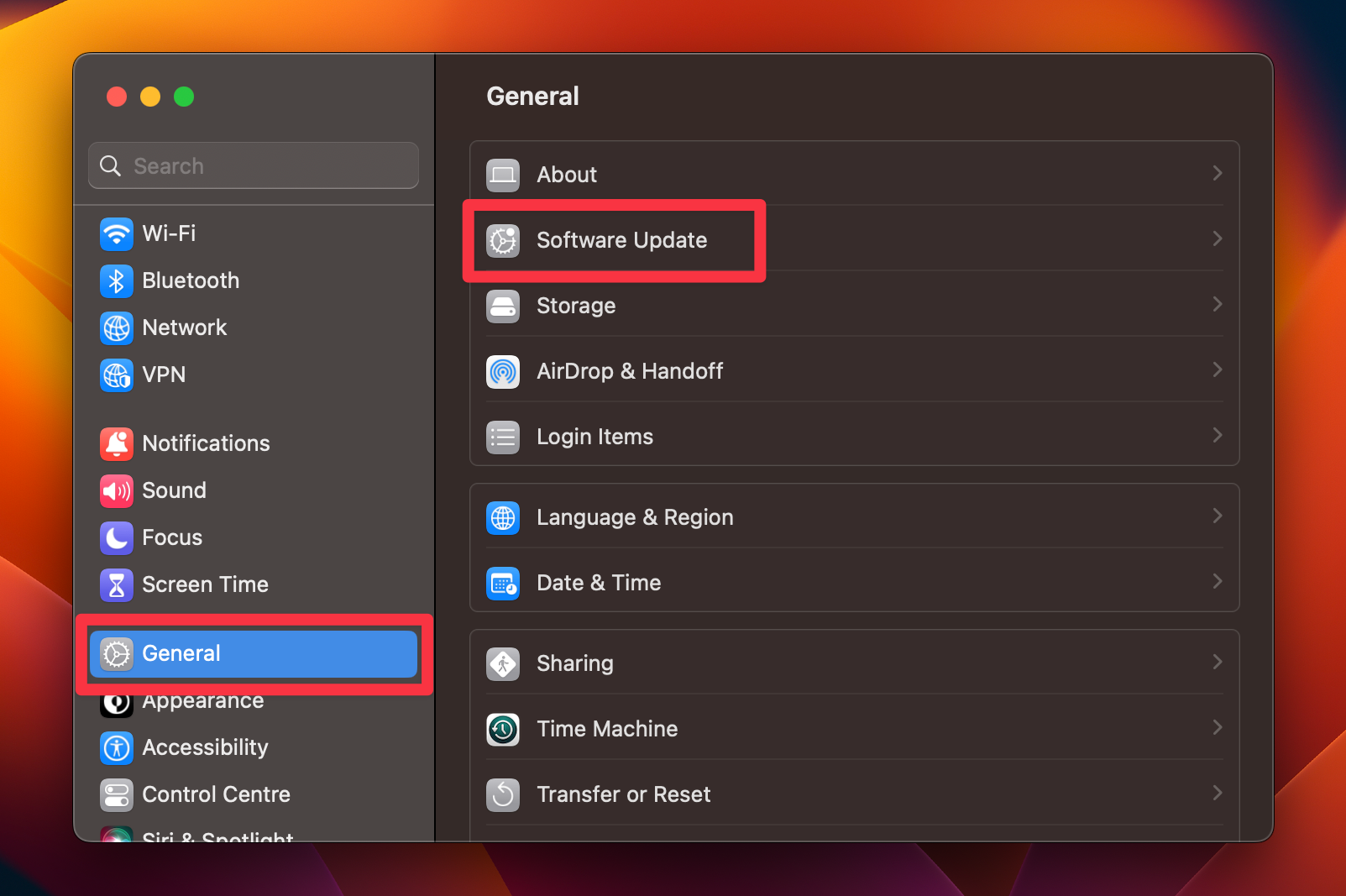
- Click General and select Software Update.
- Check for available software updates and install them by clicking the Update Now button.
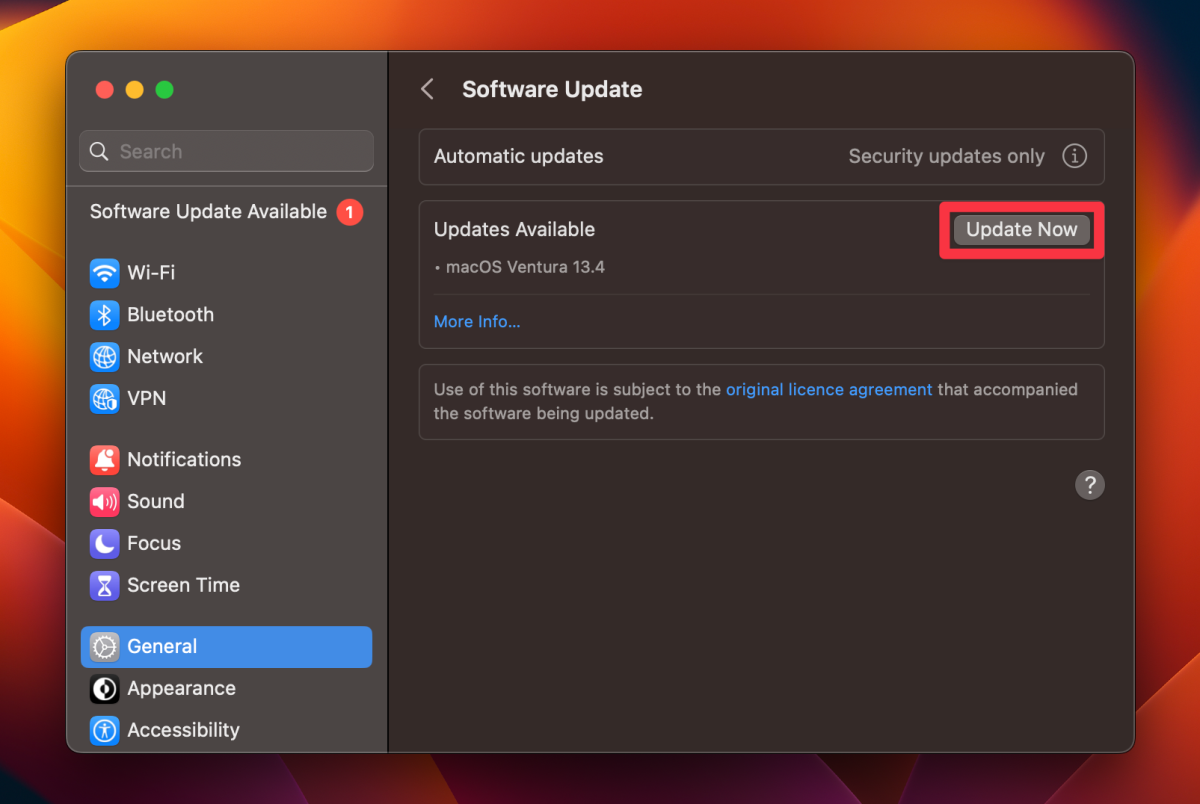
- Restart your Mac after installing updates, and it should resolve the Mac USB not working issue.
3. Resetting the SMC
Resetting the SMC can resolve hardware problems like malfunctioning USB ports by clearing corrupted settings. Here’s how to reset the SMC on your Mac to potentially fix USB port issues:
💡 Did You Know? The SMC reset can also resolve issues with your Mac’s battery, fan control, and display backlight, making it a useful first step for troubleshooting various hardware-related problems.
a. On a Mac With a Removable Battery
- Shut down your Mac.

- Remove your MacBook’s battery.
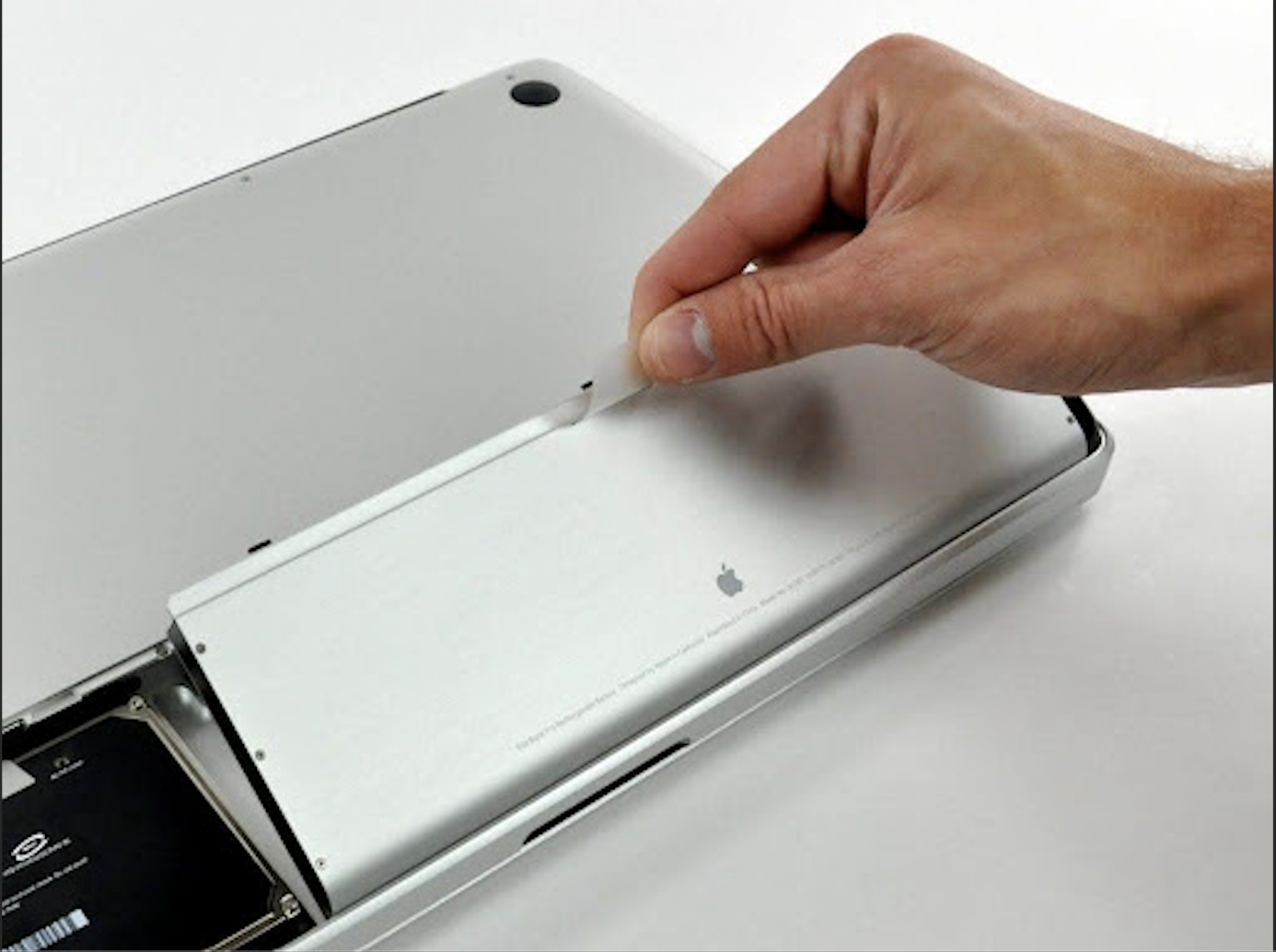
- Press and hold the Power button for 5 seconds while the battery is removed.
- Release the Power button and reinstall the battery.
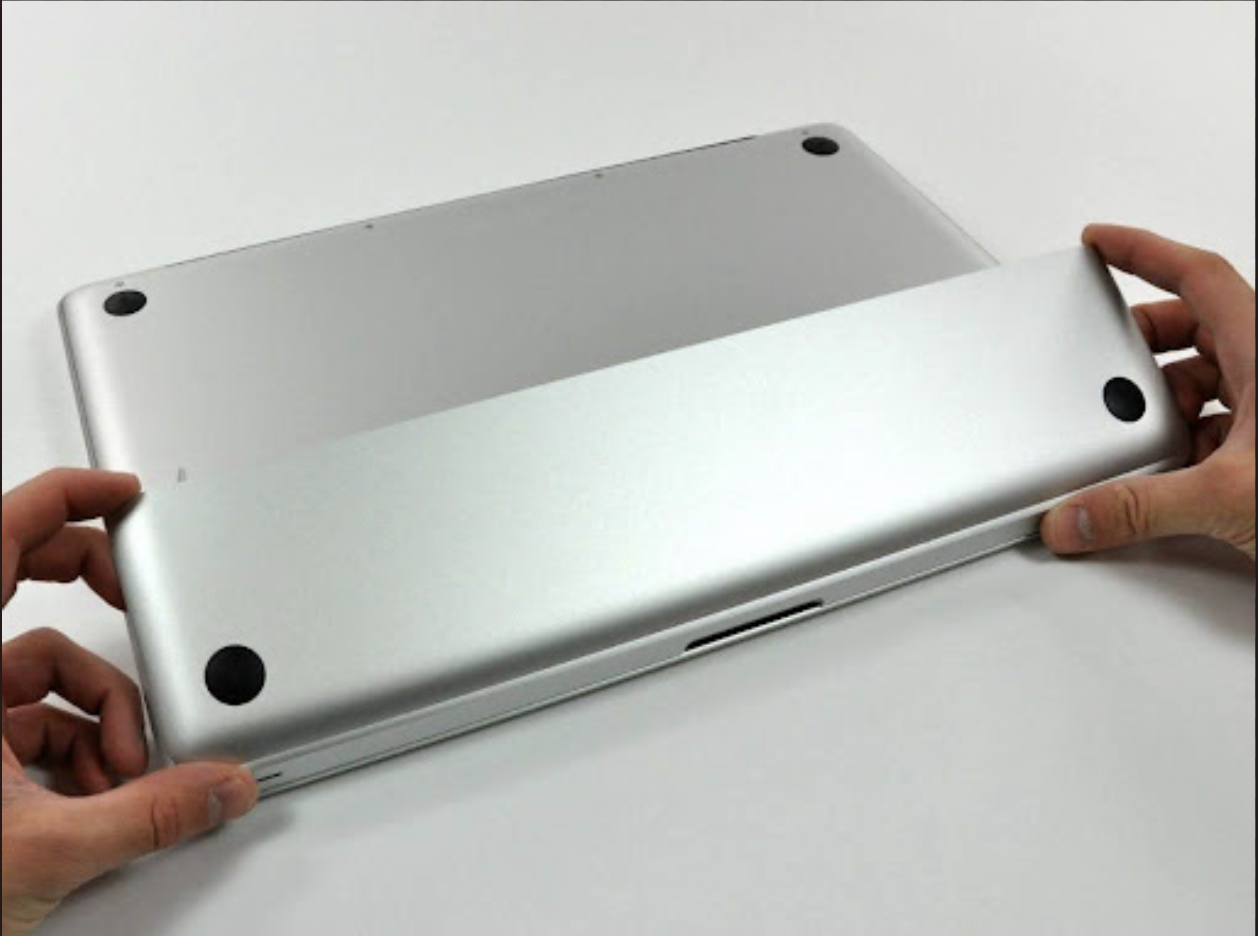
- Turn on your Mac by pressing the Power button.
b. On a Mac With a Non-Removable Battery
- Tap the Apple icon and select Shut Down from the drop-down menu.
- Press and hold the Shift ⇧ + Control ^ + Option ⌥ keys with the power button for 10 seconds.

- Release all the keys and press the power button to turn on your MacBook.
After resetting the SMC, test your USB ports to see if they work correctly.
4. Clearing the PRAM or NVRAM
Resetting PRAM/NVRAM can fix USB port problems by clearing stored configurations related to hardware. Here’s how you can reset the PRAM/NVRAM on your Mac:
a. On Intel-Based Macs
- Turn off your Mac.
- Press the Power button to turn on your Mac.

- Press and hold the Option ⌥ + Command ⌘ + P + R keys simultaneously before the gray screen appears.

- Keep holding the keys until your Mac restarts, and you hear the startup chime twice. If you have a Mac with the T2 Security Chip, keep holding the keys until the Apple logo appears and disappears twice.
- Release the keys and let your Mac start up normally.
b. On Macs With Apple Silicon Processors
There’s no need to reset NVRAM on Macs with an M1 or M2 processor. If a reset is needed, your Apple Silicon Mac will make it happen automatically during a restart. You don’t need any keyboard shortcuts to initiate the reset.
5. Remove Conflicting USB Devices
Sometimes, conflicts between different USB devices connected to your Mac can lead to connectivity or functionality problems. Here are the step-by-step instructions to remove conflicting USB devices on your Mac to fix USB port issues:
- Disconnect all USB devices from your Mac.
- Restart your Mac.
- Reconnect each USB device individually, testing the USB port after each device is connected.
- If a USB device causes issues with a USB port, disconnect it and try connecting it to a different one.
- If the USB device continues to cause issues on multiple USB ports, the device may be defective and require replacement.
If you suspect an infection while troubleshooting USB problems, use MacKeeper’s Antivirus to check for malicious files. Review detected threats and the action taken, then continue the USB device and connection checks for the port problem itself.
Check the USB device itself on another computer. If it’s still not working, the problem might be with the device, not your Mac.
Prevent USB Port Issues on Your Mac
The fixes above should help resolve your Mac’s USB port issues, but regular Mac maintenance is key to preventing future problems. If you run into USB port issues again, follow these steps:
- Run Apple Diagnostics to identify and address any hardware-related issues quickly.
- Shut down and restart your Mac to clear temporary glitches.
- Update your macOS to fix known hardware issues, including USB problems.
Frequently Asked Questions
How can I fix the USB ports on my Mac?
Why is my Mac not recognizing my USB device?
What should I do if none of the USB ports on my Mac work?
Affiliate disclosure: MacBook Journal may earn a commission when you buy through links on this page, at no extra cost to you.
How helpful was this article?
Your feedback helps us improve our guides.