

You press Play, the video moves, and your MacBook stays silent even though the volume is up.
No sound on a MacBook can mean the wrong output is selected, an app is muted, or the speakers need attention. Start by checking where the sound should play.
Then compare another app before trying anything more disruptive.
TL;DR
Select the intended sound output and check mute and volume before troubleshooting the app.
- Open System Settings > Sound > Output and choose MacBook speakers if desired.
- Check the app’s volume and test another file in another app.
- Headphones, displays, or wireless speakers may be selected instead.
Is All Sound Missing, or Just One App?
Play a familiar audio file in another app, keeping the same speakers or headphones selected. If you hear it through the built-in speakers, they can play sound, so concentrate on the silent app.
Apple’s speaker troubleshooting starts with this distinction.
If you can hear other people on a call but they can’t hear you, check microphone input. Output controls what you hear, while Input chooses what your Mac records.
Sound input settings and our Mac audio recording guide cover that separate problem.
The steps below apply to MacBook Air and MacBook Pro with Apple silicon or Intel processors. Current macOS uses System Settings. On older releases that show System Preferences, open Sound > Output there instead.
The retained screenshots show earlier layouts, so follow the setting names when their position differs.
How to Fix No Sound on a MacBook
1. Check Volume and Mute Settings
Start with a low listening level, especially if you’re wearing headphones. Move the volume up a little while audio is playing and stop at a comfortable level.
You don’t need maximum volume to check whether sound works.
- Use the speaker-symbol keys or your keyboard’s volume control to raise the level gently. On keyboards set to standard function keys, hold Fn while pressing the relevant key. Apple’s function-key guide explains the difference.

- Check the mute control. If it’s on, turn it off, then try the same audio again.

If the keys don’t change the volume, continue to Output below. An external audio device may use its own volume control.
2. Select the Correct Sound Output
Selecting an output changes where sound plays. It doesn’t reset your Mac’s sound settings. Sound output settings lists the available speakers, headphones, and other audio devices.
- Choose Apple menu > System Settings.
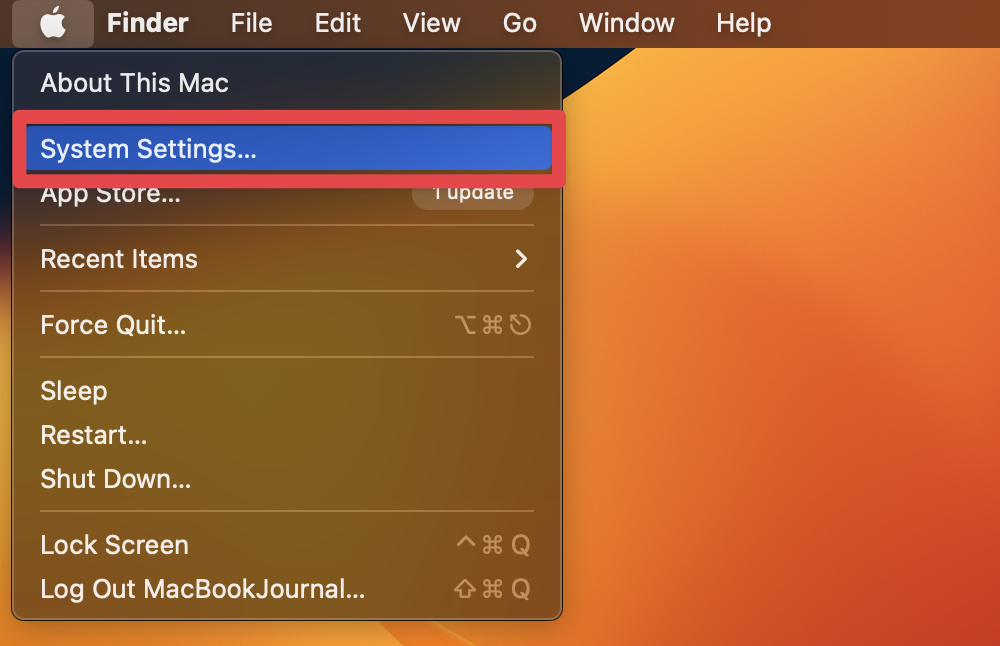
- Click Sound in the sidebar, then click Output.

- Select the device you want to hear. For the built-in speakers, look for MacBook Air Speakers, MacBook Pro Speakers, or the built-in/internal-speaker entry. For a wired device in the headphone jack, choose Headphones.

- Raise Output volume gently from a low level while your audio plays.

- Make sure Mute is off, then play the same file again.
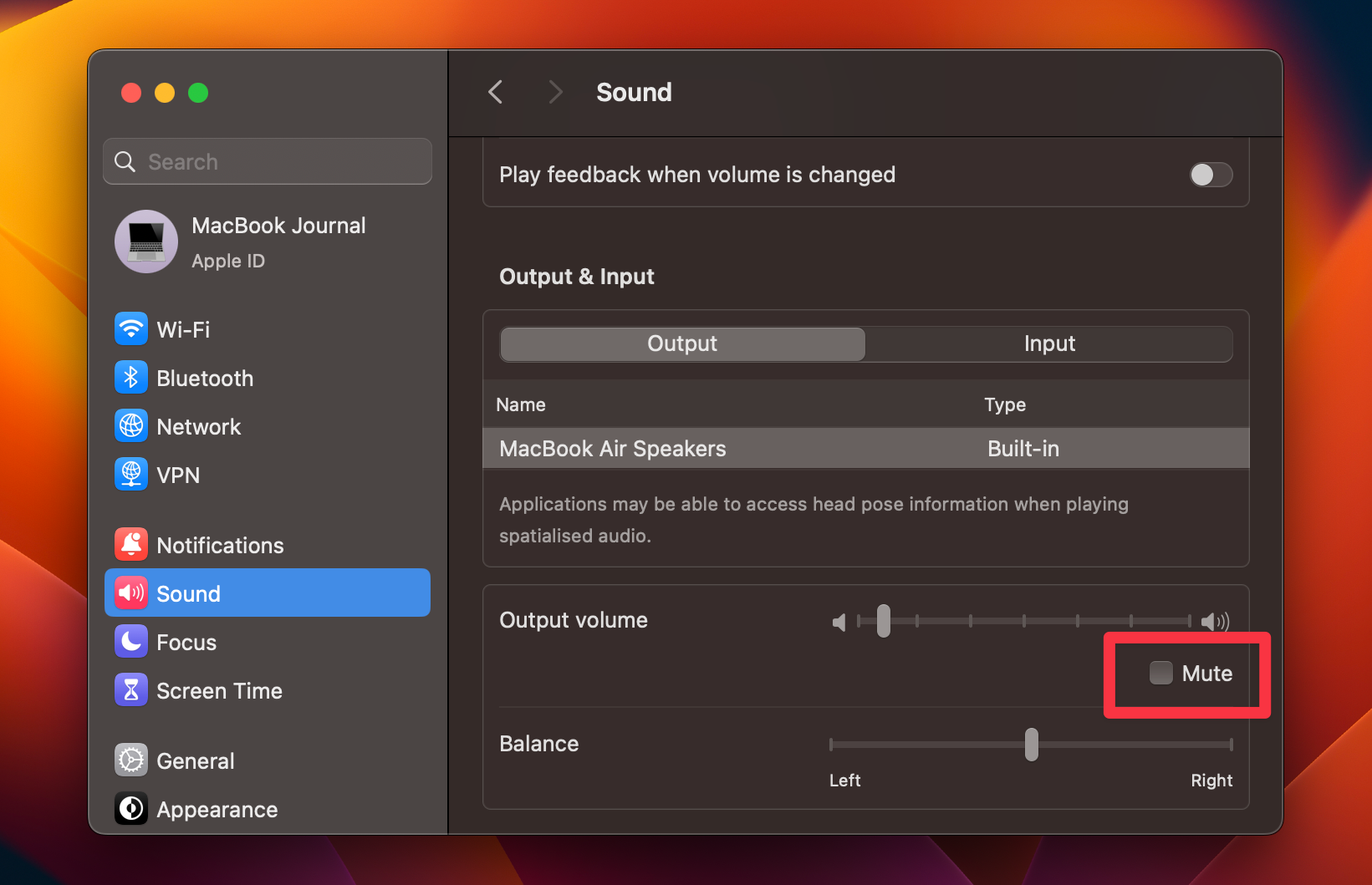
If sound returns, stop here. If the built-in speaker entry is missing, unplug headphones and external audio equipment, then check Output again.
If it’s still missing after a normal restart, move to the service advice below.
3. Check the Silent App or Browser Tab
When another app works through the same output, check the app that’s silent before changing more system settings. Its own volume control can keep it quiet even when your Mac’s volume is turned up.
- Check the player’s mute button and volume slider. Music, Apple TV, and website players can have separate controls.
- In Safari, check whether the webpage is muted. Use its Audio button to unmute it, then check the video player’s own controls.
- Try a different file or video in that app. If the app has a speaker or output selector, check that it matches the device you intend to use.
These app volume checks help separate a silent player from a speaker problem. If only one app stays silent, save your work and quit and reopen that app before restarting the whole Mac.
4. Check Headphones, Displays, Docks, and Wireless Speakers
A connected device can be the selected output even when you expect sound from the laptop. Return to Sound > Output and check the device name before unplugging anything.
- For MacBook speakers, choose the built-in speaker entry. To isolate an external connection, disconnect audio accessories and an HDMI or USB-C display, then reselect the built-in speakers. Save any work on external storage before disconnecting a dock, and eject its drives first. Apple’s internal-speaker checks include external displays and USB audio devices.
- For wired headphones or USB speakers, check the connection and choose Headphones or the named USB device in Output. Powered speakers may also have a power switch and their own volume knob. Apple’s external-speaker guide covers these checks.
- For a TV or HDMI display, select its HDMI device in Output if you want sound there. Check the TV or monitor’s volume and whether it has speakers. If you want laptop sound instead, select the MacBook speakers. Apple’s HDMI guide confirms the HDMI output selection.
- For Bluetooth headphones or speakers, make sure the device is connected, then select it under Sound > Output. A paired device still needs to be the chosen audio output. Follow Apple’s Bluetooth audio steps if it doesn’t appear.
- For AirPlay, check whether the selected output is a remote speaker or TV. Choose the MacBook speakers for local playback. If TV playback is intentional, our Mac to TV AirPlay guide explains streaming and mirroring.
If the same file plays through your MacBook speakers but stays silent through an accessory, keep troubleshooting that accessory and its connection. That result narrows the problem without establishing which part has failed.
5. Restart Normally, Then Check for Software Updates
If the correct output is selected and several apps are still silent, save your work and use a normal restart. Choose Apple menu > Restart.
Then test the same file through the built-in speakers after signing back in. Apple’s restart instructions describe the normal menu option.

If simpler checks have not restored sound, back up your Mac and check System Settings > General > Software Update. A relevant software fix may help; it cannot repair damaged audio hardware. Apple’s Apple’s update instructions explains compatibility and installation.
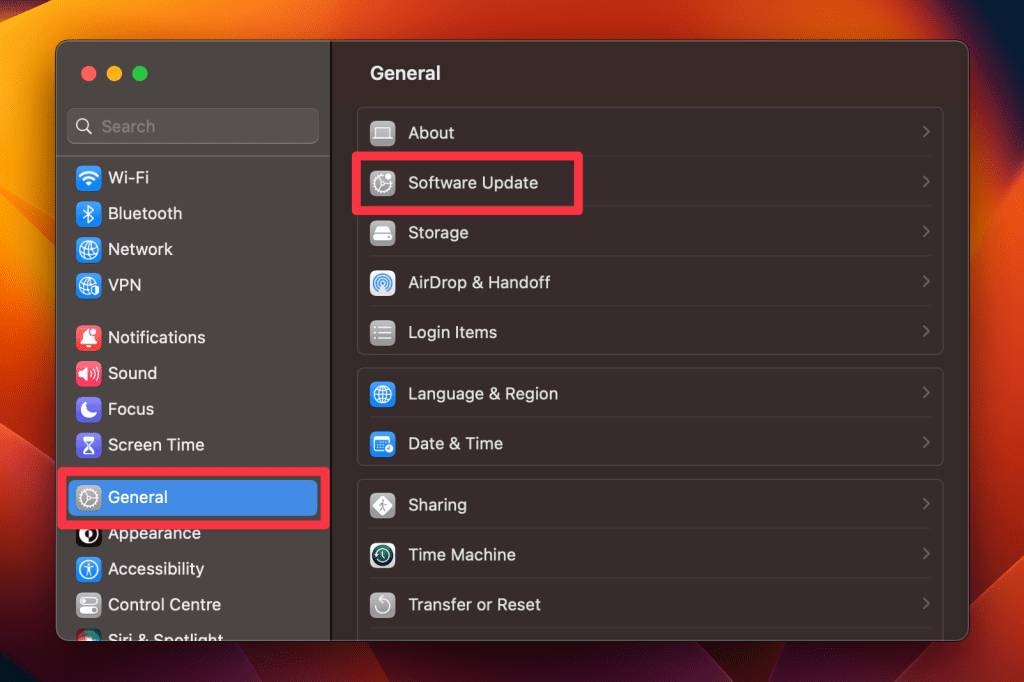
If an update is available, follow the onscreen instructions and allow the installation to finish. Don’t close the lid or interrupt the installation.
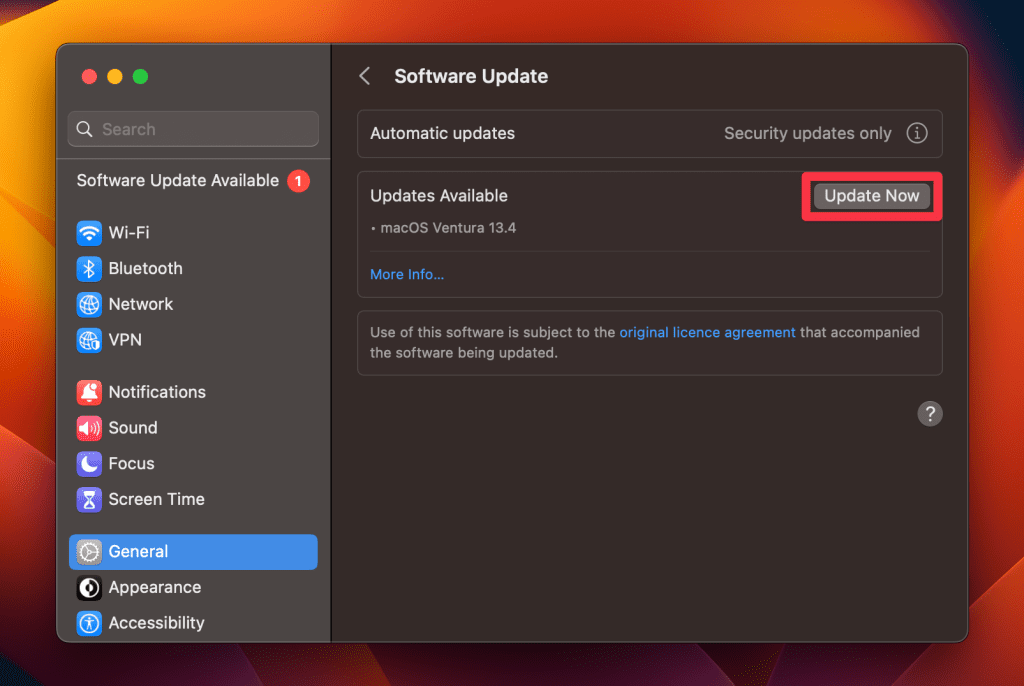
After the restart or update, recheck Sound > Output and play the same file again. If it works, reconnect only the audio accessories you need and confirm the intended output still plays.
When to Get Your MacBook Checked
Arrange service if the built-in speakers remain silent across apps after the output, mute, connection, and restart checks.
Also seek help if the speaker entry stays missing, or the failure followed a drop or liquid exposure. Apple’s speaker guidance recommends service when its checks don’t restore sound, and liquid damage can require repair.
Tell the repair provider which outputs work, which apps you tried and whether the issue followed an accessory connection or update. Headphones working while laptop speakers remain silent is useful evidence, but does not identify the failed component by itself. Check Mac laptop service options before arranging repair.
Frequently Asked Questions
Why Is My MacBook’s Volume Slider Unavailable?
The Mac’s volume controls can be unavailable for digital output, where the receiver controls the listening level.
Adjust the receiver’s volume, or choose your built-in speakers to check laptop playback. Apple’s digital-output guidance explains this limitation.
Why Can I Hear Music but Not Alert Sounds?
Alert sounds have a separate volume setting and can use a different output.
Check Sound > Sound Effects, including Alert volume and Play sound effects through. Apple’s Sound settings guide distinguishes these controls from normal audio output.
Why Does Sound Come From Only One Side?
The Balance setting may be shifted toward one channel.
Check Sound > Output and move Balance toward the center if needed, then try another file. Apple’s output settings guide describes this control.
Persistent one-sided sound across files and devices needs further investigation.
Why Do Bluetooth Headphones Sound Muffled During a Call?
Bluetooth headphone audio quality and volume can drop when an app uses the headphones’ microphone.
Finish the call or close the microphone-using app, then try playback again. Apple’s Bluetooth sound guide explains the change between listening and microphone modes.
Does a Silent Startup Chime Mean My Speakers Are Broken?
A silent startup chime alone doesn’t establish a speaker fault because the startup sound has its own setting.
Check Play sound on startup in Sound settings, where available, and use ordinary audio playback to check the speakers. Apple’s sound options include this control.
Why Is My Recording Silent When Other Audio Plays?
A silent microphone recording can involve the selected input or the recording app’s microphone permission. Playback working doesn’t confirm that your microphone records.
Check the sound input settings and follow the microphone steps in our Mac recording guide.
Affiliate disclosure: MacBook Journal may earn a commission when you buy through links on this page, at no extra cost to you.
How helpful was this article?
Your feedback helps us improve our guides.