


TL;DR
To catch and remove hidden LaunchDaemons on Mac:
- Open Activity Monitor via Spotlight.
- Search for processes named launchd or LaunchDaemon.
- Select the process, then click the i button for details.
- Click the X button to quit the process.
- Confirm by clicking Force Quit.
Tried and Tested ✅: The methods and steps mentioned in this article have been tried and tested firsthand by Ojash Yadav on his MacBook Pro M3 and rechecked for errors on Hashir’s MacBook Air M2.
Macs are known for their reliability, but even the best systems can slow down over time. Often, the cause is hidden processes running in the background that you might not even know exist. In this guide, I’ll help you catch and remove hidden LaunchDaemons to keep your Mac running at its best.
Before We Begin
LaunchDaemons include legitimate services, so review an item’s purpose before changing it. If you suspect malicious software, MacKeeper’s Antivirus can scan files for threats and show detected items for review. Follow the threat-handling guidance rather than removing unknown services indiscriminately.
Scan for Malware When Investigating LaunchDaemons
MacKeeper’s Antivirus scans files for malicious content and reports detected threats for review. Use the results to investigate suspected malware while checking a daemon’s role and location before making system changes.
To leverage MacKeeper for maintaining Mac security and defending against malware, follow these steps:
- Get MacKeeper and install MacKeeper on your Mac.
- Launch MacKeeper and navigate to the Antivirus tab in the left sidebar.

- Start an instant virus scan by clicking the Start Scan button.

- If the scan detects virus, click the Fix Items button to resolve the issues.
- If your system is threat-free, you’ll see a No threats found message. You can tap the Restart button to run the scan again.

- Enable real-time antivirus protection to safeguard your Mac from future threats by clicking the Enable button.

Once you have enabled Real-Time Protection and granted the required permissions, MacKeeper checks files as you open them and alerts you when it detects malicious content. Review the Antivirus results and quarantine settings to see how detected files are handled.
Review Detected Threats Before Changing Services
Review MacKeeper’s Antivirus results and the action taken on detected files. Continue investigating any suspicious daemon by its file location and purpose, keeping legitimate services in place.
How to Find and Remove Hidden LaunchDaemons on Mac
How We Check Our Guides We use Apple’s support documents and current developer instructions to check the steps. Screenshots and menu names can differ between versions, so follow the branch for your Mac. Read our editorial process.
Here is the step-by-step guide to find and remove hidden LaunchDaemons on Mac:
1. Using Terminal
The Terminal offers a powerful way to remove hidden LaunchDaemons on your Mac through command-line operations manually. Here’s how to remove hidden LaunchDaemons on Mac using Terminal:
- Go to Applications > Utilities > Terminal or use Spotlight search to locate Terminal.

- Enter the following command to view all LaunchDaemons:
sudo launchctl list
- Note the name of the LaunchDaemon you want to remove.

- Enter the following command to unload the LaunchDaemon
sudo launchctl unload -w /path/to/launchdaemon.plist
Replace /path/to/launchdaemon.plist with the actual path to the LaunchDaemon you want to remove.
- Once you’ve unloaded the LaunchDaemon, you can delete it from your Mac by entering the following command:
sudo rm /path/to/launchdaemon.plistAgain, replace /path/to/launchdaemon.plist with the actual path to the LaunchDaemon file.
- Finally, enter the following command to remove the LaunchDaemon from the LaunchDaemons directory:
sudo rm -rf /Library/LaunchDaemons/launchdaemon.plistReplace launchdaemon.plist with the actual name of the LaunchDaemon you want to remove.
2. Using Activity Monitor
Activity Monitor allows you to identify and stop hidden LaunchDaemons by monitoring your Mac’s system processes. Here are the steps to catch and remove hidden LaunchDaemons on Mac using Activity Monitor:
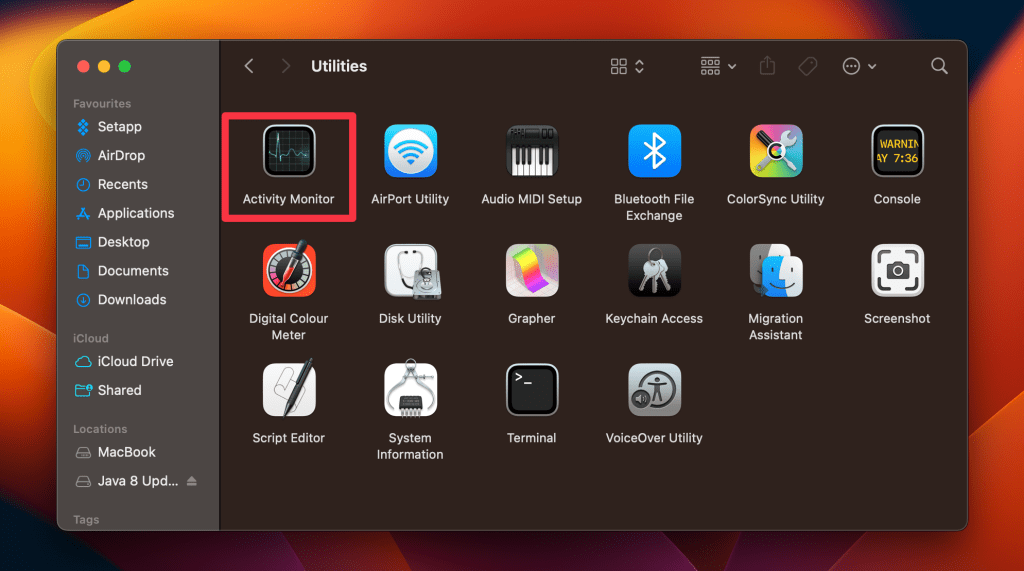
- Launch the Spotlight Search by pressing Command ⌘ + Spacebar and type in Activity Monitor. Alternatively, go to Finder > Applications > Utilities > Activity Monitor and double-click the app icon to open it.
- The Activity Monitor will display all the processes currently running on your Mac. Look for any process named launchd or LaunchDaemon.
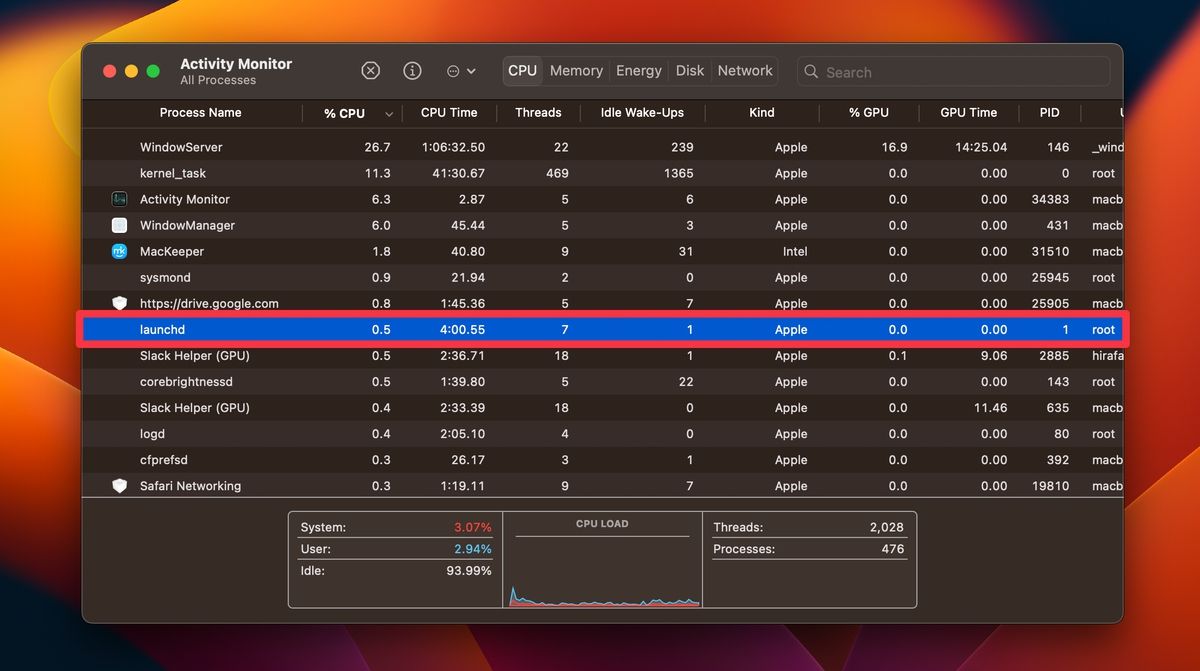
- Once you have identified the LaunchDaemon, select it and click the i button on the toolbar to display more information about the process.

- To quit the process, click the X button in the top toolbar.

- Click Force Quit on the pop-up.

How to Catch LaunchDaemons on Mac
Here’s how to catch LaunchDaemons on your Mac:
- Open Spotlight and search for the Script Editor app.
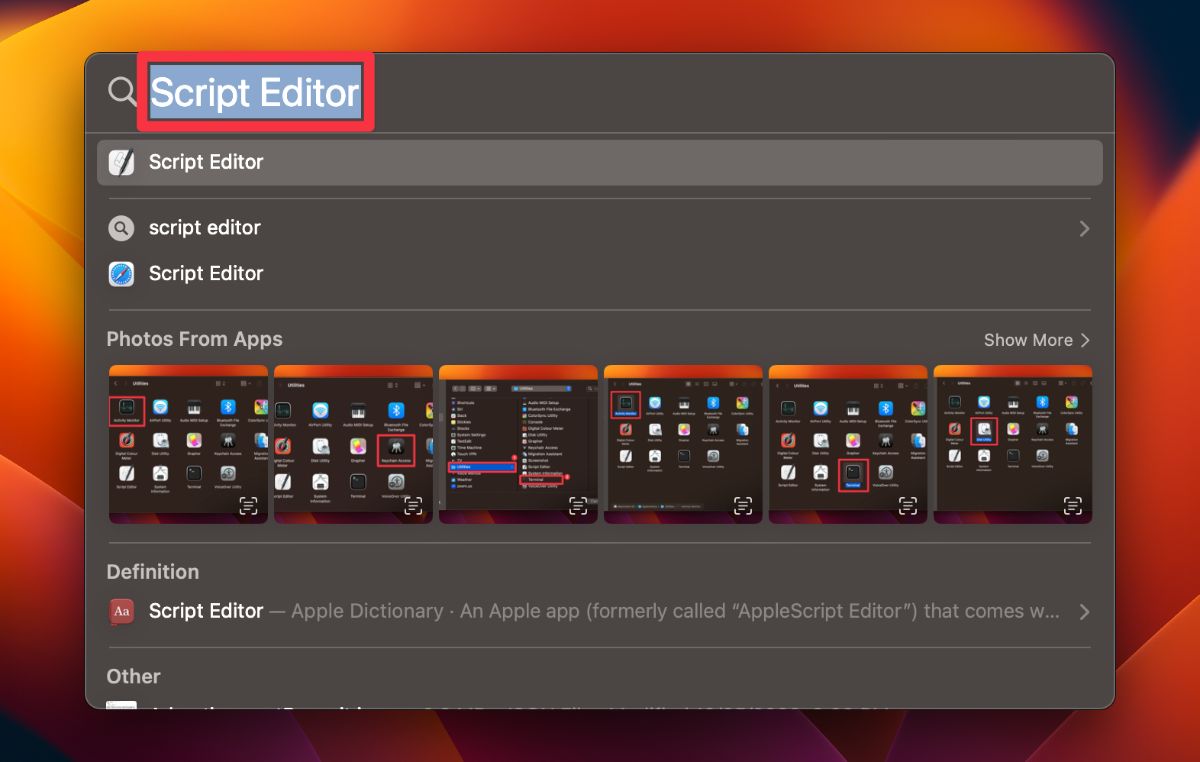
- Click the app icon to open it.

- Go to Script Editor in the menu bar and click Settings.

- In the Settings menu, navigate to General and enable the Show Script menu in menu bar option.

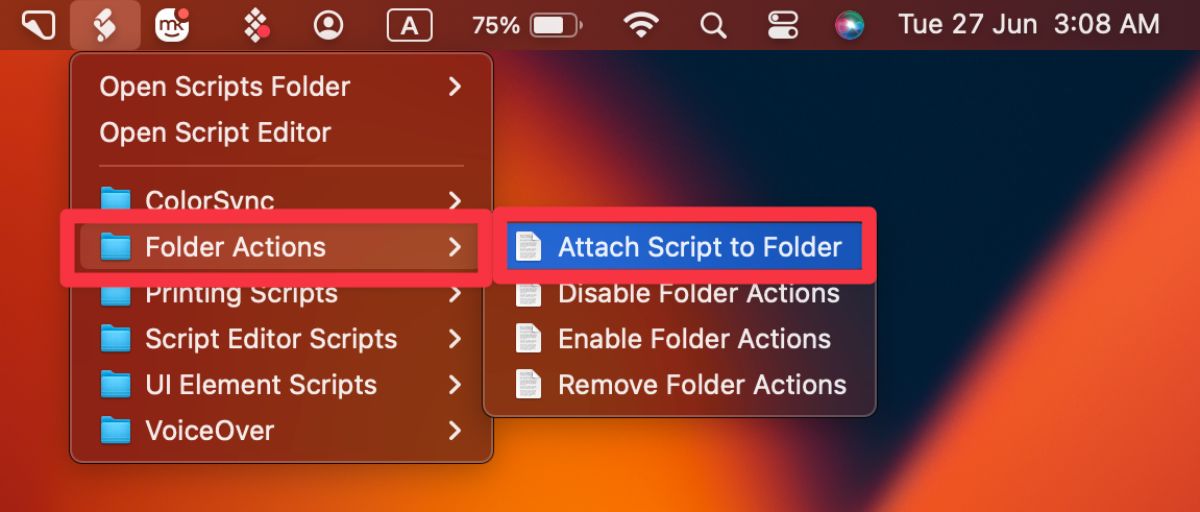
- Click the Script Editor icon in the menu bar. Hover your mouse over Folder Actions and select Enable Folder Actions.

- From the same menu, select Attach Script to Folder.
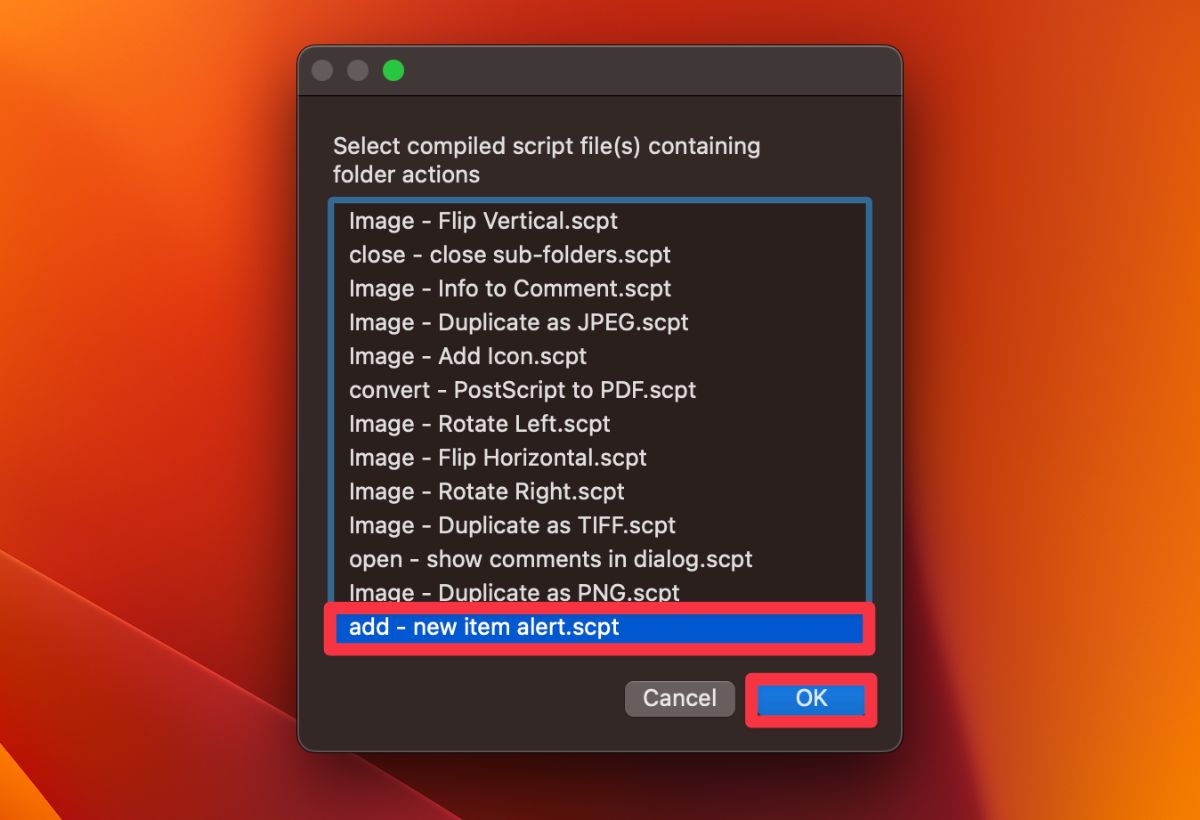
- A dialog box will appear. Choose add – new item alert from the options and click OK to open a Finder window.
- In the Finder window, select the user LaunchDaemon folder and click Choose.

- Next, open Finder, go to the Go menu in the menu bar and select Go to Folder.

- In the navigation dialog box, type the following path and press Enter:
/Library/LaunchDaemons
- Right-click the LaunchDaemons folder and choose Services followed by Folder Actions Setup.

- In the dialog box that appears, you’ll see a list of folders in the left column and scripts in the right column.

- If you don’t see any scripts, click the plus (+) button and add new item alert.scpt.
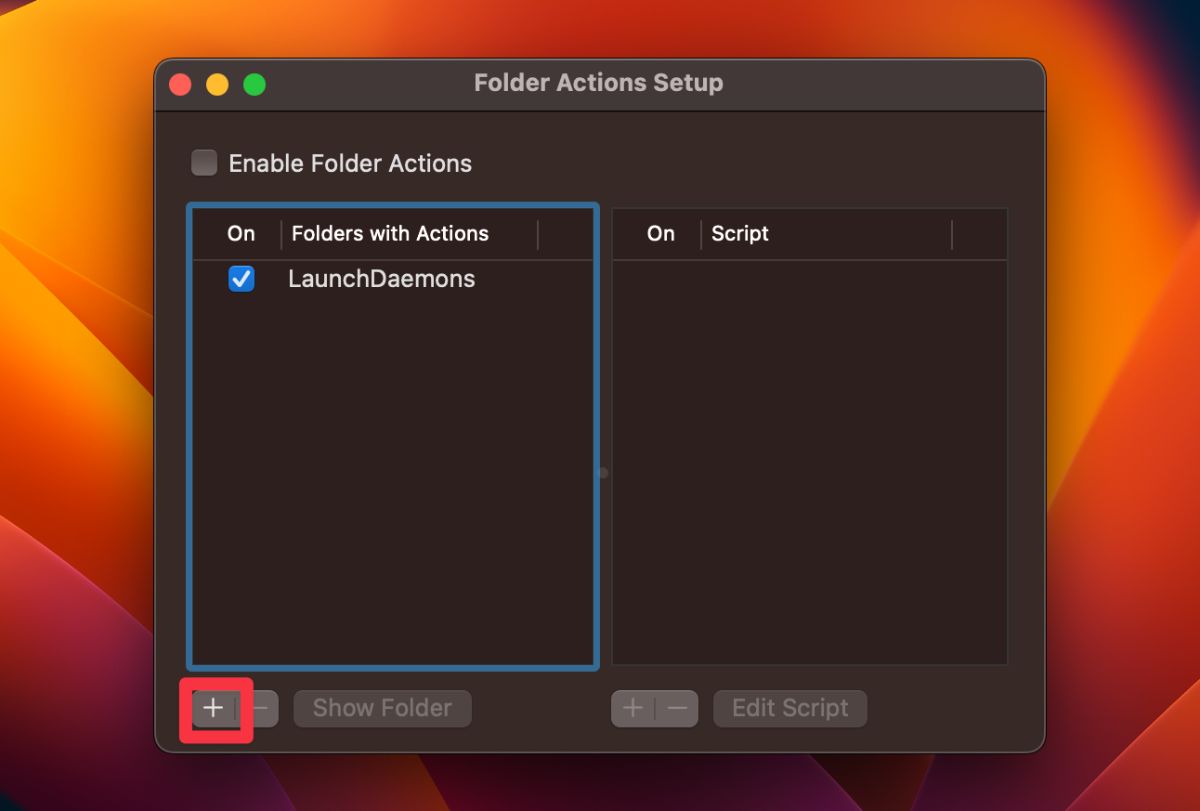
After completing these steps, macOS will display an alert popup whenever a new item is added to the monitored folders.
Keep Your Mac Running Smooth and Secure
Catching and removing hidden LaunchDaemons is essential for maintaining the security and performance of your Mac. Here are some more tips to remember to protect your Mac:
- Regularly scan your Mac for any viruses.
- Uninstall corrupt apps and avoid downloading software from untrusted sources.
- Always keep your macOS updated to the latest version to prevent vulnerabilities.
Frequently Asked Questions
How can I remove hidden LaunchDaemons from my Mac?
Can I disable LaunchDaemons instead of removing them?
Should I remove all LaunchDaemons from my Mac?
Affiliate disclosure: MacBook Journal may earn a commission when you buy through links on this page, at no extra cost to you.
How helpful was this article?
Your feedback helps us improve our guides.