

TL;DR
To fix the “Could Not Load the macOS Boot Volume” error on Bootcamp, follow one of these steps:
- Go to Apple menu > System Settings > General > Software Update to update Bootcamp drivers.
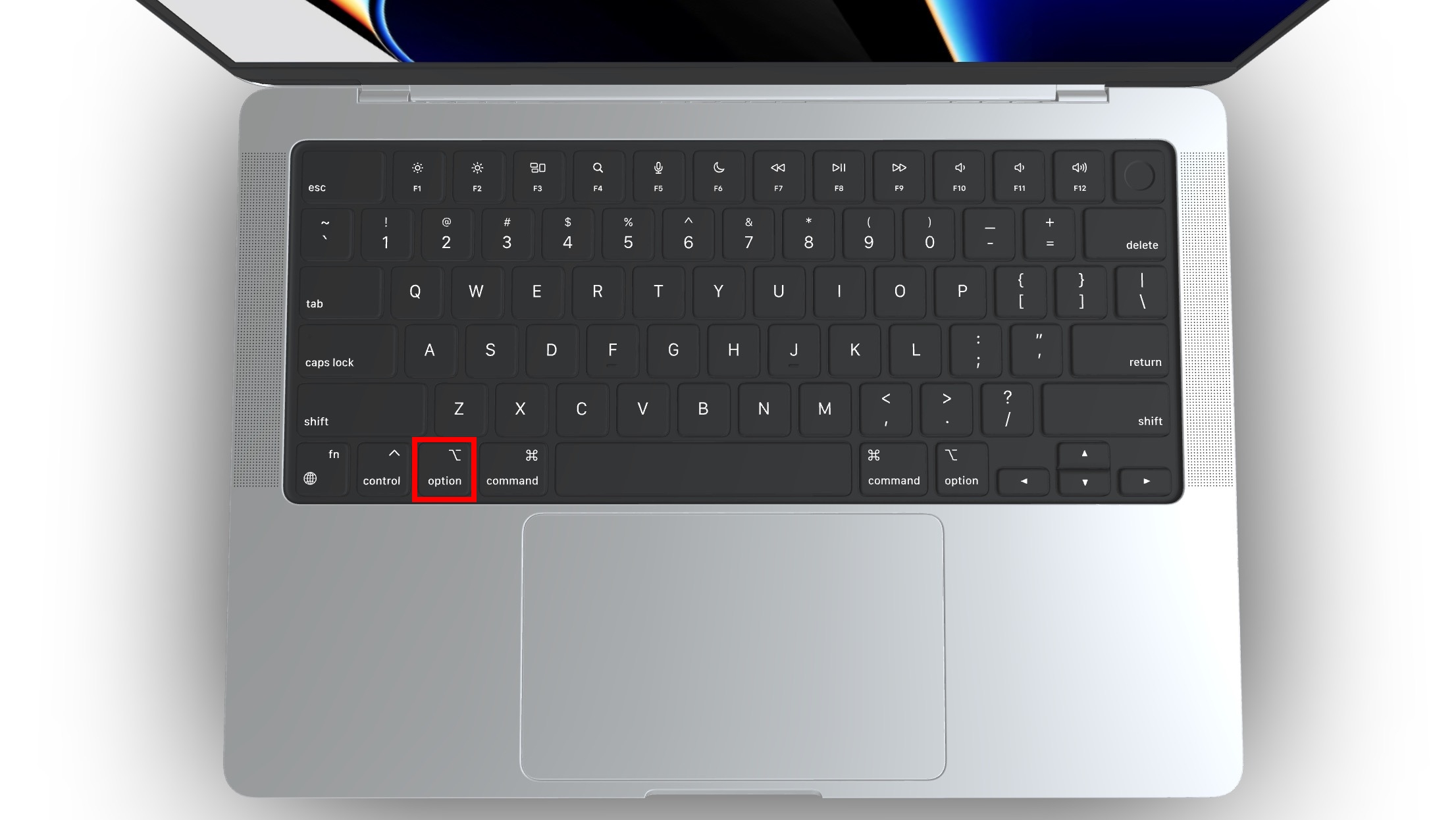
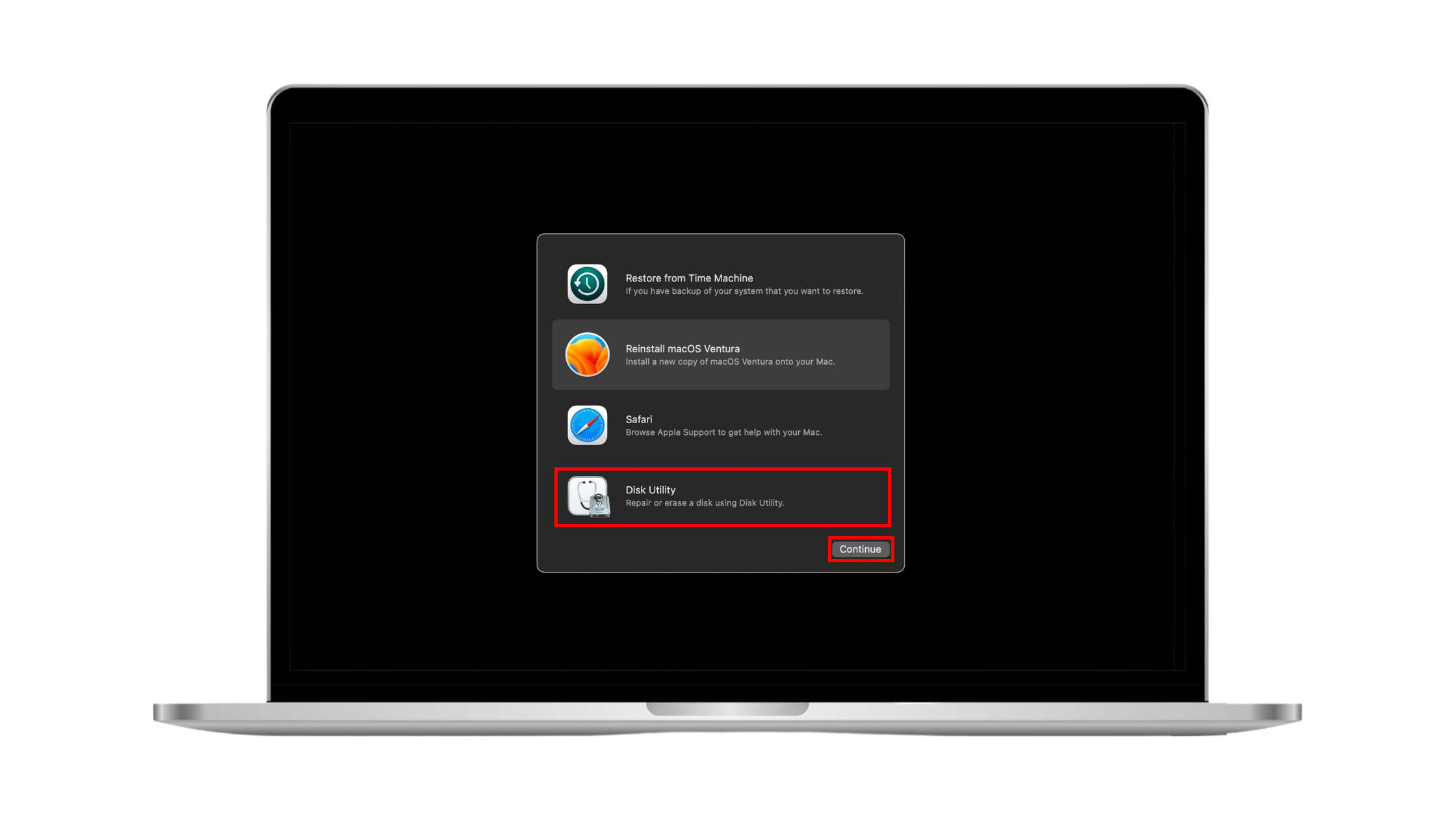
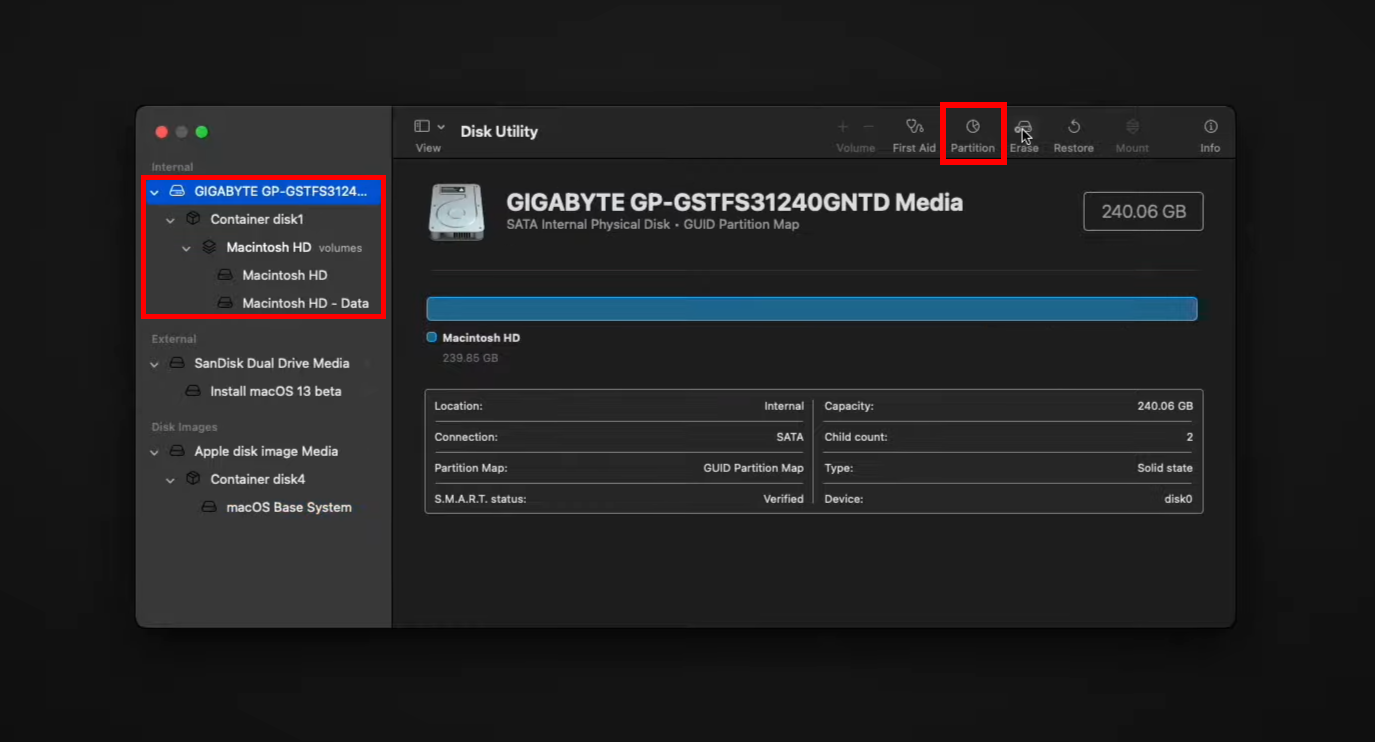
- Restart Mac, hold the Option ⌥ key, select Disk Utility, check partitioning, and reformat if needed.
- Scan for malware or viruses using security software like MacKeeper.
- Shut down Mac, press the Power button, and hold Command ⌘ + Option ⌥ + P + R until it restarts to reset the PRAM.
- Run Apple Diagnostics to check for potential hardware problems.
If you use Bootcamp and see the ‘Could not load the macOS boot volume’ error on your Mac, it means your system can’t access the macOS boot area. This can happen due to old or wrong Bootcamp drivers. In this guide, I’ll show you how to fix this error and how to avoid it later.
Before We Begin
Once macOS is accessible, MacKeeper’s Antivirus can help you review malicious files if you suspect an infection. Run the scan as a security check while you investigate the Boot Camp boot-volume error through the startup and disk checks below.
How to Fix the ‘Could Not Load the macOS Boot Volume’ Error
How We Check Our Guides We use Apple’s support documents and current developer instructions to check the steps. Screenshots and menu names can differ between versions, so follow the branch for your Mac. Read our editorial process.
You can troubleshoot and fix the ‘Could not load the macOS boot volume’ error using different methods. Below, I have shared some of my tried and tested methods to fix this error.
1. Update Bootcamp Drivers
Outdated or incompatible Bootcamp drivers can cause the ‘Could not load the macOS boot volume’ error. Updating the drivers ensures the Boot Camp software works correctly and is compatible with the macOS boot volume.
To update your Bootcamp drivers, follow these steps:
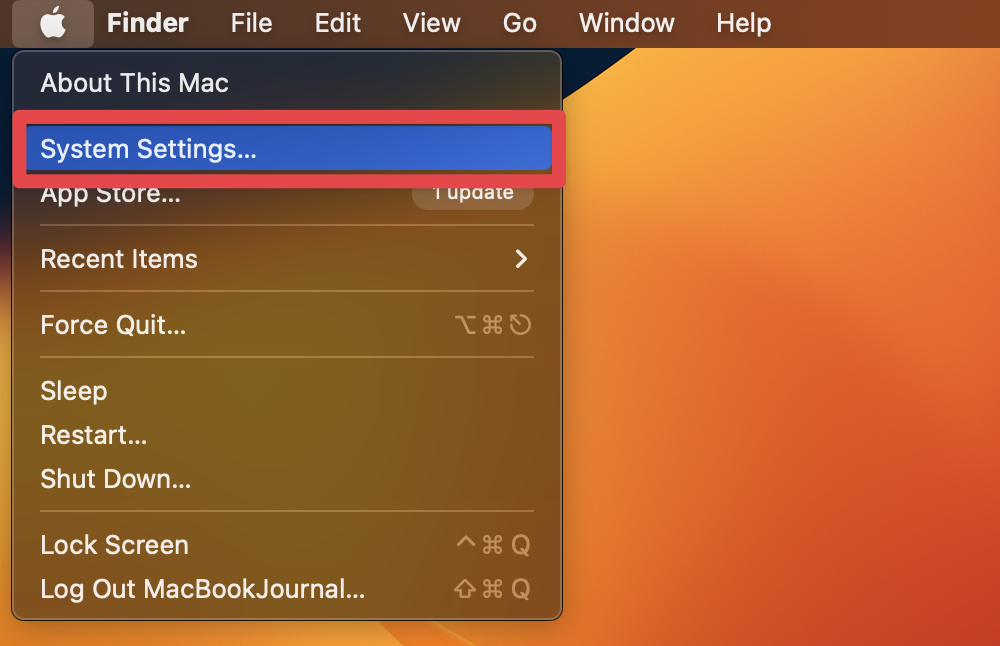
- Go to the Apple menu and select System Settings.
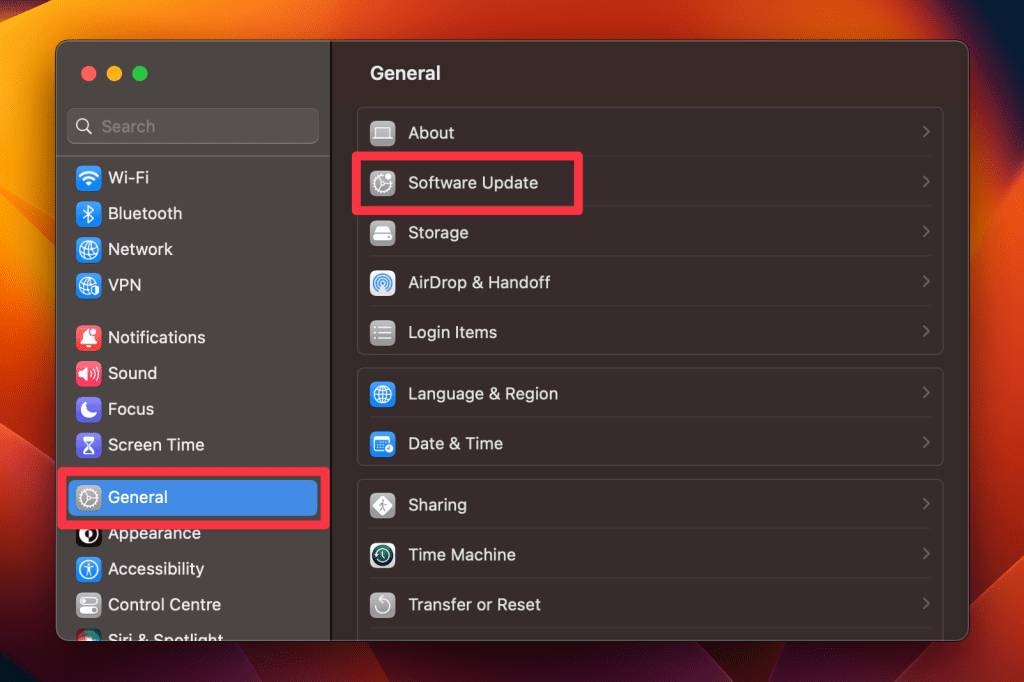
- Click General and select Software Update.
- Click the Update Now button to install any available updates.
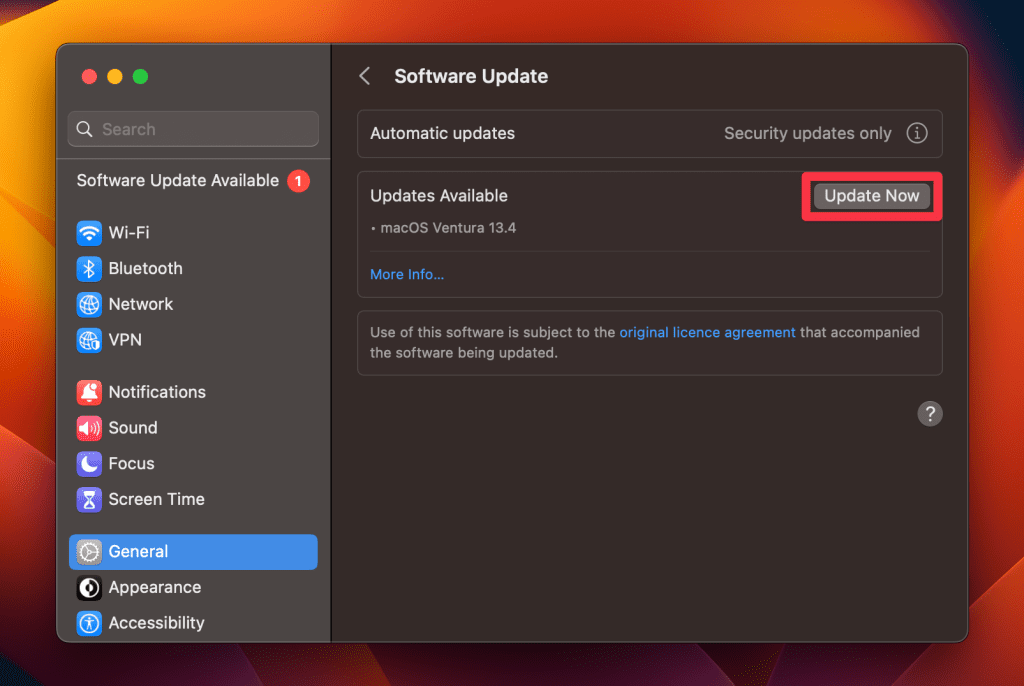
This will update your macOS and any drivers you have on your Mac, including the Bootcamp drivers.
2. Check Hard Drive Partitioning
If you split your Mac’s hard drive into different parts (partitioning) but don’t do it right, it can cause errors. One common issue, the ‘Could not load the macOS boot volume’ error, occurs when the macOS operating system partition is not set as the bootable partition.
To check your hard drive partitioning, follow these steps:
- Restart your Mac and hold down the Option⌥ key until the Startup Manager appears.
- Select Disk Utility from the Utilities window and click Continue.
- Select your hard drive from the left-hand menu. Click the Partition tab to ensure your hard drive is partitioned correctly.
- If your hard drive is partitioned incorrectly, reformat it and partition it again.
- Restart your Mac and try booting into Windows again.
3. Repair Corrupted or Damaged Files
If your Mac’s important files are corrupted or damaged, it can stop the computer from starting up. The operating system needs these files to work, and if there’s a problem when it tries to use them, your Mac might not boot up correctly.
To repair your Mac startup disk to fix corrupt or damaged files, follow these steps:
- Restart your Mac and hold down the Command ⌘ + R keys.

- Select Disk Utility and click Continue.
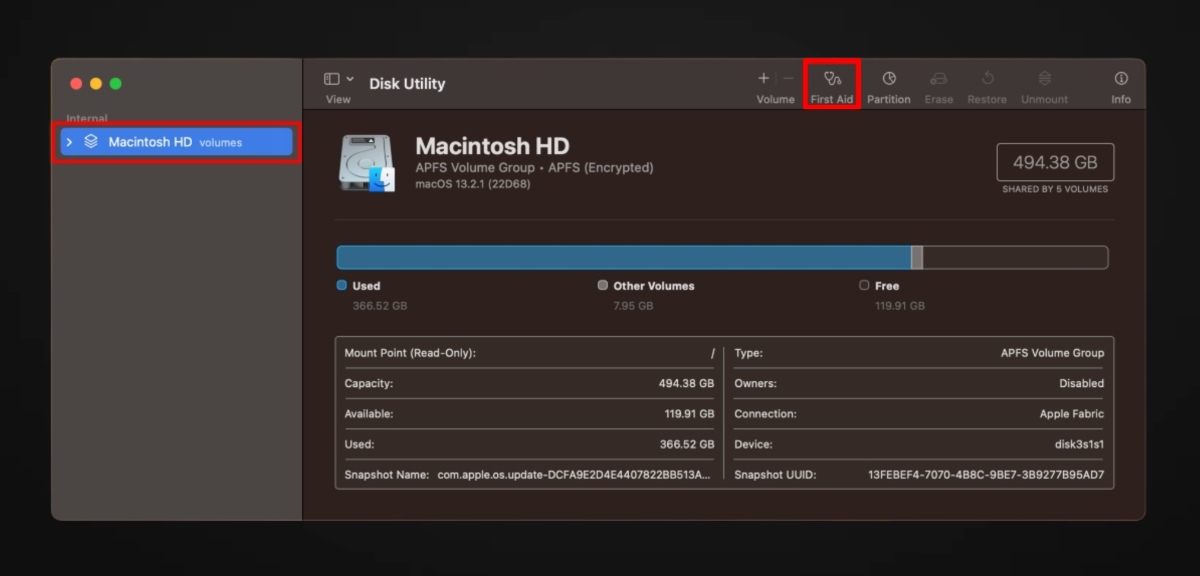
- Select your hard drive and click First Aid.
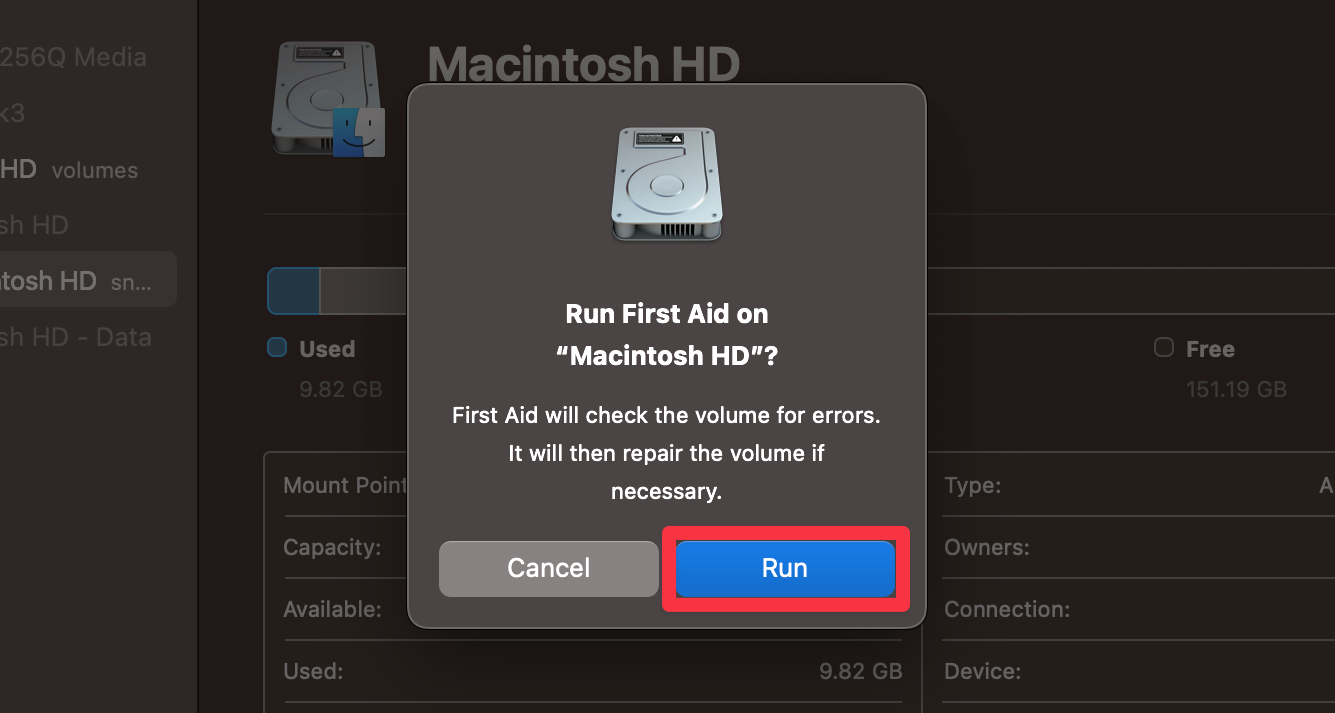
- Click Run to repair any corrupted or damaged files.
4. Scan for Malware or Viruses Using MacKeeper
After restoring access to macOS, run MacKeeper’s Antivirus if there are signs of an infection. Review detected threats and follow the handling guidance; keep boot-volume and disk diagnosis as the route for investigating the startup error.
Here are the steps to run a virus scan on your Mac using MacKeeper:
- Get MacKeeper and install MacKeeper on your Mac.
- Open MacKeeper on your Mac and click the Antivirus tab in the left-hand menu.

- Click the Start Scan button to start scanning your system for malware.

- Wait for the scan to complete, which may take several minutes.
- Once the scan is complete, MacKeeper will display a list of issues. Review the list of issues and click the Fix button to resolve them.
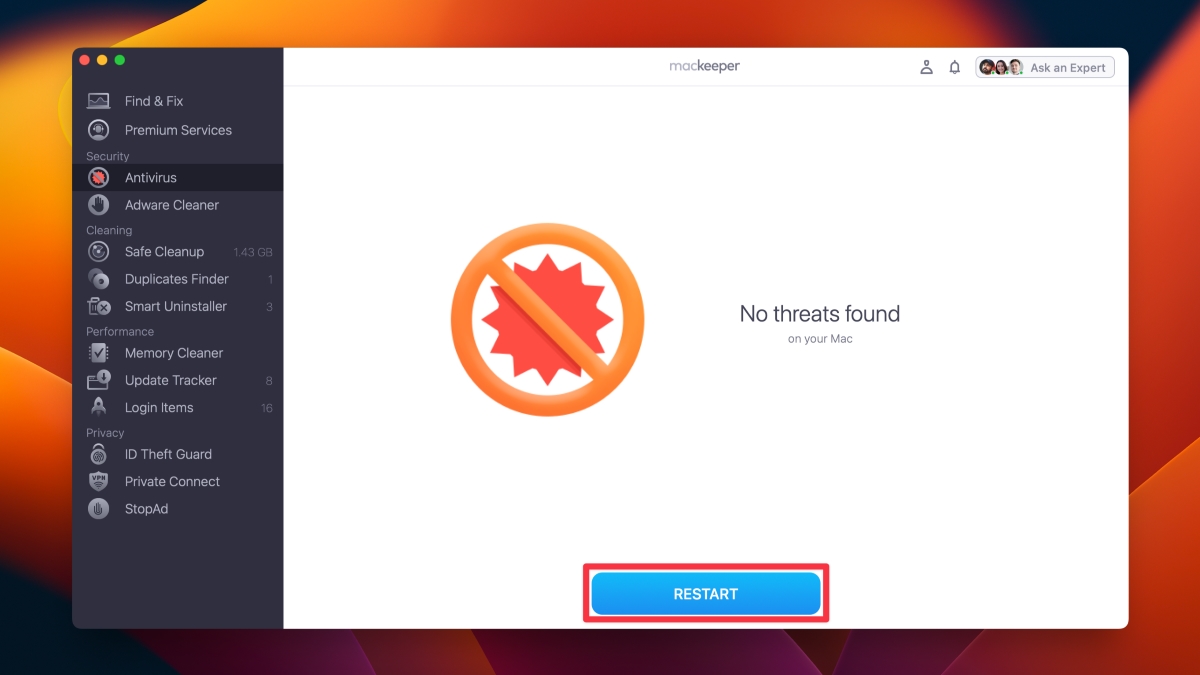
- If no threats are found, click the Restart button to run the scan again or close the program.
Return to the Boot-Volume Checks
Review MacKeeper’s scan results and the action taken on detected files. Then return to the boot-volume checks to assess whether the startup error remains.
5. Reset Your PRAM
Your Mac’s Parameter Random Access Memory (PRAM) stores specific settings that your computer uses to access the hardware. If the PRAM is corrupted, it can cause the ‘Could not load the macOS boot volume’ error.
Here’s how to reset your PRAM on Mac:
- Shut down your Mac.
- Press the power button and immediately hold down the Command ⌘ + Option⌥ + P + R keys.

- Hold down these keys until your Mac restarts, and you hear the startup sound twice.
- Release the keys and let your Mac start up normally.
- Try booting into Windows again.
6. Run Apple Diagnostics for Hardware Issues
If the other fixes don’t work, your Mac might have a hardware problem. Run an Apple Diagnostics test to check. It’ll give you error codes and descriptions to figure out the issue. If you’re still stuck, you can reach out to Apple Support for more help.
To use Apple Diagnostics on Mac to check for hardware issues, follow these steps:
On Apple Silicon Mac
- Disconnect all peripherals except the keyboard, mouse, Ethernet, display, and power cable.
- Turn off your Mac.
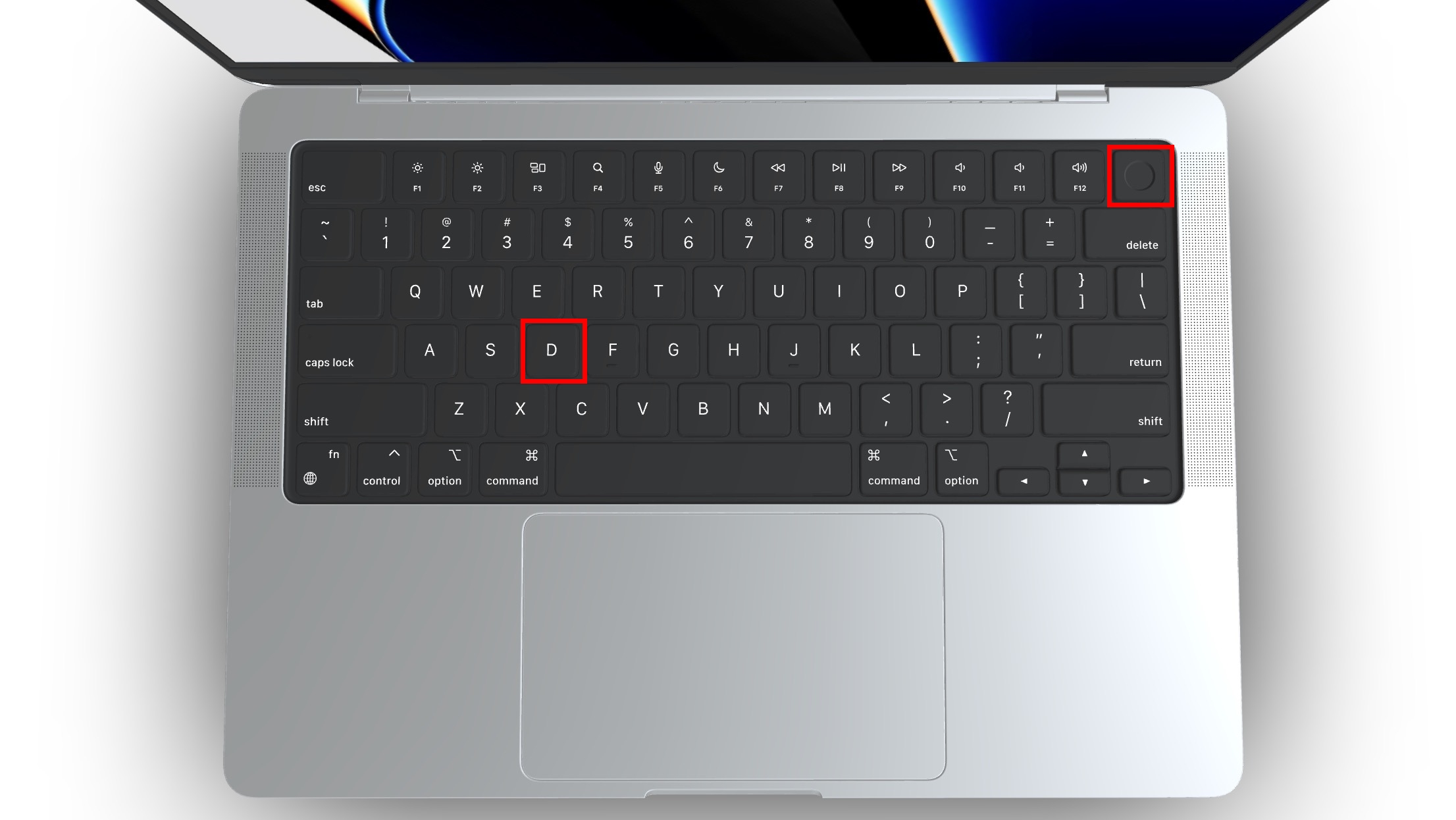
- Power on your Mac and continue holding the Power button until the startup options screen with the Options icon appears.

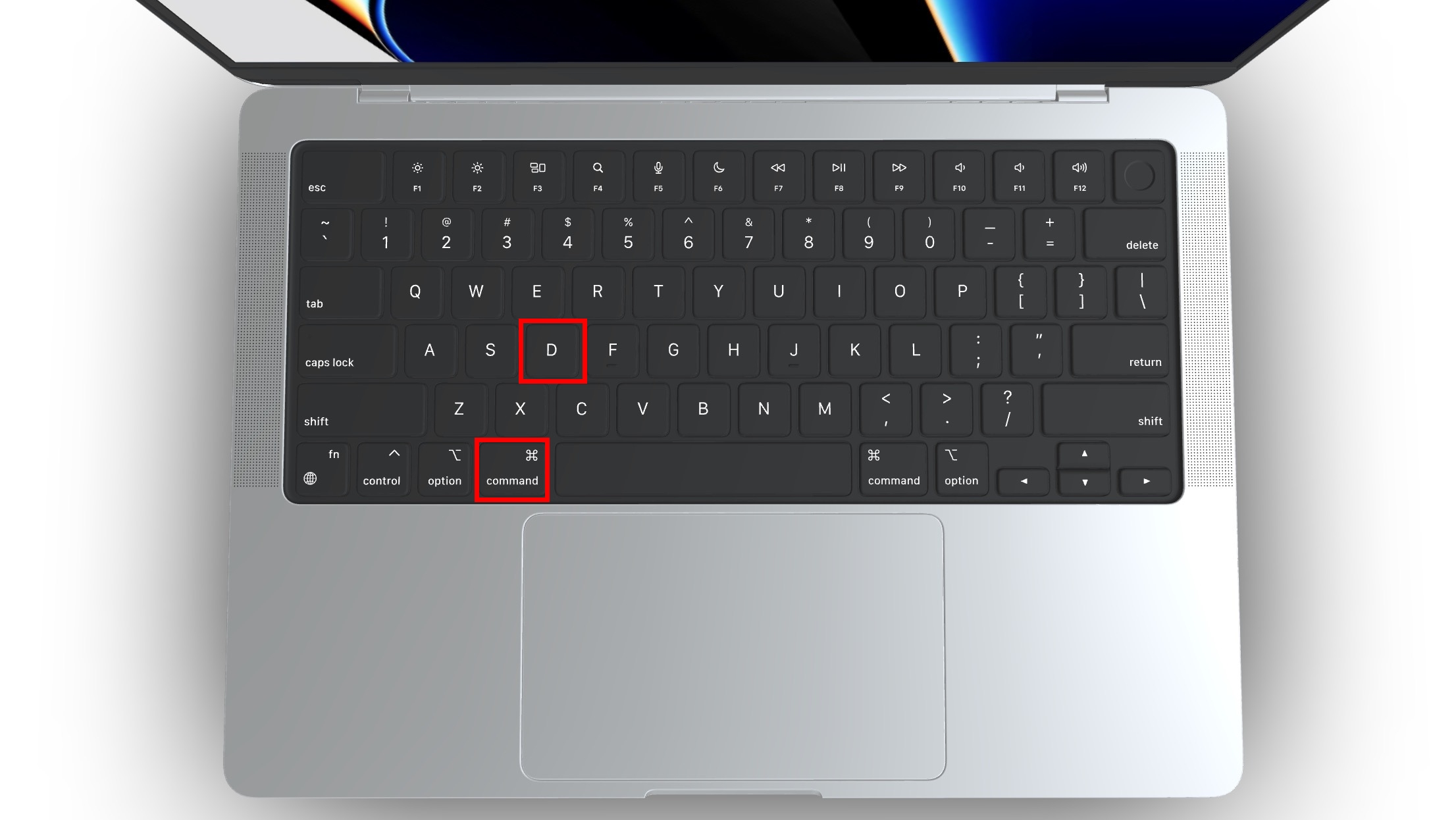
- Press the Command ⌘ + D keys.
On Intel-Based Mac
- Disconnect all external devices except the keyboard, mouse, Ethernet, display, and power cable.
- Shut down your Mac from the Apple menu.

- Press the Power button and immediately press and hold the D key on your keyboard until a list of languages appears.
- Select a language to start Apple Diagnostics.

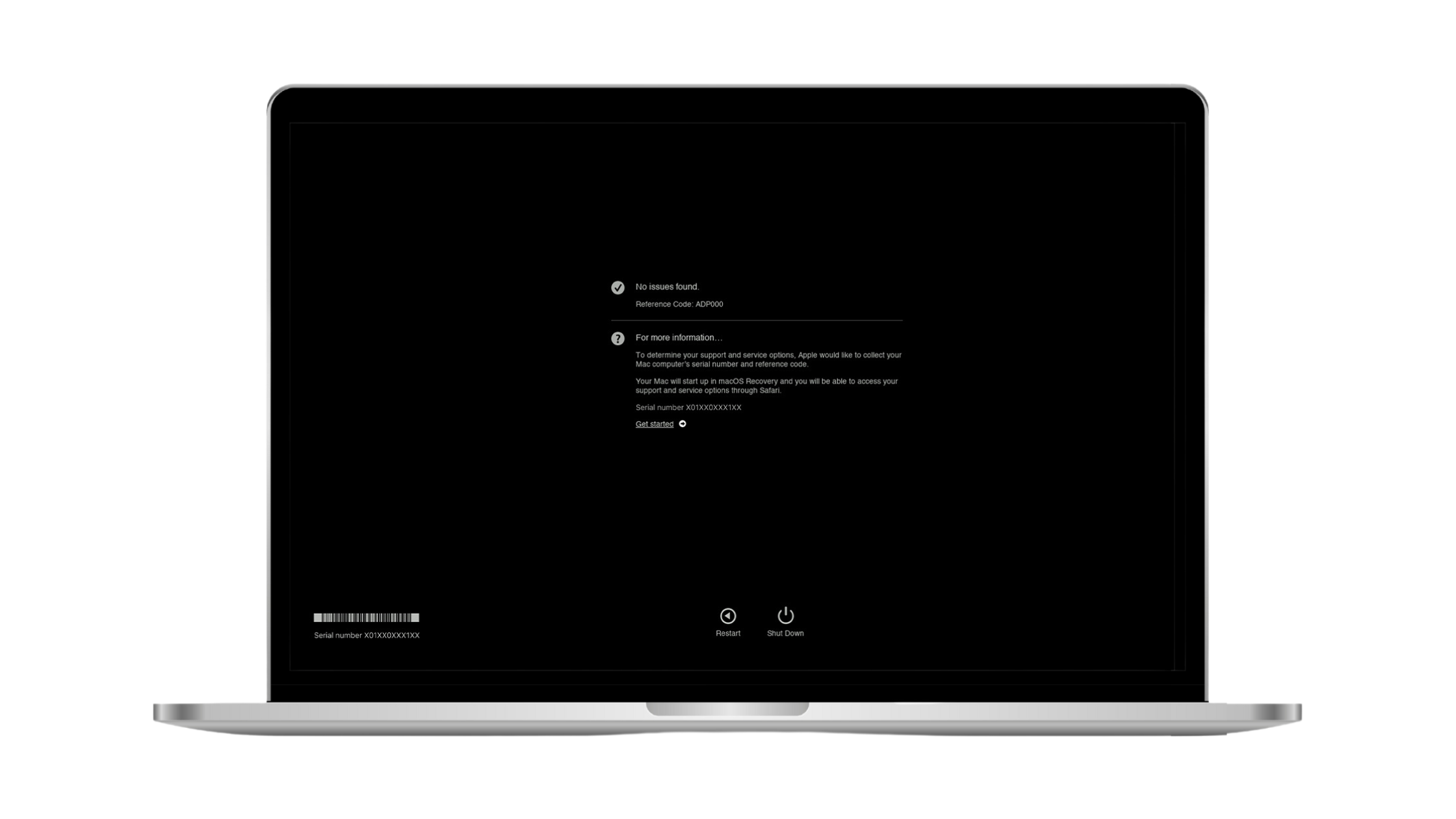
- The checking process usually takes 2-5 minutes. Once it’s completed, you’ll see a report listing detected issues.
- If you see an error message or reference code, note it and contact Apple Support or an authorized Apple service provider for further assistance.
Causes of the ‘Could Not load the macOS Boot Volume’ Error
The ‘Could Not Load the macOS Boot Volume’ error on a Mac can be caused by several factors:
- 🗂️ Partition Issues: If the partition containing the macOS is not correctly set as the bootable volume, this error can occur.
- 🛠️ Corrupted System Files: Damaged or corrupted system files can prevent the macOS from booting properly.
- 🦠 Malware or Viruses: Malicious software can interfere with the operating system and cause booting errors.
- 🚦 Outdated or Incompatible Drivers: Especially in Bootcamp setups, having outdated or incompatible drivers can lead to this error.
- 💽 Hardware Problems: Issues with the hard drive or other hardware components can prevent access to the macOS boot volume.
- 💻 Software Conflicts: Sometimes, conflicting software, especially those that modify system files or boot processes, can cause this error.
Fix the macOS Boot Volume Error on Mac
Encountering the ‘Could not load the macOS boot volume’ error can be frustrating, but with the right solutions and prevention strategies, you can get your Mac back up and running in no time.
You can also keep your system protected by following these tips:
- Clean junk files on Mac to prevent them from piling up and causing performance issues.
- Check your Mac for malware to make sure it’s not infected by viruses.
- Remove Bing redirect virus from Mac to keep it protected against malicious files.
Frequently Asked Questions
What if I can’t access my hard drive to repair it?
Can I prevent the ‘Could not load the macOS boot volume’ error from occurring?
Will I lose any data if I fix the ‘Could not load the macOS boot volume’ error?
Can I fix the ‘Could not load the macOS boot volume’ error myself?
Affiliate disclosure: MacBook Journal may earn a commission when you buy through links on this page, at no extra cost to you.
How helpful was this article?
Your feedback helps us improve our guides.